This document describes the document-related features of DS for Mobile.
1. Document Function Overview
This document provides guidance on the key features related to the documentation of the DS for Mobile6 app.
The app provides various features from viewing the document list to browsing, checking information, searching, and sorting.
This allows you to efficiently manage and view documents within the app.
2. Overall Flow
| step | Description |
|---|
| Document List | After logging into the app, on the main screenDocument Listis displayed. |
| Viewing / Information Confirmation | Select the desired document toviewingor,Check document informationYou can do it. |
| Delete / Register Important Document | Select multiple documents at the same timedeleteorRegister as an important documentYou can do it. |
| Search / Sort | topSearch bar and sorting featureYou can quickly find the desired document using __PH_0__. |
3. Feature Guide
3.1 Document List
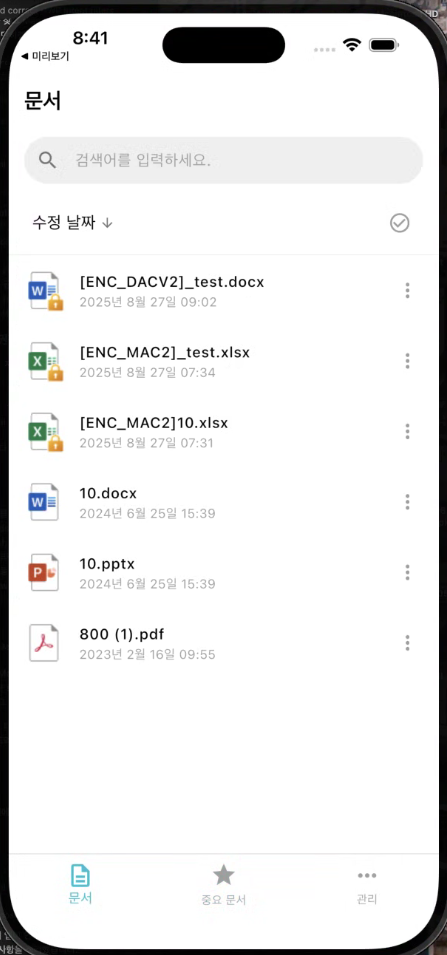
- After launching the app, the main screen displays a list of all available documents.
- Sorted by the latest modification, each document item hasDocument Title, Type, Modification Date, sizeInformation such as this will be displayed together.
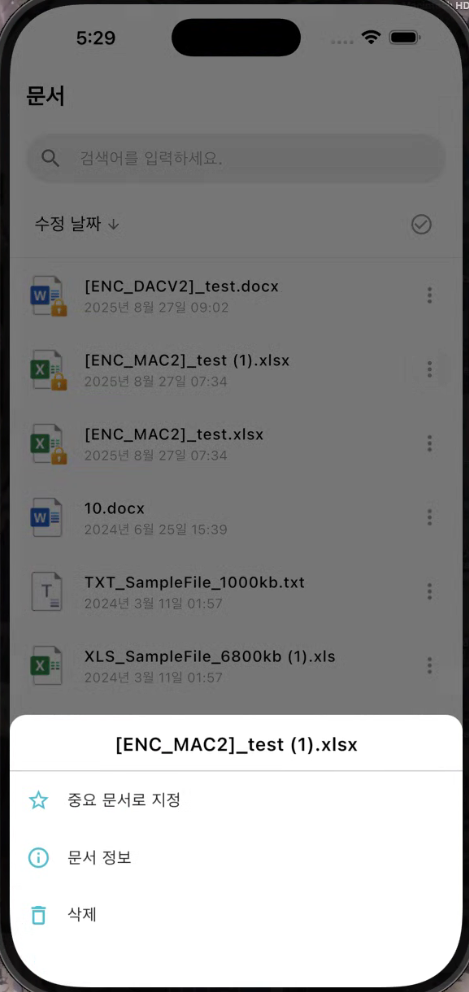
- Tap the document to view it, or in the upper right corner,**More button (⋯)**You can use additional features through __PH_0__.
| Document List | More button |
|---|
 |  |
3.2 Document Viewing
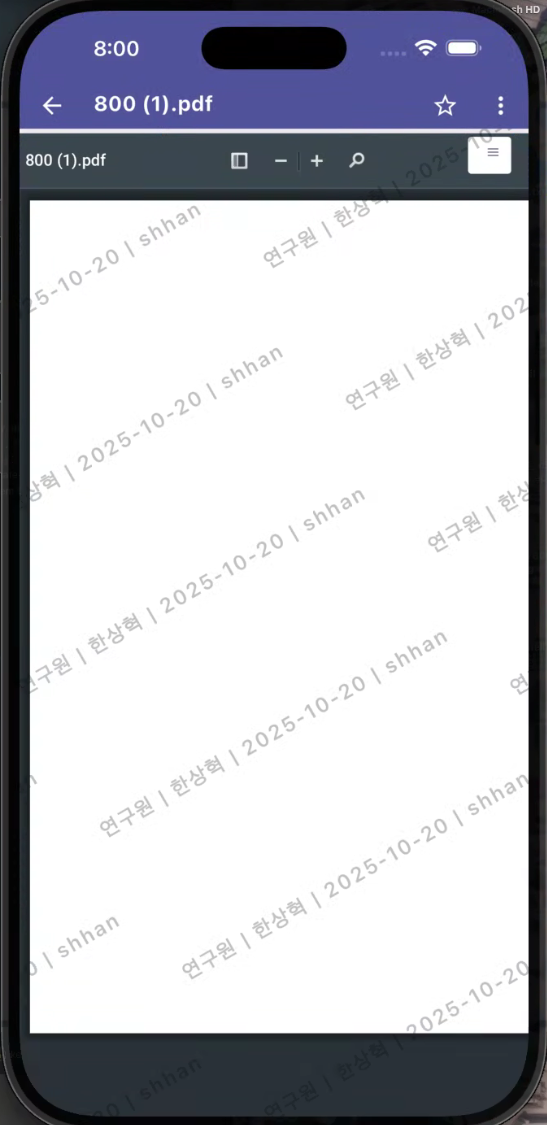
- When you select an item from the document list, the document will beWebView PageIt will be held at.
- Supports functions such as zooming in and out and page navigation within the viewer.
Trash Document Processing:
- If you open a document with the same file name as the one in the recycle bin, a notification window will be displayed.
- in the notification windowCreate New DocumentIf you select __PH_0__, the documents in the recycle bin will be permanently deleted and a new document will be created.
- CancelSelecting will cancel the document opening operation.
| Document Viewing - Screen Marking Application |
|---|
 |
3.3 Document Basic Functions
- Each document item’s**More button (⋯)**You can use the basic functions of the document by clicking __PH_0__.
Document Deletion
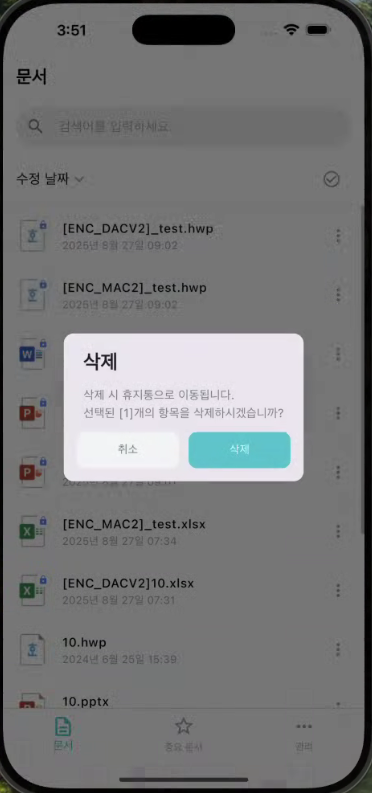
- You can delete the document through the More button (⋯).
- Deleted documents are moved to the trash, where they can be restored or permanently deleted.
| Document Deletion |
|---|
 |
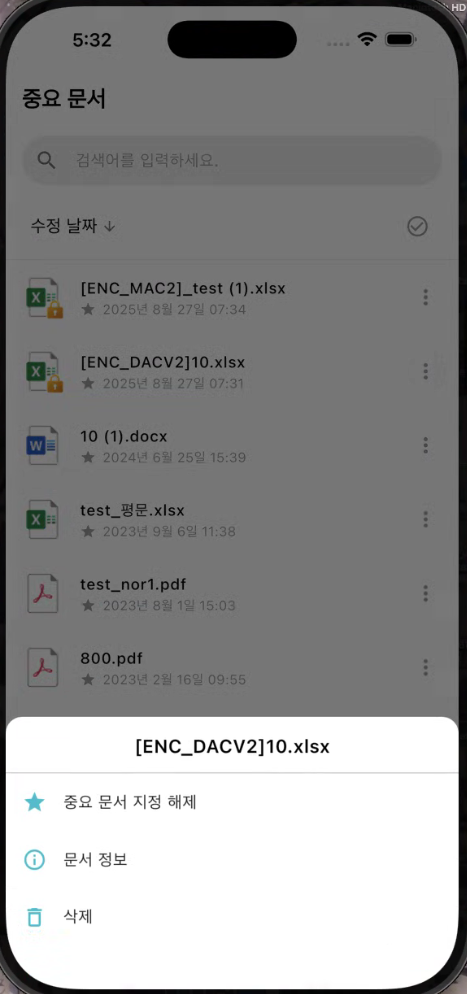
Important Document Designation
- You can designate a document as an important document through the More button (⋯).
- Documents designated as important can be found on a separate important document page.
| Important Document Designation |
|---|
 |
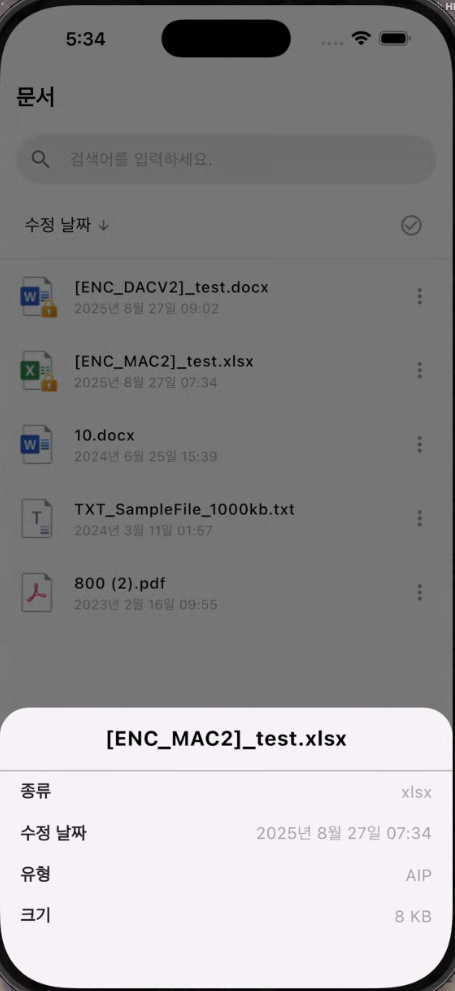
Document Details
- Displayed items:
- Document Title
- Document Type
- Modification Date
- Type (Security Document Status)
- Document Size
| More - Document Information | Document Information |
|---|
|  |
Document Sharing (Editing)
- DRM Documentonly forConvert to MIP documentso that it can be shared with external apps.
- This feature isPurpose of Document EditingIt is provided as __PH_0__, and the converted MIP document can be opened and edited in external apps such as MS Office.
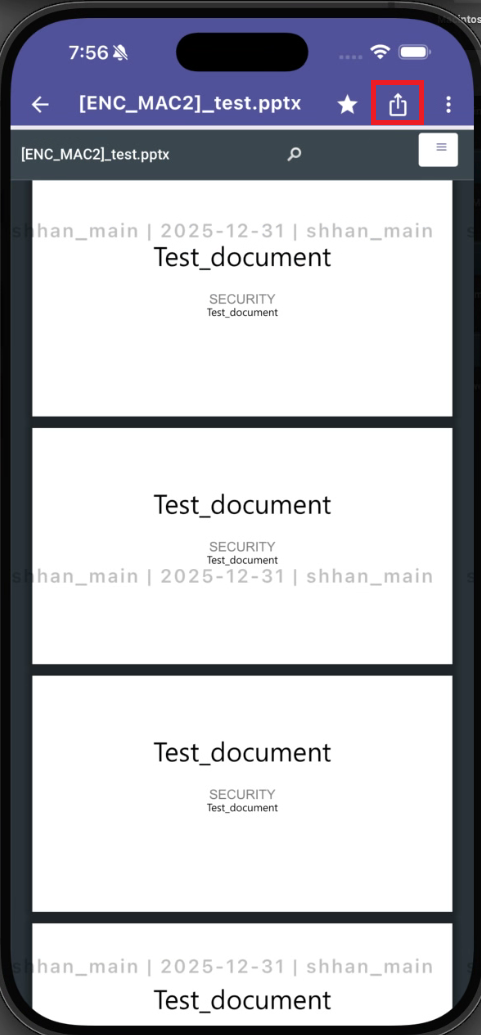
- Document viewing screen top barShare ButtonThis is displayed, and by clicking the share button, the DRM document can be shared with external apps after being converted to an MIP document.
Share button display conditions:
- You are viewing the DRM document.
- in conditional policiesSharing (Downloading) is allowedIt should be a completed document.
- Document extension isMIP Conversion Supported Targetswill be (docx, pptx, xlsx, pdf, etc.)
Sharing method:
- In the document viewing screen, the top bar'sShare ButtonClick.
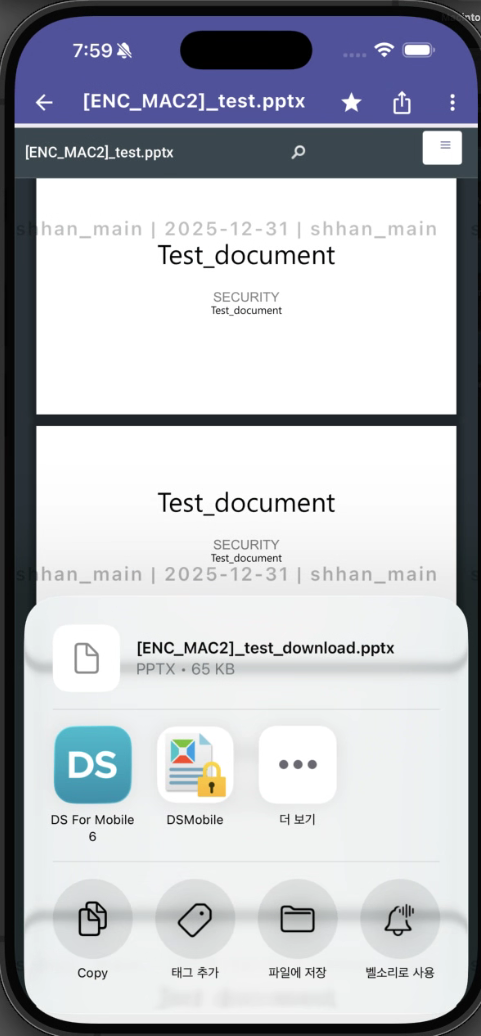
- The DRM document is converted to the specified MIP label and downloaded.
- A list of apps that can be connected is displayed through the OS's sharing feature.
- You can select an editable app such as MS Office to open and edit documents.
Reference:
- The shared MIP document isThe document list of the app is not saved..
- The document is temporarily saved internally and can be used after editing in external apps.
| Document Viewing - Share Button | Select Sharing App |
|---|
 |  |
3.4 Document Selection (Multiple Selection)
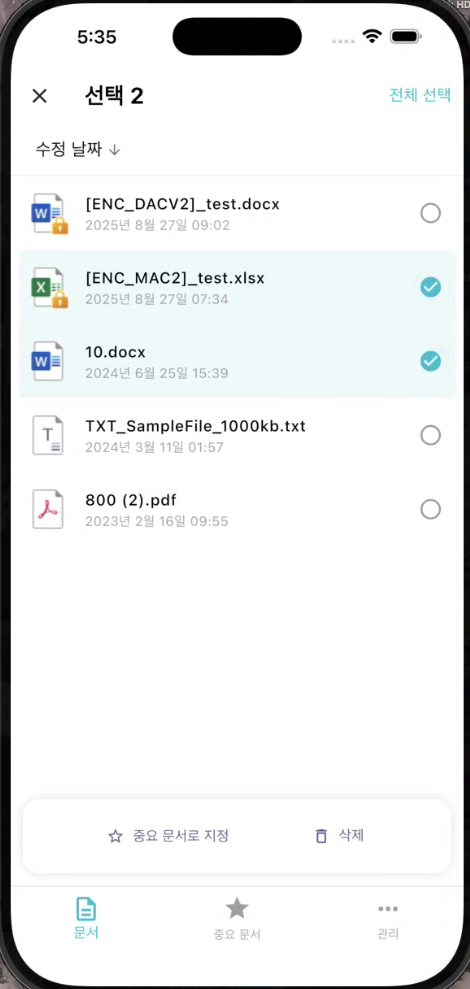
- top menu of theSelection ModeIf activated, you can select multiple documents at once.
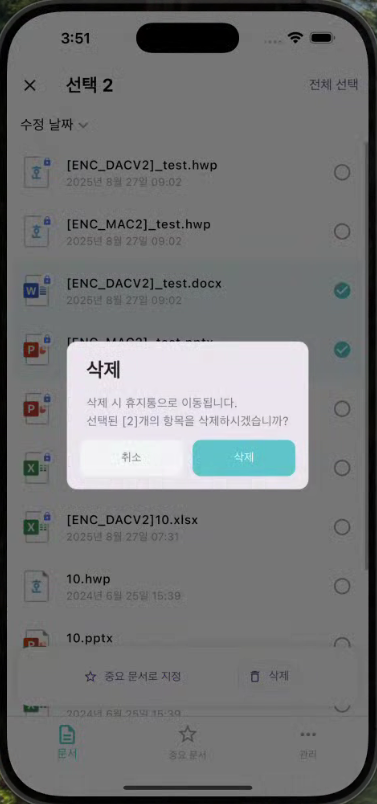
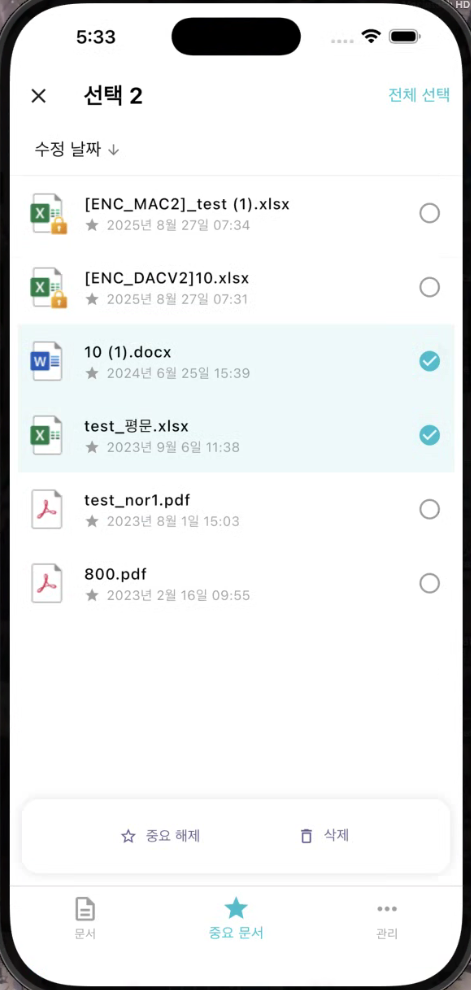
- Features available in the selected state:
- **Delete:**Move the selected document to the trash
- **Important Document Designation:**Move the selected document to the important documents list
- Even without multiple selections, each document'sMore buttonYou can perform the same function individually through __PH_0__.
| Document Multi-Select | Document Deletion | Important Document - Multiple Choice |
|---|
 |  |  |
3.5 Search
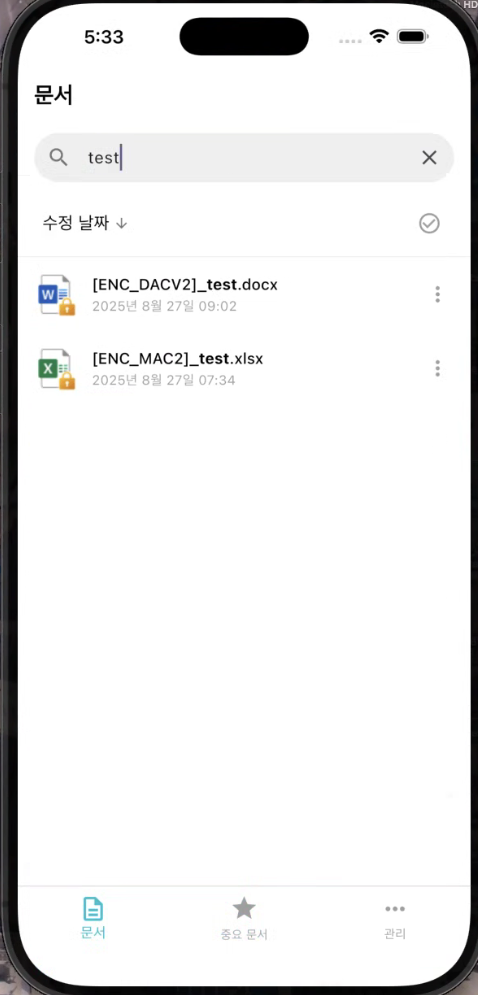
- If you enter the document name in the search bar at the top, it will immediatelyFiltering document list in real-timeIt is possible.
- Automatically displays matching results even if only some words are entered.
| Search Screen |
|---|
 |
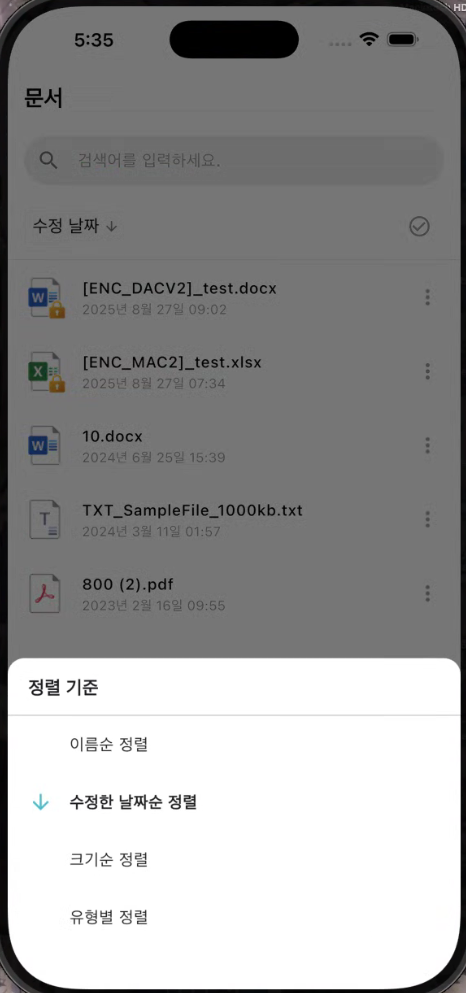
3.6 Document Alignment
- You can sort the document based on the following criteria.
- Modification Date and Time (Default)
- name
- size
- Type
- Clicking the sorting criteria once will change it to descending order, and clicking it again will change it to ascending order.
- The sorting status can be checked through the sorting icon at the top.
| Sorting Options |
|---|
 |
Reference
- The deleted document isTrash binYou can restore or permanently delete from the menu.
- Items registered as important documents are separateImportant Document PageYou can check it at.
- Document viewing may vary in loading speed depending on the network environment of the Viewer server.
- Document Sharing FeatureThis is provided only in the DRM document and can be used only if sharing is permitted under the conditional policy.
- The shared MIP document can be edited in external apps such as MS Office and is provided for editing purposes.