Registered Desktop
Desktop
on the SHIELDGate admin page
데스크톱Click on the menu to access the desktop menu. In the desktop menu,등록된 데스크톱check,조건부정책You can set it up.
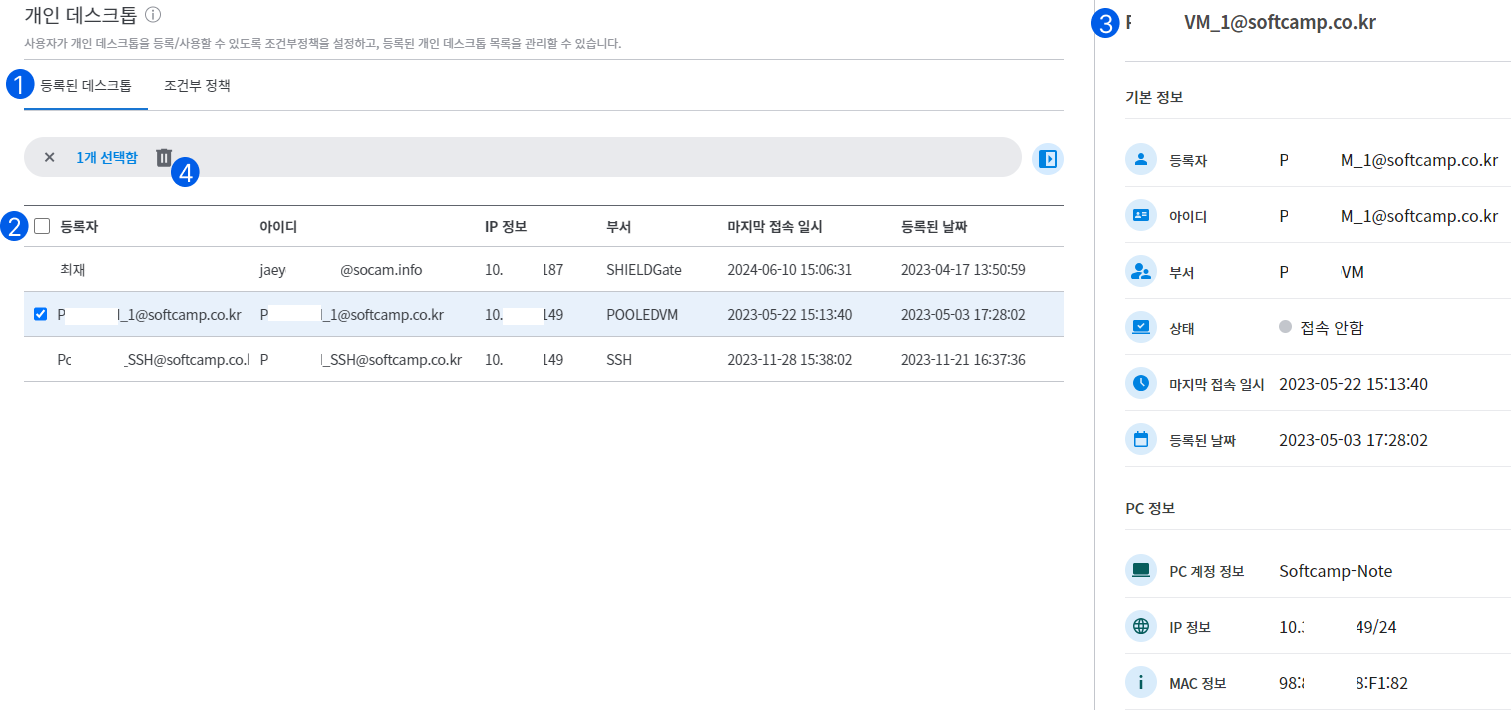
Registered Desktop
1. Registered Desktop
- You can check the information about the registered desktop.
2. List
- The registrant, ID, IP information, department, last access date and time, and registration date for the registered desktop are displayed in a list.
3. List Details
** Clicking on the list expands the detailed information slide, allowing you to check the detailed information and connection status of the registered desktop.**
- Basic Information
- Registrant: Name
- ID: Email Address
- Department: Department
- Status:
접속중,접속 안함It is displayed in two states.
If the user is connected,접속중is displayed as.
When the user is not connected,접속 안함is indicated by. - Last access date and time: The date and time of the last access on the desktop
- Registration date: The date the user registered the desktop.
- PC Information
- PC account information: PC name
- IP Information: IP of the registered desktop
- MAC Information: MAV Address of the Registered Desktop
4. Delete Desktop
- When clicking on an item in the list,
삭제Provides functionality.
When you click delete, the desktop information registered by the user will be deleted, and if the user wants to use it again, they must re-register the desktop.
(If the user is connected, the desktop connection will be disconnected.)