Setup Guide
The settings menu is where you configure file control policies that apply to the entire organization and the use-file-Works options. Changes to the settings will be applied to all users after saving. The settings menu consists of the tabs below.
- Basic Settings / Usage Settings / File Management / SHIELD Drive Works
- The SHIELD Drive Works tab is only displayed when using Works.
- Administrators without write permissions can only view and cannot change or save items.
1. Basic Settings
Controls for viewing, editing, uploading, and downloading files are set by the channel that the user accesses. (The existing "Policy" menu has been moved to this tab.)
- Each permission is set to allow or block with a switch.
- If file viewing is blocked, file editing will be automatically blocked.
1-1. SHIELD Drive Basic Settings
Set the file permissions that apply when the user directly accesses the SHIELD Drive.
| Permission | When accessing directly from a PC | When accessing directly from mobile |
|---|---|---|
| File Viewing | configurable | configurable |
| File Editing | Configurable (Automatically block when viewing is restricted) | Configurable (Automatically block when viewing is restricted) |
| File Upload | configurable | configurable |
| File Download | configurable | configurable |
1-2. Basic Settings for Teams Integration
Set the file permissions applied when using the SHIELD Drive App and Tab linked with Teams. (Visible only to companies where the master administrator has enabled MS integration)
| Permission | Teams Web | Local Teams App | Mobile Teams |
|---|---|---|---|
| File Viewing | configurable | configurable | configurable |
| File Editing | Configurable (Automatically block when viewing is restricted) | Configurable (Automatically block when viewing is restricted) | Configurable (Automatically block when viewing is restricted) |
| File Upload | configurable | configurable | configurable |
| File Download | configurable | configurable | Blocked according to Microsoft Teams policy |
Note - When using the security level feature: The setting to allow the upload of files without a specified level can only be configured when file uploads are enabled. (Refer to the "Enable" tab for control of files without a specified level)
2. Settings
Set the sharing-viewing-grade-Microsoft Teams integration related usage options. Some items will be displayed depending on the company's feature usage status.
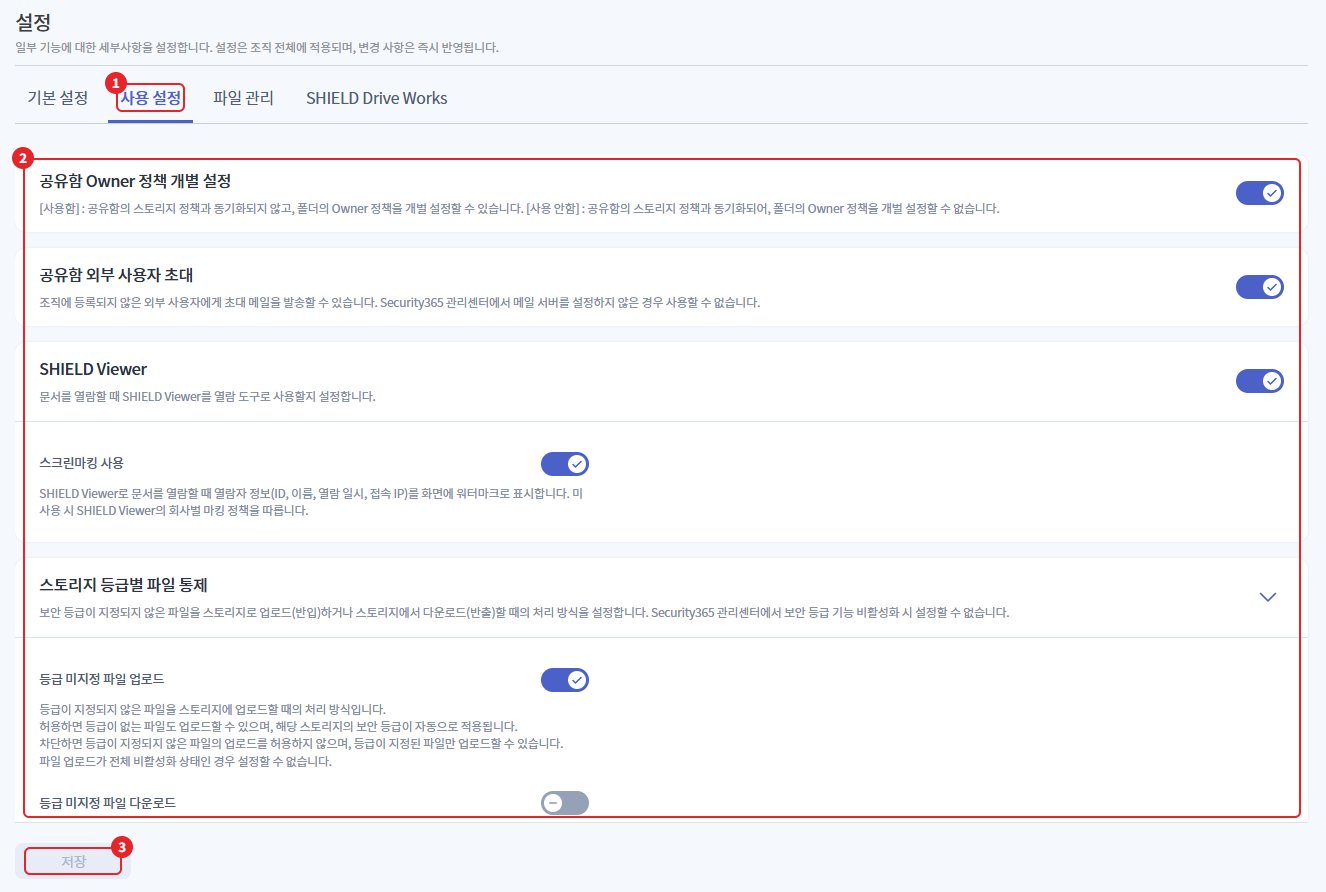
| number | item | Explanation |
|---|---|---|
| 1 | Settings Tab | Share · View · Grade · Teams Integration Usage Options Settings Tab |
| 2 | Settings Item | Item-specific usage switch. Some items are displayed depending on the company's feature usage. |
| 3 | Save | Apply changed items |
The display conditions by item are as follows.
| item | Display Conditions |
|---|---|
| Shared Folder Owner Policy Individual Settings | Always show |
| Inviting External Users to the Shared Folder | Always display (disabled when mail server is not configured) |
| SHIELD Viewer | Always display. Screen marking usage is only displayed when using SHIELD Viewer. |
| File Control by Storage Grade | When using the security level feature |
| Microsoft Teams Integration | When using MS integration |
| Microsoft Teams NAS Integration | Using MS integration + when the master administrator has set up Teams NAS |
- The changed items will be applied after clicking the save button at the bottom.
2-1. Shared Folder Owner Policy Individual Settings
Set whether to synchronize the storage policy of the shared drive and the Owner policy of the shared folder.
| Option | Action |
|---|---|
| use | Folder Owner policies can be set individually regardless of storage policies. |
| Not in use | The folder's Owner policy is always synchronized with the storage policy. |
2-2. Inviting External Users to the Shared Folder
Set whether to allow sending invitation emails to share with external users not registered in the organization.
| Option | Action |
|---|---|
| use | Allow external user invitations |
| Not in use | External User Invitation Restrictions |
Caution - Mail server configuration required: If the mail server (SMTP) is not configured in the Security365 management center, the switch will be disabled and unavailable for use.
2-3. SHIELD Viewer
Set whether to use SHIELD Viewer as the viewing tool when accessing the document. When set to use SHIELD Viewer, the option to use screen marking will be displayed below.

| number | item | Explanation |
|---|---|---|
| 1 | SHIELD Viewer | Use of SHIELD Viewer when viewing documents |
| 2 | Using Screen Marking | Mark the viewer information on the screen when viewing documents with SHIELD Viewer. Displayed only when using SHIELD Viewer. |
The viewer information displayed on the screen when using screen marking is as follows.
| Marking Items | content |
|---|---|
| ID | Viewer Account ID |
| name | Viewer Name |
| Viewing Date and Time | Time the document was opened. Same as the time recorded in the viewing log. |
| Access IP | Viewer's access IP |
- The default setting for screen marking is disabled.
- When you switch off the SHIELD Viewer, the screen marking usage items are hidden, and any unsaved screen marking changes revert to their original values.
2-4. File Control by Storage Grade
Set the handling method for importing and exporting files that are not assigned a security level (unspecified) to the grade storage. (Exposed when the security level feature is used)
| Settings | When set to allow | When blocking |
|---|---|---|
| Upload Unrated File | Files without a grade can also be uploaded. When uploaded, the same security grade as the storage is automatically assigned. | Only files with specified grades can be uploaded. |
| Download Unrated File | Download (Export) of Files Without a Grade Allowed | Blocking the download of files without a grade |
- Both settings have a default value of block.
- If upload-download is completely disabled, the corresponding unspecified settings will also be disabled.
- The import-export of documents with a designated grade is controlled by grade comparison (downward blocking) regardless of this setting.
Caution - Unsupported Extensions: Files in formats that cannot have a security level assigned will follow the above settings as unclassified files. If set to allowed, they will pass without classification.
2-5. Microsoft Teams Integration
When creating a team-channel in Microsoft Teams, you can set whether to automatically create SHIELD Drive folders and tabs. (Displayed when using MS integration)
(Image to be attached later)
| item | Explanation |
|---|---|
| Automatic Creation of Teams Tab | When a team/channel is created in Teams, a SHIELD Drive team/channel folder and tab are automatically created. |
- The default value is enabled.
- If set to disabled, folders and tabs will not be automatically created when creating teams/channels.
2-6. Microsoft Teams NAS Integration
Set the app name of SHIELD Drive that will be displayed on the Microsoft Teams tab and configure the NAS storage where files will be saved when downloaded from Teams. (This will only be exposed if the master administrator has set the company's Teams NAS to be used, refer to the master administrator guide.)
(Image to be attached later)
| item | Required 여부 | Explanation |
|---|---|---|
| Automatic Creation of Teams NAS Tab | - | When you create a channel in Teams, a tab for the NAS storage designated as the file storage will be automatically created. |
| Teams NAS tab name | Selection | The name displayed on the Microsoft Teams channel tab. If not entered, it will be displayed as 'SHIELD Drive' |
| File Storage | Essential | NAS storage to save files downloaded from Microsoft Teams |
How to set up:
- Select whether to enable automatic creation of the Teams NAS tab.
- Enter the name for the Teams NAS tab. If not entered, it will be displayed with the default name.
- Select NAS storage in the file save storage selection box.
- Click the save button to apply the settings.
Screen guidance message:
| item | Location | Guide text |
|---|---|---|
| Teams NAS tab name | Input field example | SHIELD Drive |
| Teams NAS tab name | Input field bottom | If not entered, it will be displayed as 'SHIELD Drive' in the Teams tab. |
| File Storage | Selection Box | Select a repository |
| File Storage | if not selected | Please select a NAS storage to use with Teams. |
- The file storage selection list only shows the storage currently in use among the NAS-secure NAS storage with the purpose of Teams folder. (For storage registration, refer to the storage management guide)
Caution - File Storage Not Selected: If you do not select a file storage, the save settings button will be disabled.
Note - Save failed: If the selected storage has been deleted, is in an unused state, or is a NAS that is not for Teams folder use, the reason for the save failure will be displayed. Please check the storage status and select again.
3. File Management
Set up automatic file deletion and blocked upload extensions.
3-1. Personal File Deletion Cycle
Set the automatic deletion cycle for files uploaded to personal storage.
| item | Explanation |
|---|---|
| Deletion Criteria Date | Select between creation date or modification date |
| Deletion Cycle | Input a number greater than or equal to 1 (in days) |
| Deletion Method | Choose to move to the trash or permanently delete. |
| Personal Vault to Set Up | Select the secure storage vault to apply automatic deletion |
How to specify a personal folder to set:
- Switching to using the personal file deletion cycle.
- Click on the personal space to set.
- Search for or select personal items to apply in the drawer. (Select/Deselect all possible)
- When you click the select button, the selected personal vault will be displayed in chip form in the body.
- Click the save button to apply the settings.
- An unspecified personal folder is not subject to automatic deletion even if a deletion cycle is set, and it will be displayed in the user folder list with a retention period of "No retention period limit."
- Storage with a general saving method is excluded from the selection list.
- The designated personal folder's 1depth folder can be individually excluded by the user using the automatic deletion exception toggle in the folder details.
Caution
- If you cancel without saving, changes will not be applied.
- Switching to disabled will also deactivate the personal space you set.
- Administrators without write permissions cannot make changes.
3-2. Registering Blocked Upload Extensions
Blocks file uploads of specific extensions. The blocked extensions apply equally to all users.
- Enter the extension to block. (Only lowercase letters and numbers are allowed)
- Click the add button.
- Click the save button to apply the settings.
Caution - Please ensure that essential file extensions are not blocked.
4. SHIELD Drive Works
Uploads and manages the SHIELD Drive Works agent-patch installation files. (Displayed when using Works)
4-1. Uploading the Agent Installation File
Uploading the SHIELD Drive Works agent installation file (.exe). The revision will automatically increase upon upload.
4-2. Patch File Upload
Uploading the SHIELD Drive Works patch file (.exe).