External User Policy Guide
This document provides guidance on how administrators can determine the permissions and maximum sharing duration for external users (such as partners) invited to the shared folder. For actions on the user screen, please refer to the user guide's "Setting Permissions for External Users in Shared Folder."
1. Overview
| item | Content |
|---|---|
| Target Application | Storage for shared use |
| Setting Unit | Storage unit. Set usage status by storage. |
| What the administrator decides | The upper limit of permissions that can be granted to external users, maximum validity period for external sharing |
| What the shared folder owner decides | Specify external user permissions and usage duration within the upper limit |
| default value | Not in use |
- Not in use: Existing method. Inviting external users as members with general access rights, with no upper limit on permissions and no time restrictions for external users.
- Usage: Register access permissions for the shared folder divided into internal user permissions and external user permissions. External user permissions are subject to limits set by the administrator and a maximum validity period.
External user permission management cannot be changed after the shared folder is created. Please decide on its usage first when registering the storage.
Configuration Order
- In the storage registration screen, select "Share" for the purpose and turn on "External User Permission Management." (Chapter 2)
- Open the "External User Policy" in the Policies tab of the Storage Details to set permissions and maximum validity period. (Chapter 4)
- The owner of the shared folder registers external user permissions on the user screen. (User Guide)
To invite external users via email, "Invite External Users to Shared Mailbox" in Admin Page > Settings > Enable must be enabled, and the mail server must be configured in the Security365 Admin Center.
2. Enable External User Permission Management
- Admin Page > In Storage, click on [Register Storage].
- Select a type and set the purpose to "Shared".
- Turn on the "External User Permission Management" switch.
- Enter the remaining items and click [Register].
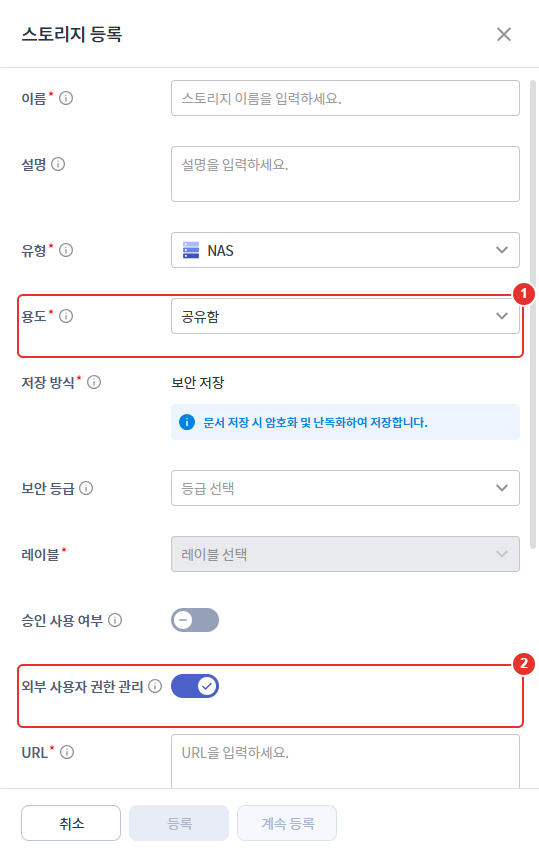
| number | item | Explanation |
|---|---|---|
| 1 | Usage | Display external user permission management items only when "Share" is selected. |
| 2 | External User Permission Management | When turned on, apply external user policy to the shared folder of this shared drive. Default is not used. |
- If registered in the on state, the external user policy will be set to default. Default: Permissions allow only viewing, maximum validity period 30 days.
- After registration, adjust the permissions and maximum validity period in the policy tab.
2-1. Change After Registration
| status | Changeability |
|---|---|
| Shared mailbox without a shared folder | You can change the switch on the storage modification screen. |
| Shared mailbox with one or more shared folders | Switch disabled. Cannot change. |
If the change is denied, a message will be displayed stating "The shared folder already exists, and you cannot change the external user permission settings."
3. Check Configuration Status
Clicking on the shared storage in the storage list will open the detail screen. Check the usage status in the information tab.
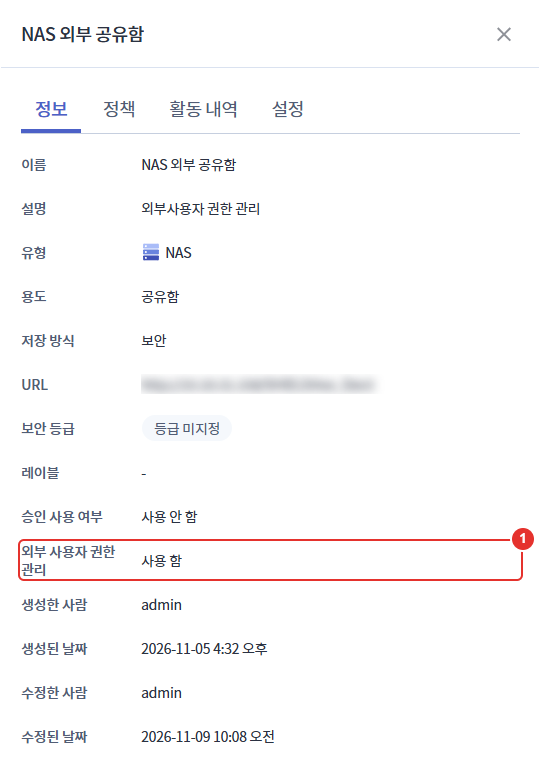
| number | item | Explanation |
|---|---|---|
| 1 | External User Permission Management | Use or not use. Displayed only for storage with a purpose of sharing. |
The storage list does not indicate usage.
4. External User Policy Settings
The shared mailbox using external user permission management will have "External User Policy" pinned at the top of the Policies tab.
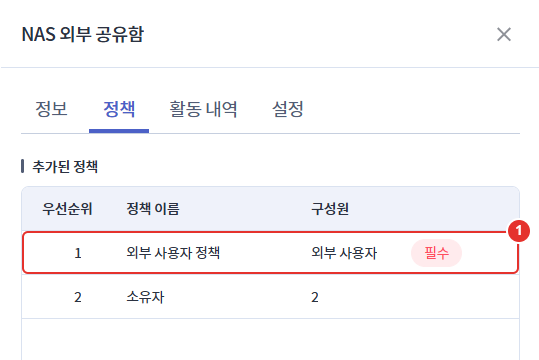
| number | item | Explanation |
|---|---|---|
| 1 | External User Policy | Essential policy fixed at priority 1. Members fixed as "external users." Deletion and order change not allowed. Clicking opens the policy modification window. |
4-1. Permissions
In the policy modification window, select [Permissions] and enable the permissions to be granted to external users. Only the permissions allowed here can be given by the shared folder owner to external users.
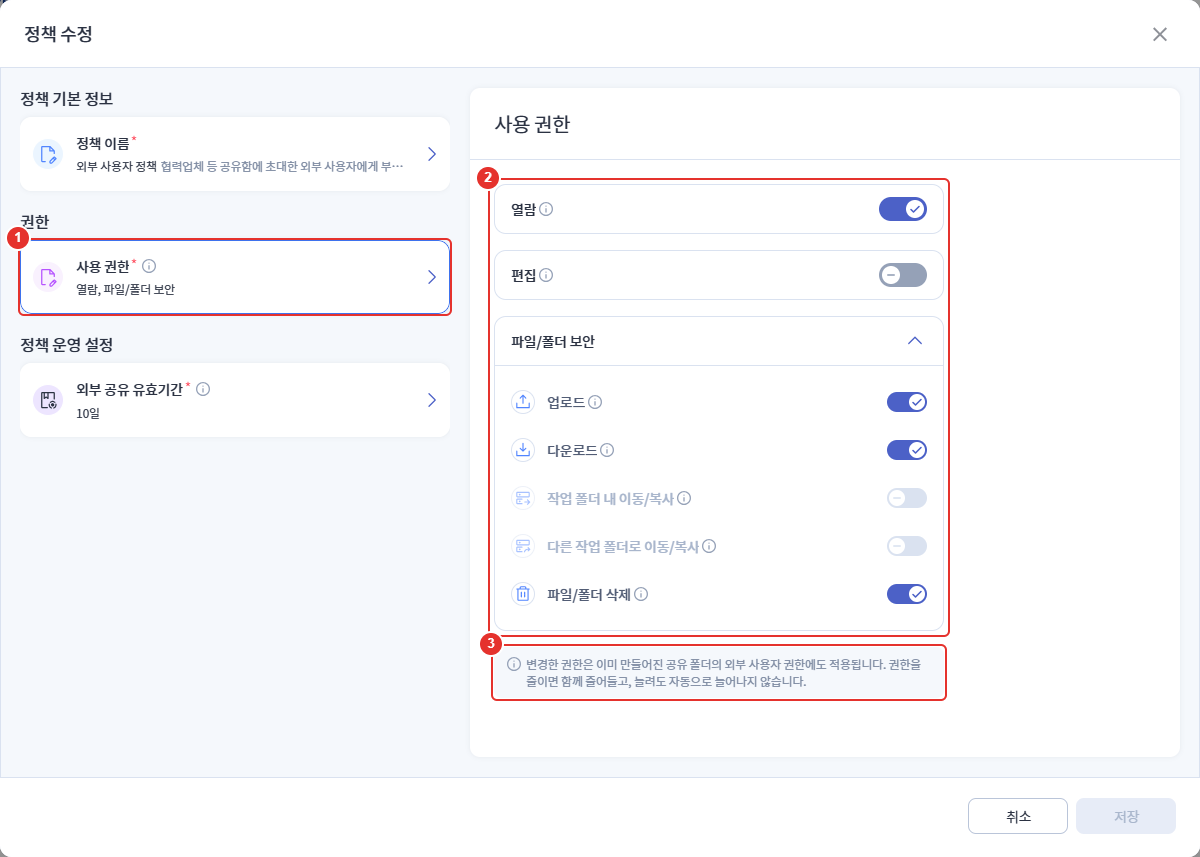
| number | item | Explanation |
|---|---|---|
| 1 | Permission | Setting Limits on Permissions That Can Be Granted to External Users |
| 2 | Permission Items | View, Edit, Upload, Download, Move/Copy within Work Folder, Move/Copy to Another Work Folder, Delete File/Folder |
| 3 | Change Notice | Notice on the Impact of Permission Changes on Existing Shared Folders |
- The policy name and description are fixed and cannot be modified.
- There are no members and condition items. This policy applies to all external users invited to the shared folder.
- When you turn on editing, you can choose the editing method to open in the web or in the app.
- Moving/copying within the working folder and moving/copying to another working folder can only be set if editing is allowed.
4-2. External Sharing Validity Period
Select [External Sharing Expiration] and enter the maximum expiration period. The owner of the shared folder can specify the duration of external user permissions only within this period.
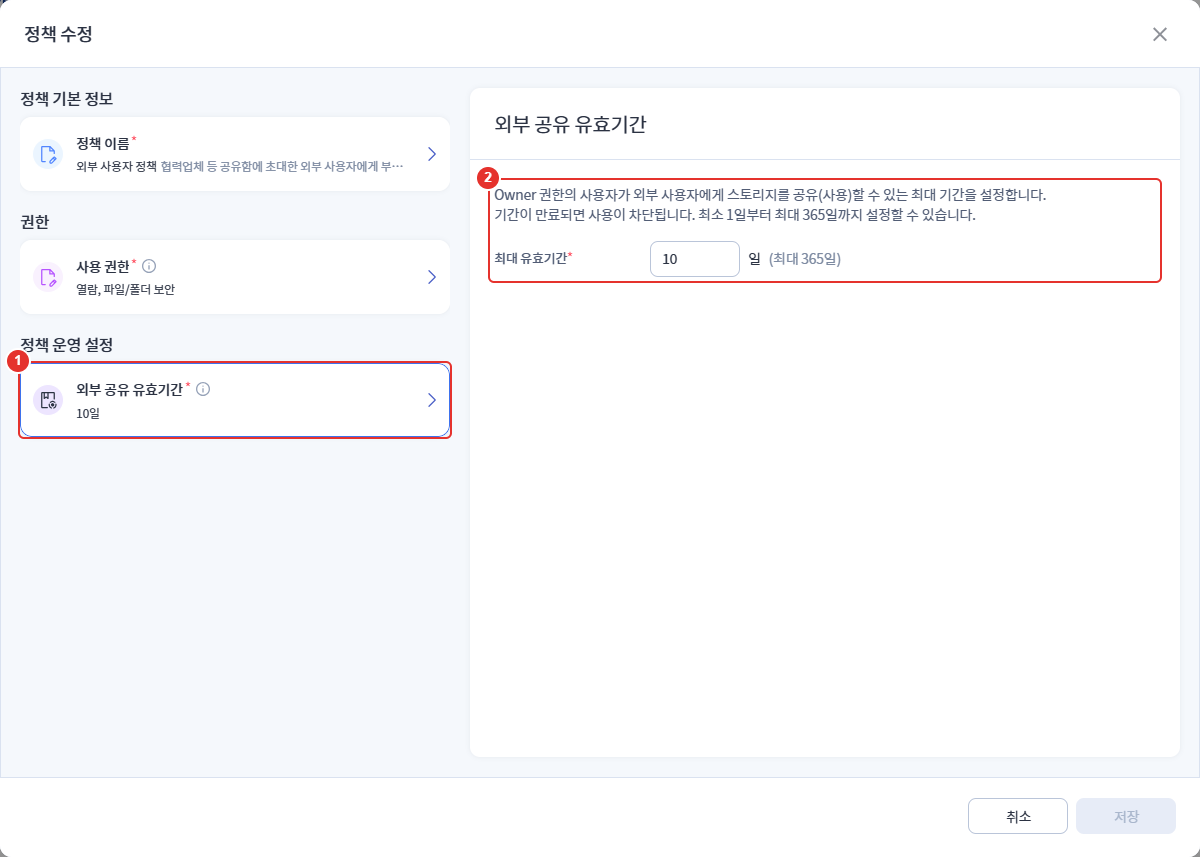
| number | item | Explanation |
|---|---|---|
| 1 | External Sharing Expiration Period | Display of the currently set maximum validity period |
| 2 | Maximum Validity Period | Required input. From 1 to 365. Default value 30 days. |
- When the usage period specified by the owner expires, access for external users will be blocked.
- An indefinite period cannot be set.
4-3. Save
Clicking [Save] will display a notification saying "Changes have been saved." If there are no changes, [Save] will be disabled.
5. Impact on Existing Shared Folders When Policy Changes
| Change log | External User Permissions for Existing Shared Folders |
|---|---|
| Reduce Permissions | Reduced permissions are blocked together. |
| Increase Permissions | Does not increase automatically. The owner must turn it on directly in the access permissions. |
| Reduce maximum validity period | The already specified expiration date is maintained. The new period will apply from the next time the usage period is specified or extended. |
| Extend Maximum Validity Period | Maintain the already specified expiration date. If the owner reassigns the usage period, it is possible to select up to the extended period. |
6. Impact on User Interface
| item | Action |
|---|---|
| Create Shared Folder | Three default access permissions are automatically created for owners, internal users, and external users. Default access permissions cannot be deleted. |
| Access Permission Registration | Select and register the permission type (internal user, external user). Type change is not possible after registration. |
| Inviting External Users | Access permission is only possible for external user permission types. |
| Permission | Disable permissions not allowed by external user policy with a lock icon. |
| Usage Period | External user permissions require a usage period. Select within the maximum validity period starting today. |
| expiration | Block external user access after the expiration date. If the owner reassigns the usage period, it can be used again. |
| External User Restrictions | External users cannot create shared folders in this shared mailbox and cannot view the member list. |
7. Notes
- You cannot create shared folders in a shared mailbox where the external user policy is not set. If the message "This shared mailbox cannot create folders because the external user policy is not set. Please contact your administrator." appears on the user's screen, please save the external user policy in the policy tab.
- There is no limit to the number of extensions for the usage period. The owner extends it by selecting a new expiration date.
- No notifications or emails will be provided before expiration.