Edge Server Registration
Table of Contents
1. Register Edge Server 2. Modify and Delete Edge Server
1. Edge server registration
Register the information of the Edge server configured on-premise.
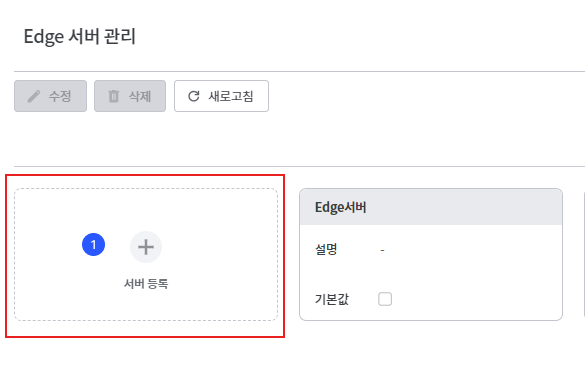
- Click the server registration button. The registered server name will be displayed in the Edge server list.
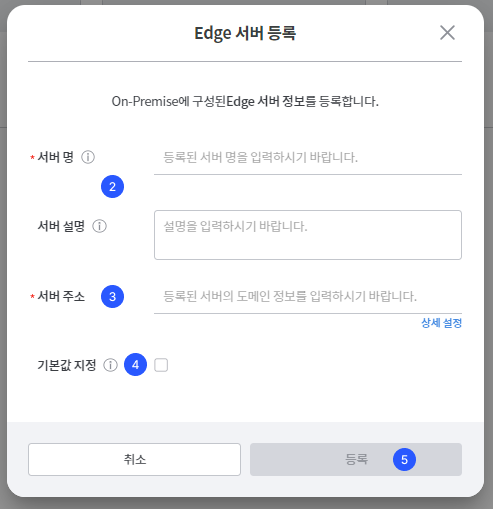
- Enter the server name and server description.
- Set the domain address of the Edge server. You can change the detailed address through [URL Detailed Settings].
- Select whether to set as default. If set as default, it will be displayed first in the Edge server list.
- Click the register button.
URL Detailed Settings
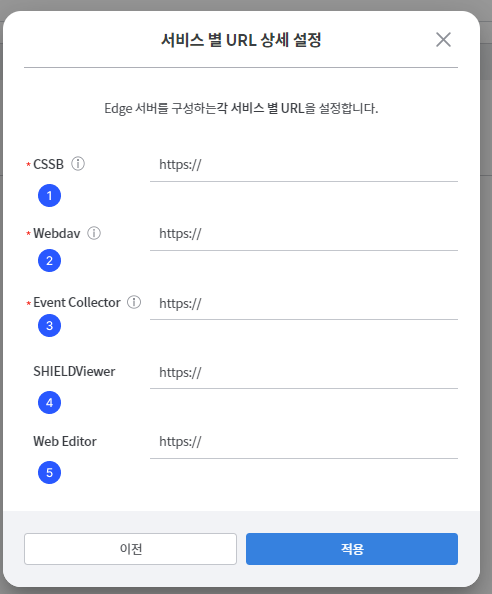
- **CSSB(Cloud Storage Security Broker)**Enter the URL that acts as CSSB.
- **Webdav(Web Distributed Authoring and Versioning)**Enter the URL that acts as WebDAV.
- Event CollectorEnter the URL that serves the role of the Event Collector.
- SHIELDViewerThis is a Viewer that allows you to convert and view in PDF format.
- Web EditorThis is a tool that helps you edit on the web with Hancom Office.
2. Modify and Delete Edge Server
Modify and delete the registered Edge server.
Edge server modification
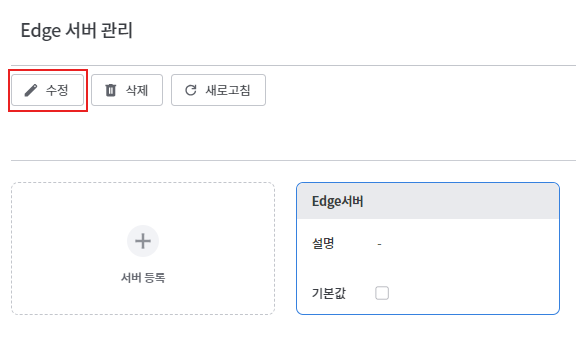
- Click the edit icon in the Edge server list.
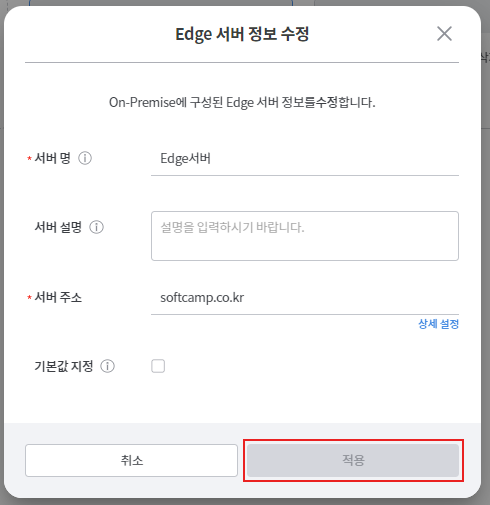
- Modify the previously entered information or change the default values.
Delete Edge Server
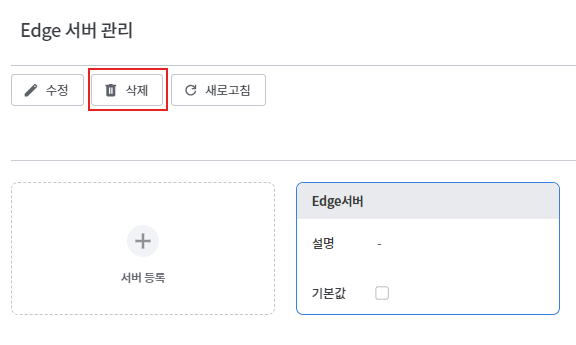
- Click the delete icon in the Edge server list.
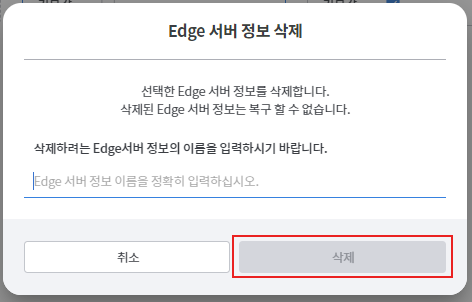
- Enter the exact server name of the Edge server you want to delete and click the [Delete] button to complete the deletion.