Login
Logging in is the first step to create and open secure documents. It guides you from basic login to logout, offline environments, and troubleshooting.
1. Log In
This is the basic login procedure when using Document Security for the first time or when in a non-logged-in state.
| Login Screen |
|---|
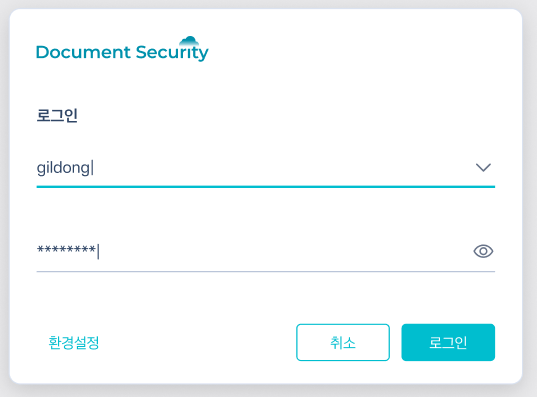 |
- Left-click the tray icon (on the right side of the taskbar) or check the automatically displayed login window.
- Enter your ID.
- Enter your password.
- LoginPress the button.
If authentication is successful, the login window will close and the tray icon will change to "Logged In" status. From this point, you can create and open secure documents.
If the login fails, please check if the information you entered is correct.
2. Using Multiple Accounts
In an environment where the same PC is used with multiple accounts, you can quickly select previously used accounts from the dropdown in the ID input field.
| ID Dropdown |
|---|
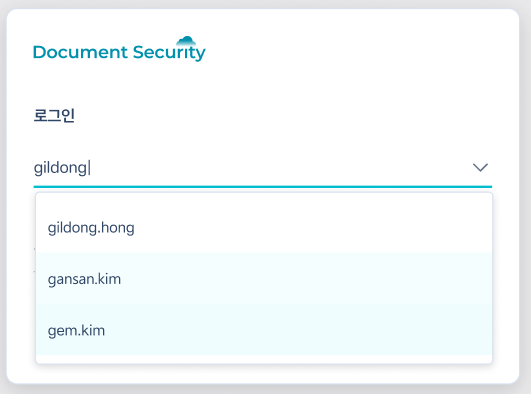 |
- Click the arrow (▼) next to the ID input field in the login window.
- Select the account to use in the dropdown.
- Enter your password andLoginPress the button.
New accounts that are not displayed in the list can be logged in by typing directly in the ID input field.
3. Changing Server Settings on the Login Screen
When the work environment changes or there is guidance from the system administrator, you can immediately change the server information on the login screen.
| Settings Button | Server Information Change |
|---|---|
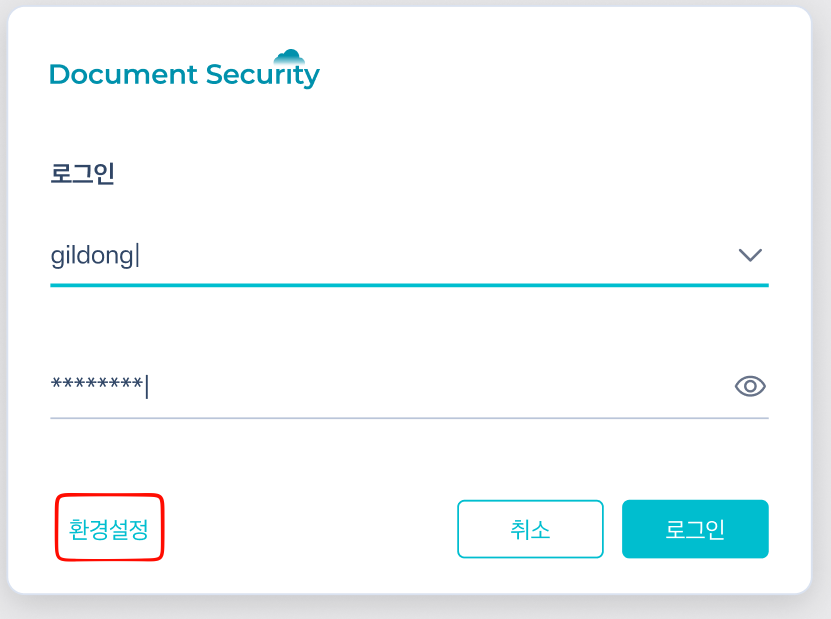 | 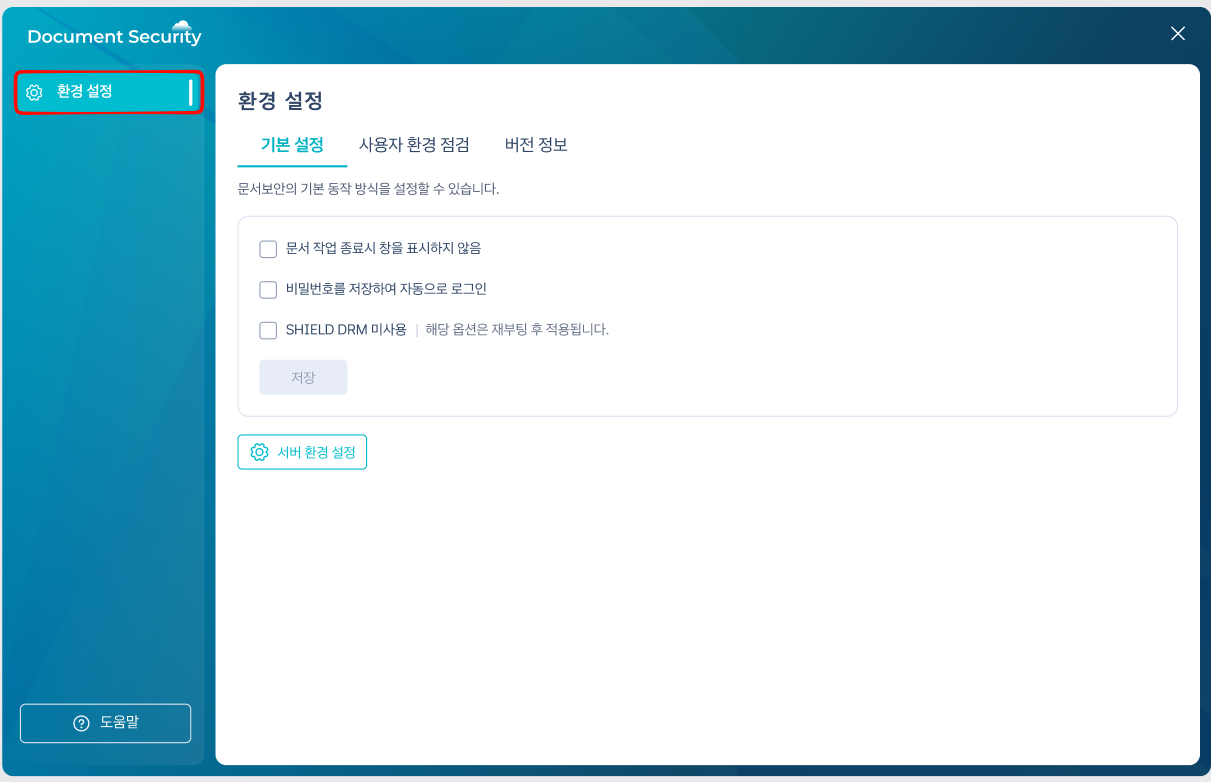 |
In a state where login is not completed, the left Sidebar has환경 설정It is normal for other menus to not be visible. |
- in the login windowEnvironment SettingsOpen the menu.
- Enter the required information.
- Server Address
- Response Time
- After saving the changes, proceed to log in again.
Server information varies depending on the company environment. If you do not know the exact address, please contact the system administrator.
4. Logging Out
Logs out of the currently logged-in account. Use when switching to another account or finishing use on a public PC.
- Right-click on the tray icon.
- Quick MenuLogoutSelect.
- When the logout is complete, the tray icon changes to "Not Logged In" status.
5. Login Issues
This document provides guidance on common messages and responses when login does not work properly.
| Message | Cause | Countermeasures |
|---|---|---|
| User authentication has failed. Please enter the correct user information. | Incorrect password | Re-enter with correct information |
| The number of login failures has been exceeded. | Exceeded the allowed number of attempts set on the server (default value: 5 times) | Unlock Request to System Administrator |
| Your account has been disabled. Please contact the administrator. | Lock due to consecutive incorrect password entries | Unlock Request to System Administrator |
If you have lost your password, you cannot reset it directly on the login screen. Please request a reset from the system administrator.