Getting Started
1. Document Security Overview
Document Security is a security solution that automatically encrypts important company documents to prevent external leakage. While working on a PC, secure documents are protected without any additional actions, and when needed,Right-click menuITray IconYou can manage it directly.
The scope covered by this manual is as follows:
- How to create, open, release, and dispose of security documents on a PC
- Login / Logout / Settings / Notification Message Guide
- Guidelines for DS 6.0 UI Standard Screen
2. Understanding the Tray Icon
You can check the current status of Document Security at a glance in the Windows tray area (right side of the taskbar). The icon shape automatically changes according to the login status.
| status | Icon shape | meaning | User Action |
|---|---|---|---|
| Login |  | Logged in normally. Can create and open security documents. | Not applicable |
| Not logged in |  | DS is running but not logged in. | Left-click the tray icon and log in |
| offline |  | Operating in a state not connected to the server | Network Connection Check |
The icon actions are as follows.It works on the first click.
- Left Click— Open Home Screen
- Right-click— Open Quick Menu (Login/Logout, Settings, etc.)
If the icon is not visible in the tray, check inside the "Show hidden icons (∧)" of the Windows tray. If it still does not appear, please contact your system administrator.
3. Exploring the Right-Click Menu
When you right-click a file or folder in the explorer, the security task menu of Document Security is displayed. The menu items automatically change depending on the selected target (regular file / secure document / folder / compressed file).
| Display text | Target | result |
|---|---|---|
| General Document Encryption | General File | Converting the selected file to a secure document. |
| Simple Encryption | General File | Applies simple encryption without authorization. |
| Decryption of Security Document | Security Document | Revert the security document to a regular file. |
| Security Document Disposal | Security Document | Delete the security document in an unrecoverable state. |
| Change Access Target | Security Document | Change the people and levels who can access the document. |
| Create Secure File for External Transfer | Security Document | Create a secure file for external delivery. |
| File Encryption in Folder | folder | Creates security documents for all files in the folder at once. |
| Simple Encryption of Files in a Folder | folder | Simple encryption of files in the folder. |
| Decryption of files in the folder | folder | Revert the secure documents in the folder to regular files. |
| File Access Target/Permission Settings in Folder | folder | Change the access targets of the security documents in the folder in bulk. |
If the items are not visible in the right-click menu, check if the tray icon is in the "Login" state. In the non-login state, only some menus will be displayed.
4. Exploring the Home Screen
Clicking the tray icon with the left mouse button opens the home screen. The home screen is the starting point for quickly accessing frequently used features such as user information, settings, and updates.
| Home Screen |
|---|
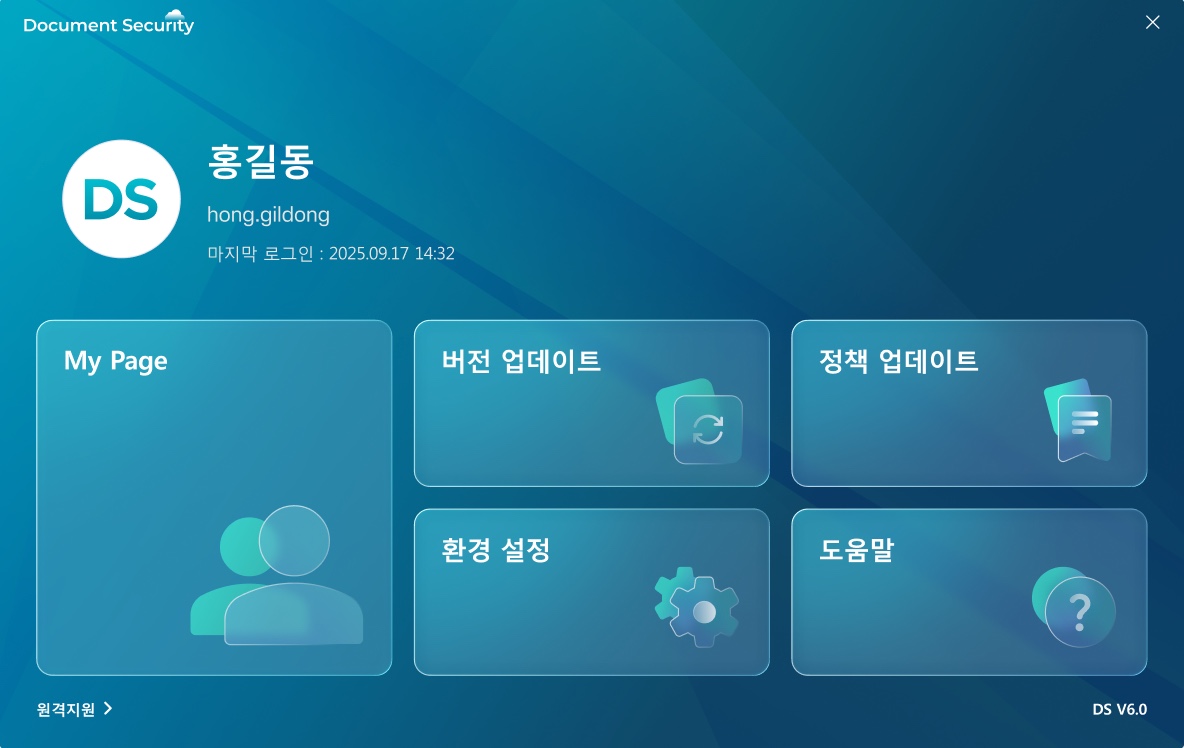 |
The main entry menus on the home screen are as follows.
| Entry Menu | Content |
|---|---|
| My Page | Check my user information and permission information |
| Environment Settings | Server Information, Change Password, User Environment Check, Check and Modify Version Information |
| Version Update | Check the currently installed version and apply the latest updates |
| Policy Update | Check and apply changes to the security policy |
| Help | Go to the official docs site |