Integrated Login
security365 unified login
- The unified login UI appears upon first login.
- If you are not a unified login user, closing the unified login UI during the first login will display the Document Security login UI.
The SHIELD ID login screen can be applied as below with the DS365.Core.json settings.
DS_MIP_INITItem Settings
Specify "mode" as "webView" or "msedgeApp".
The options to be used in the login types "webView" and "msedgeApp" are set by the items of the corresponding key values.
The "title" designation specifies the string displayed on the unified login UI. It is generally displayed as Security365, but if you change the unified login CI and title through customization, you must also apply this file accordingly.
//DS365.Core.json 설정 예제
{
  "login": {
    "port": "28080",
    "waitMinTime": "0",
    "mode": "msedgeApp",
    "title": "Security365,SOFTCAMP,Shieldrm,Login",
    "webView": {
      "idPwEveryTime": "none",
      "topMost": "none"
    },
    "msedgeApp": {
      "fullScreen": "none",
      "idPwEveryTime": "none",
      "topMost": "none"
    }
  }
}
| User Screen | Content | Note |
|---|---|---|
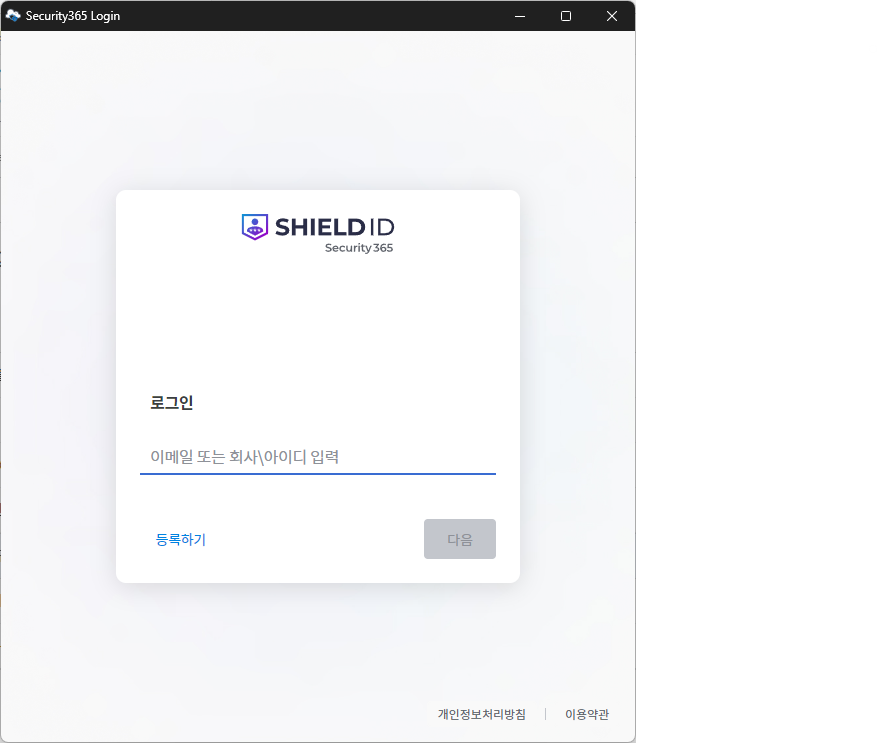 | Window Mode | login.mode : "msedgeApp" |
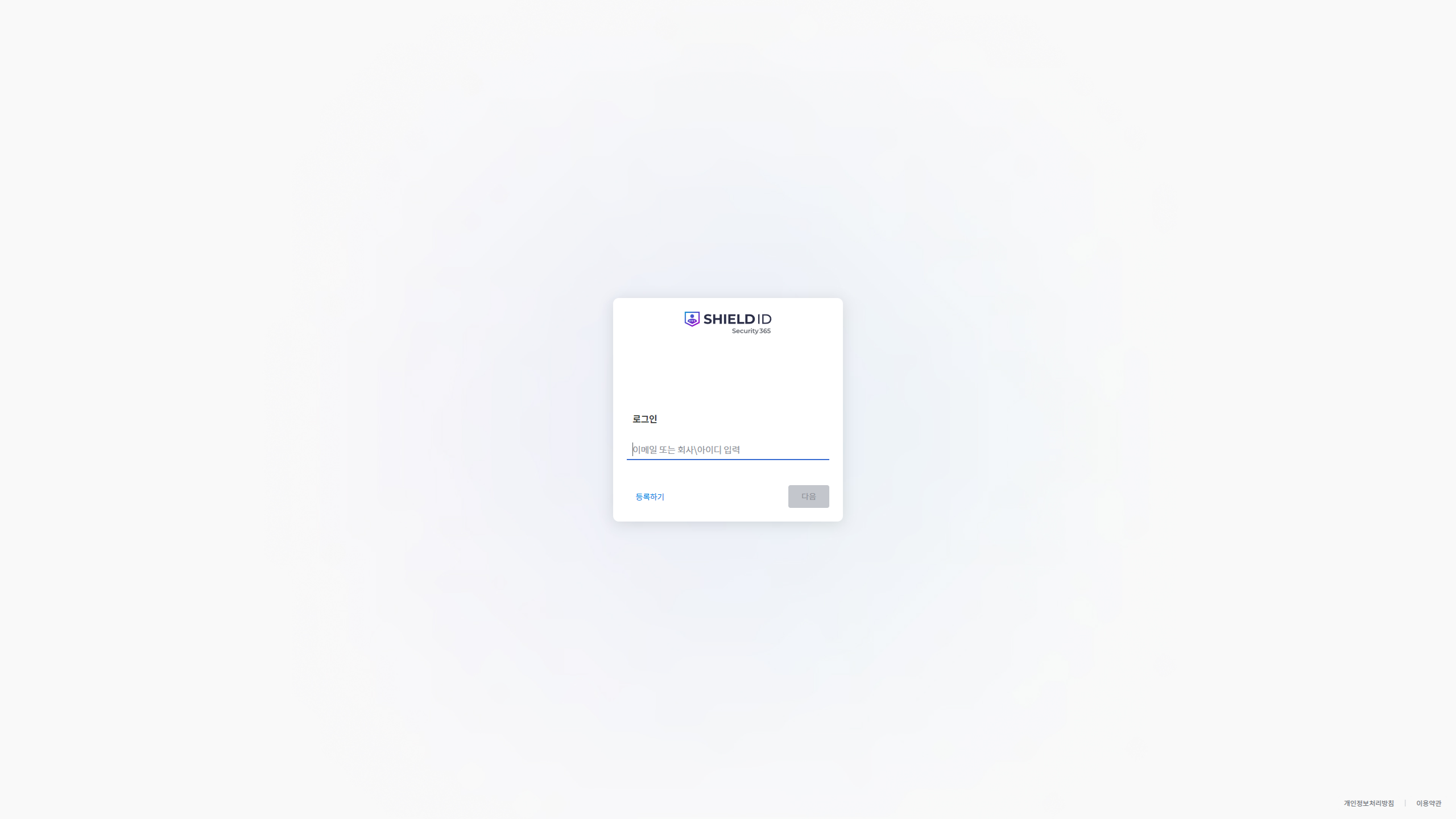 | Full screen mode manifests on the main monitor in full screen. | login.mode : "msedgeApp", "login.fullScreen" : "use" |
security365 account linkage
- When logging in with SHIELD ID, if there is no document security account (SCI server) information registered for the account, the account linking will proceed as follows.
Each guide screen is3 minute timeoutThis will be applied, and if the notification window is not closed for 3 minutes, it will automatically close and proceed to the next step.
| User Screen | Content | Note |
|---|---|---|
| Integrated Login (SHIELD ID) | microsoft id/pw authentication |
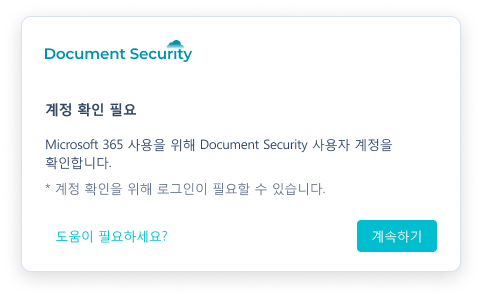 | If there is no sci account linked to the completed SHIELD ID after proceeding with the unified login, display a notification window. | If there is no connected information, attempt the following items under the SHIELD ID authenticated ID: 1. Check the user on the sci server with the full account information 2. Check the user on the sci server after removing the domain information |
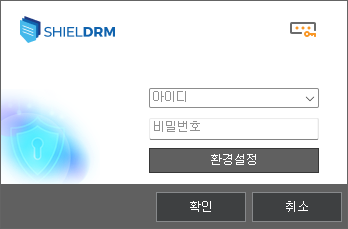 | Follow the document security login procedure. | If there is no automatic login/SSO for document security, the document security login screen will be displayed, and after completing the document security login, you will move to the screen below. |
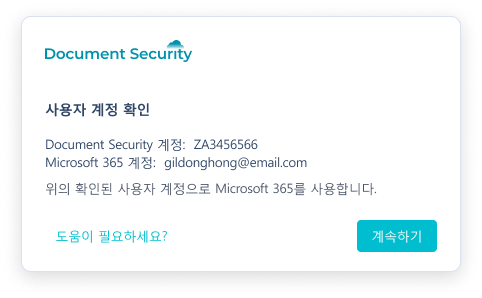 | Output of account information that has successfully passed SHIELD ID and document security authentication and connection guidance screen | After logging in, if the SHIELD ID of the document security account and the already issued token do not match, the existing token will be deleted, and the account linked to the SHIELD ID will be registered as the currently logged-in document security account. This may occur in cases where multiple users log in to the same device, e.g., conference rooms. |
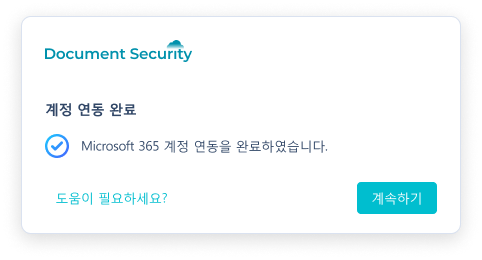 | Completion Notice Screen for Registering sci Users in SHIELD ID |
Customizing the SHIELD ID Unified Login Page
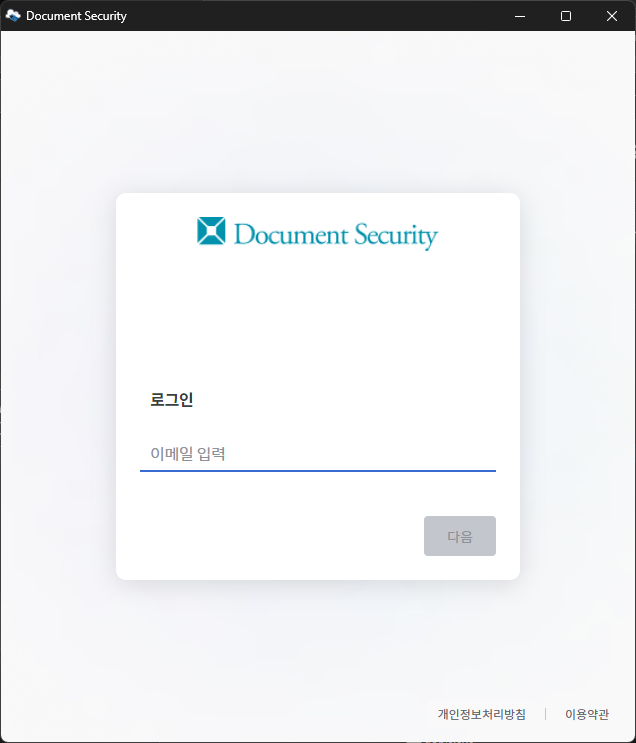
- To configure the screen for the site, it is necessary to set related policies in the idp service.
- Reference| ⚠️ This material is restricted access.
- It is necessary to set the value of the extra policy among the DS_MIP_INIT policies.
- Policy Example
{
  "s365_url": "https://devlogin.softcamp.co.kr/",
  "s365_app_id": "4e3b53b2-a18c-4d78-8de1-b9fcada4077c",
  "s365_app_name": "shieldrm-svc",
  "s365_app_secret": "JyktLCInJ------------------------JycsJyQ",
  "s365_log_url": "https://log.security365.com/log/event",
  "shieldrm_url": "https://ssevtr.softcamp.co.kr/",
  "extra": "3CJ55MSE-xLO7Sxt4-qUBKzbcs-XP2cgGEq",
  "tid" : "4d615af9-1d04-4bcc-8e6f-c6b6fe3110dd",
  "runMode": "s365"
}
Integrated Login Screen Popup On/Off Setting
This describes the feature that allows you to turn the integrated login screen popup On/Off through settings or custom policies.
Overview
- This is a feature that allows you to turn the integrated login screen popup on/off through settings or custom policies.
Explanation
- 'SHIELD DRM Not Used' is an option that the user can select directly, and the default value is
0is.\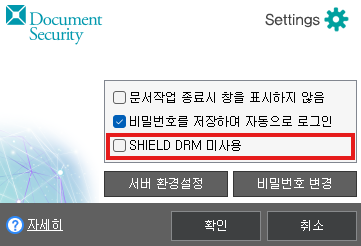
DS_SDSENV_NOT_USE_SHIELD_DRMThe policy is a policy used by administrators to control this option centrally.- If this policy is used, the 'SHIELD DRM Disabled' checkbox on the settings screen will be disabled, and the user will not be able to change this option.
- The check status is forcibly applied according to the policy value set by the administrator, and user settings are ignored.\
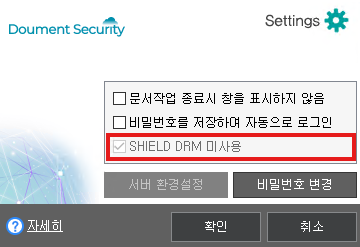
Related Custom Policies
| ID | DS_SDSENV_NOT_USE_SHIELD_DRM |
|---|---|
| TYPE | Check On/Off |
| Explanation | SHIELD DRM usage (1: Not used, 0: Used) |
| Policy Value | 1 (or Check) |
| scsc | DS_SDSENV_NOT_USE_SHIELD_DRM.scsc |
Application Method
- Module Patch
- Custom Policy Settings and Fetching Policies
Constraints
- If the Shield Drm usage policy value is changed to an unused policy value, the system must be rebooted for the related module to terminate normally and the function to be turned off.
- Even when changing from unused to used, it is possible to operate without rebooting, but rebooting is recommended if possible.
- When changing the corresponding value in the settings, a user notification appears indicating that a system reboot is required.

SHIELD ID User Account Deactivation: Block DS6 Authentication and Logout
If the user account of SHIELD ID is deactivated, SHIELD ID authentication will fail in the DS6 client, and at this time, the existing SCI server authentication will also be blocked (login failure handling).
Overview
- When a user account is deactivated in SHIELD ID, the DS6 client blocks the authentication of that user and displays a notification message before logging out from document security.
Explanation
- security365 User Deactivation
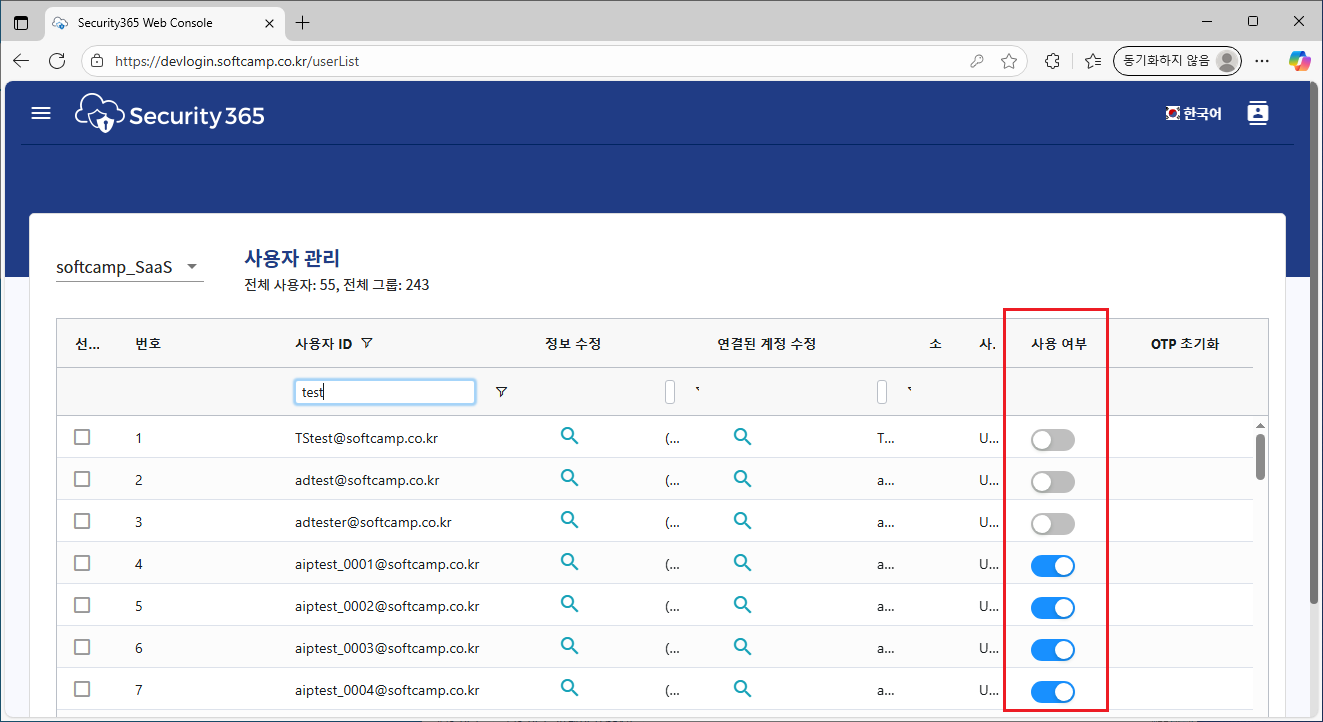
- Inactive users will experience the following two situations where blocking actions occur.
- Document Security Login Status
- If a user is deactivated due to actions evaluated by the ztcap policy (e.g., right-click MIP for document conversion, MIP->Drm document conversion, etc.), a notification message window will appear, and the document security logout status will be activated.
- Document Security Not Logged In
- In the case of using the Runmode sso of the DS_MIP_INIT policy, before receiving s365 authentication, if the user is inactive when queried with the ShieldID, a notification message window will appear immediately after login, and the user will be logged out again.
- For values of Runmode policy other than sso, current support is not available (refer to the constraints below for reasons).
- Document Security Login Status
Application Method
- Module Patch
Constraints
- When using a Runmode other than sso for the DS_MIP_INIT policy (s365, appauth, aad, ds), the functionality to block login for ShieldID users who are deactivated and the immediate logout feature after login will not work for the following reasons.
- s365, in the case of ds, the integrated login window is used to perform s365 authentication, and since the user's shieldID is authenticated on the browser and securiy365 front end, there is no way to obtain the ShieldID from the perspective of the DS 6.0 client. (Without the ShieldID, it is not possible to check whether it is inactive.)
- In the case of appauth, it operates based on the shieldrm svc app rather than individual users' shieldId, so the functionality is meaningless.
- In the case of aad, currently, you can obtain the shieldID from the token after authenticating with the tenant ID, but it is not supported in the current structure.
- In the case of MIP release, there is currently no logic to determine the release status using ztcap, so this functionality is not applied in the current structure.
Notification message
- When the user is deactivated, the document security logout is processed with the following notification message.

Related Custom Policies
- DS_MIP_INIT policyofForceLogoutOnUserDisabledThe document security logout feature for inactive users can be toggled On/Off with a policy value.
PKCE Authentication (Public Client Login)
Summary: App Secret in Policy (s365_app_idIf this is not present, it will automatically operate as PKCE (browser) login. The issued token is securely stored in the PC credential manager and can be used offline until expiration, and it will be automatically renewed upon expiration.
Overview
The Security365 login of DS6 depends on the deployment environment.PKCE (Public Client) MethodIt is a feature that supports automatic operation.
You can complete user authentication with just browser login even in environments where app secrets (credentials) cannot be distributed, and then use Security365 features such as document security classification and MIP protection.
Users do not choose the authentication method themselves.**The method is determined automatically by the administrator policy settings.**and after authentication, you can use the features without re-logging in as long as the stored token is valid.
The reason this feature is needed
- The existing Confidential method is app secret (
s365_app_idThis policy must be deployed to function. In public client environments where it is difficult to deploy secrets, logging in itself was not possible. - Also, there have been cases where the login window does not appear when attempting MIP conversion (level change·protection) without authentication information, preventing the operation from proceeding.
- This feature adds PKCE standard (public client) login and has been organized to ensure that the re-authentication window is displayed correctly in transformation requests in an unauthenticated state.
Operation Method
App Secret of the Policy(s365_app_id) Presence or absencePKCE / Automatic Branching for ConfidentialIn PKCE, the user token is issued through browser login and stored in the credential manager, leading to automatic renewal or re-login upon expiration.
Scope / Entry Point
| entry point | Action |
|---|---|
| First Use of Security365 Features | Browser login window output → Token issuance |
| Right-click on the file → Change security level | Use saved token, re-authenticate if necessary (after online verification) |
| Right-click on the file → MIP Protect/Unprotect | Use saved token, re-authenticate if necessary |
| Document Security (DS) Not Logged In Status | MIP right-click menu is not displayed — see limitations |
Token Lifetime and Reauthentication
DS6 uses two types of tokens. The user token is used for performing tasks, and the refresh token is used for reissuing the access token.
| situation | Action | User Intervention |
|---|---|---|
| R1. Access Token Expiration | Automatically reissue with refresh token to the server quietly (requires online) | None (Login window not displayed) |
| R2. Refresh Token Expiration/Invalidation | If in progress, automatically re-display the browser login window; if in the background, re-authenticate at the execution time. | Re-login |
| R3. Tenant (Company) Change | Require Re-login After Token Revocation (Prevent Cross-Tenant Abuse) | Re-login |
R4. Account Deactivation (User is not enabled) | Immediately fail without repeatedly displaying the login window | Request Account Activation to Administrator |
Policy / Settings
| Settings Item | Location | value / description | mandatory |
|---|---|---|---|
s365_app_id s365_app_secret | Server PolicyDS_MIP_INIT | If empty, PKCE; if filled, Confidential | Decision on Method |
s365_pkce_appid | Server PolicyDS_MIP_INIT | PKCE Client ID (Highest Priority) | recommended |
login.pkce-clientId | DS365.Core.json | PKCE Basic Client ID.s365_pkce_appidUsed when not set. Can be replaced by environment without redistribution. | s365_pkce_appidRequired when not in use |
Warning:s365_pkce_appid(Server Policy) andlogin.pkce-clientIdIf the configuration file is empty, you cannot log in because there are no built-in defaults. At least one of the two must be set.
Configuration File Example (DS365.Core.json):
{
  "login": {
    "pkce-clientId": "9586b6e7-7f17-4d18-871b-051705bd5eb6",
    "title": "SOFTCAMP,Security365"
  }
}
Action Scenario
| situation | result |
|---|---|
| First Use (Online) | Browser Login → Token Issuance·Storage |
| Save token valid | Immediate use without communication (including offline) |
| Access Token Expiration (Online) | Auto Renewal, Window Not Displayed |
| Access Token Expiration (Offline) | Renewal not possible → Online required |
| Refresh Token Expiration (Online) | Browser Re-login |
| DS Mi-login / Re-authentication required in offline status | Network Error Notification, Window Not Displayed |
| Account Inactive | Immediate failure, administrator action required |
Constraints
| # | Restrictions | detailed |
|---|---|---|
| C1 | Online required for initial use and token renewal | Browser login · Server communication required for automatic renewal |
| C2 | Available for offline use when holding a valid token | Offline operation before the storage token expires |
| C3 | Re-login when the refresh token expires | Automatic renewal not possible → Browser re-authentication |
| C4 | Re-login when changing tenant | Discard storage tokens in case of company mismatch |
| C5 | Administrator Actions When Account is Inactive | Re-authentication window not displayed, account activation required |
| C6 | DS Login Prerequisites | The MIP conversion menu is only displayed when logged in to document security. |
| C7 | login.titleConfiguration Required (Operation) | If not set, the login window will not close and will be canceled after about 10 seconds. |
| C8 | shieldrm-svcServer registration required | Unregistered Grade Inquiry · MIP Blocking |
| C9 | PKCE Client ID must be set in at least 1 place. | s365_pkce_appidorlogin.pkce-clientIdOne or more required, otherwise login not possible |
Google Account Single Sign-On and DS Account Integration Support
**Summary:**Improved to ensure that integrated login user verification is not tied to specific account types. Logging in with a Google account will also register the DS account linkage, and from the login after the linkage registration, DS automatic login (SSO) will operate.
Overview
This is a feature that supports user verification and normal operation of DS account linkage with login methods other than Microsoft Azure accounts (such as Google) in the integrated login of Security365 (ShieldRM) of DS6 (Document Security 365).
Previously, when checking integrated login users, it was set to read only Azure accounts, so when logging in with a Google account, the user information would be empty and the linkage with the document security (DS) account was not registered. As a result, even if the integrated login was successful, DS automatic login (SSO) was not established.
This feature changes to follow the value provided by the server regarding the type of account used for login, supporting Google, Azure, LDAP, and future login methods without modifying the module.
The reason this feature is needed
Users who logged in with a Google account experienced the following symptoms.
- The integrated login itself is successful, but the user is not registered in the SCI account connection list on the SHIELD management screen.
- DS automatic login (SSO) fails every time, and the DS account input window appears every time I log in.
- Cases where integrated log (audit log) transmission is rejected due to authentication failure
- A normal situation that occurs because it is not an Azure account is recorded as an error in the logs, hindering failure analysis.
The cause was that the user verification logic was fixed to only read the Azure account field. When logging in with Google, that field was empty, resulting in the user identifier being blank, and subsequently, all server requests were sent as empty users, preventing the integration registration from occurring.
Operation Method (Single Line Mechanism)
The authentication information issued by the integrated login server includes a value that indicates how the user logged in. Based on this value, it finds and reads the corresponding account field, so it operates in the same procedure without exception handling for different account types.
Scope / Entry Point
| entry point | Action |
|---|---|
| Security365 Integrated Login (Browser) | User verification and credential information storage regardless of login method |
| Automatic Login to DS After Unified Login (SSO) | Automatic login if DS account linkage is registered |
| SHIELD server | DS Account Link Registration — Automatic Registration on First Login |
| Integrated Log (Audit Log) Transmission | User identifier record regardless of login method |
MIP document protection feature is not provided with Google accounts — see limitation C1
Difference Between Initial Login and Subsequent Logins
It is normal for the DS account input window to appear during the initial login. This is a part that can easily be mistaken for a malfunction, so we provide this information separately.
[First Login]
Browser Integrated Login → SHIELD ID Verification → No DS Account Link Information
  → Display DS Login Window (User inputs DS account)
  → Register "SHIELD ID - DS Account" link in SHIELD server

[Login After Link Registration]
Browser Integrated Login → SHIELD ID Verification → DS Account Link Information Exists
  → DS Automatic Login (SSO Established, No Input Window)
Linking is required only once per account. After registration, automatic login is maintained regardless of reinstallation or restart.
Also, the integrated login server may reuse authentication information that still has a validity period, so authentication information missing DS account information may be received even after integration. In this case, it is processed to keep the existing integration information without deleting it.
Policy / Settings
| Settings Item | Location | value / description | mandatory |
|---|---|---|---|
| s365_log_url | Server Policy DS_MIP_INIT | Integrated log (audit log) collection server address | Non-Operational Tenant Required |
If s365_log_url is empty, the default address of the production log server will be used. If you access this path from a development or validation tenant, the production server will reject authentication, causing log transmission to fail with a 401 error. Non-production tenants must set this policy.
Action Scenario Summary Table
| situation | result |
|---|---|
| First Integrated Login with Google Account | User verification successful → Display DS login window → Integration registration |
| Re-login after linking with Google account | DS Automatic Login (SSO) Established, No Input Field |
| Azure Account Login | Works the same as before (no regression) |
| LDAP Account Login | Works in the same procedure |
| No DS account information in authentication details | No error. Retain existing linkage information. |
| User identifier verification failed | Qualification information not saved + Reason recorded in log |
| appAuth mode (Integrated login not used) | Works the same as before (no regression) |
| Attempting to Protect MIP Documents with a Google Account | Not provided — Constraint C1 |
Constraints
| # | Restrictions | detailed |
|---|---|---|
| C1 | Google account does not provide MIP document protection | MIP is a Microsoft Azure tenant-based feature and is not available for logins that are not Azure accounts. This feature only blocks unnecessary MIP authentication requests at the time of login. The handling of hiding MIP features in menus and screens is not included and is a separate task. |
| C2 | The first login requires entering the DS account. | Since it is before the integration registration, there are no automatic login targets. It is once per account. |
| C3 | Non-operational tenants require log server policy settings. | When not configured, it is sent to the operation log server and fails with 401. |
| C4 | Login method verification depends on the server response. | The server operates when the login method and account fields are filled. Alternative rules for legacy server responses are in place. |