User Status
Overview
info
This document introduces how to use the [User Status] page.
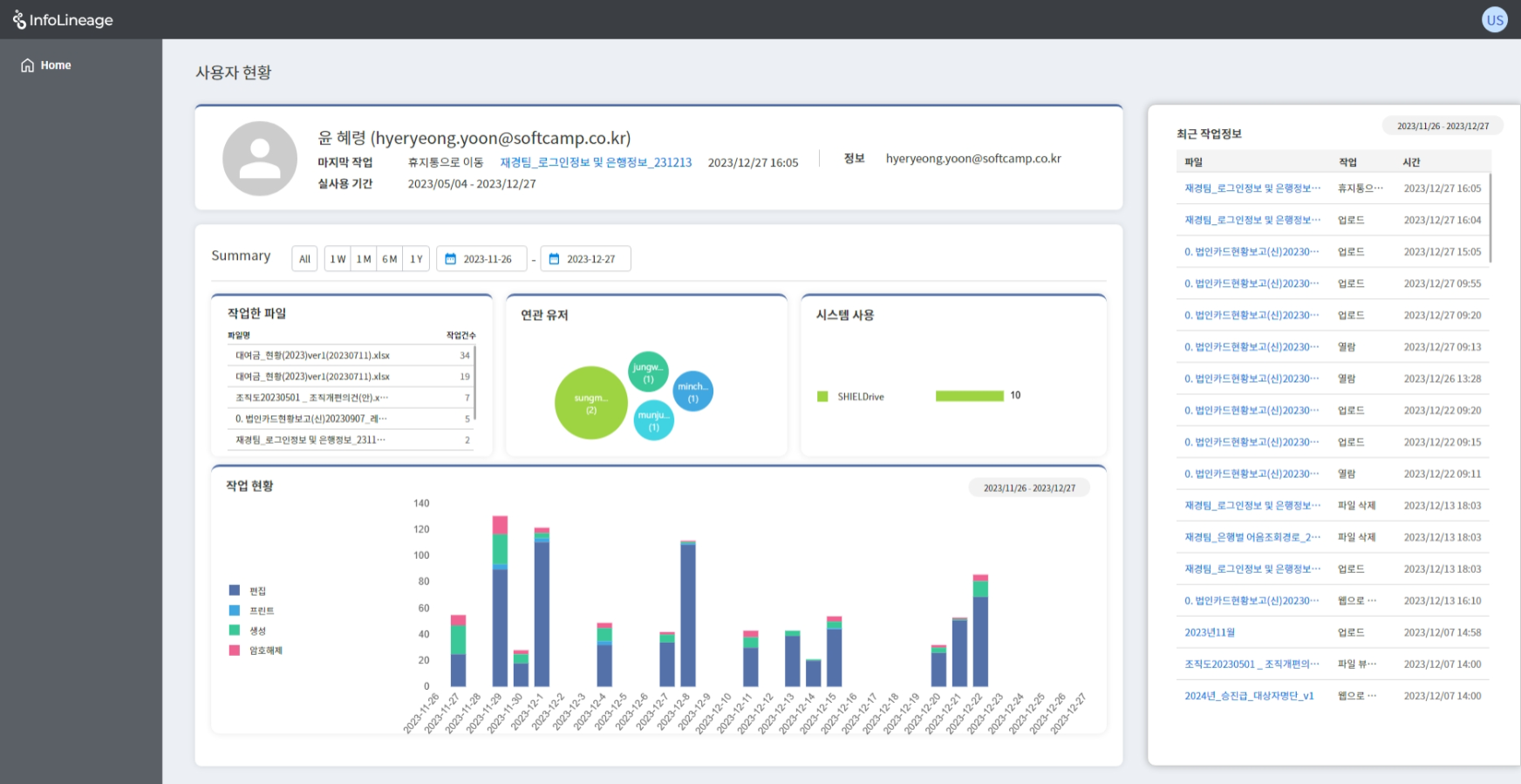
1. User Profile
- User's name (id)
- Last modified file and working time
- The entire period during which the user's logs are stored
- Information: Department, Position, id information
- Clicking on the file name will take you to the status page of that file.
2. Summary
- Files Worked On: Users can check all files they have worked on in order of the number of tasks.
- Related Users: You can check users who have worked with the user, sorted by the number of files they have worked on together.
- System Usage: You can check up to 7 files used by the system used by the user, sorted by the number of files used.
- Work Status: You can check the status of users editing, printing, creating, and decrypting by period in a graph.
- You can modify the period for checking data through the button.
3. Right Menu
- You can check the recent work information in reverse chronological order.
- Clicking on the file name will take you to the status page of that file.
- You can use the Summary button to modify the period.
© SOFTCAMP Co., LTD. All rights reserved.