Home
Overview
info
This document introduces how to use the [Home] menu.
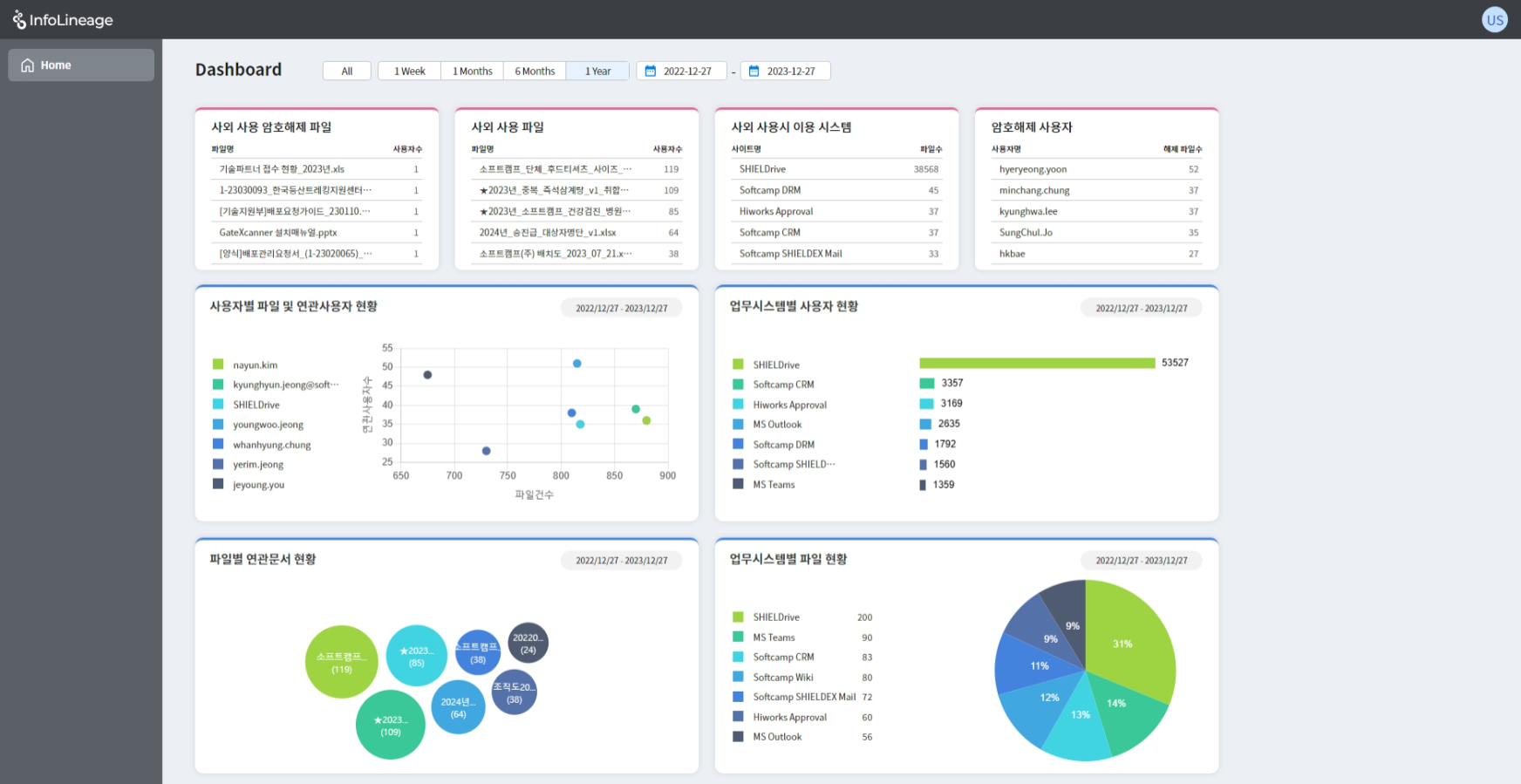
1. Risk Data Verification(Box with a red line at the top)
- External Use Decryption Files: You can check the top 5 decryption files used externally in order of the number of users.
- External Use Files: You can check the top 5 files used externally in order of the number of users.
- External Use System: You can check the top 5 systems used for external use in order of the number of files used.
- Decryption Users: You can check the top 5 users who have decrypted the most files among the users who have decrypted files.
- Clicking on the list will take you to the status page of the corresponding file (or user or system).
- You can customize the dashboard by clicking the button of the (scheduled) box to modify it with the desired data.
2. Check file, user, and system usage status(Box with a blue line at the bottom)
- User-specific file comparison related user status: You can check the number of related users compared to those who use files frequently by user.
- User Status by Business System: Shows up to 7 business systems where files are frequently used.
- File-related Document Status: Displays up to 7 files with a high number of derived documents.
- File Status by Business System: Shows the proportion of business systems that users use the most, up to 7 systems.
- (Upcoming) You can click the button on the box to modify it with the desired data or customize the dashboard with the desired graph.
3. Select Duration(Top button)
- You can select a desired period to view only the data for the selected period.
© SOFTCAMP Co., LTD. All rights reserved.