License KEY Management
The license KEY management screen is in the left menu서비스 연동 및 라이선스This is the landing screen displayed upon group entry.
You can check the current subscription status and duration of the license, the usage status of the three types of slots (business system, identifier, SDF APP), and the subscription history at a glance, as well as register or change the license KEY.
1. License KEY issuance
To use SDF, you must first obtain a license KEY. The license KEY cannot be generated directly from the management console, and**Issued through the Security365 Management Center (Admin Portal)**It is possible.
| step | Content |
|---|---|
| 1. Issuance Request | Requesting a license issuance from the engineer in charge at SOFTCAMP. |
| 2. Issuance | The responsible engineer issues the license KEY by specifying the subscription period and slot quota (business system·identifier·SDF APP) in the admin portal. |
| 3. Registration | Register the issued license KEY on this screen. |
You cannot register the business system, identifier, or SDF APP without a registered license KEY. If you need to change the number of slots or extend the subscription period, you must obtain a new KEY through the responsible engineer and replace it.
2. Screen Composition
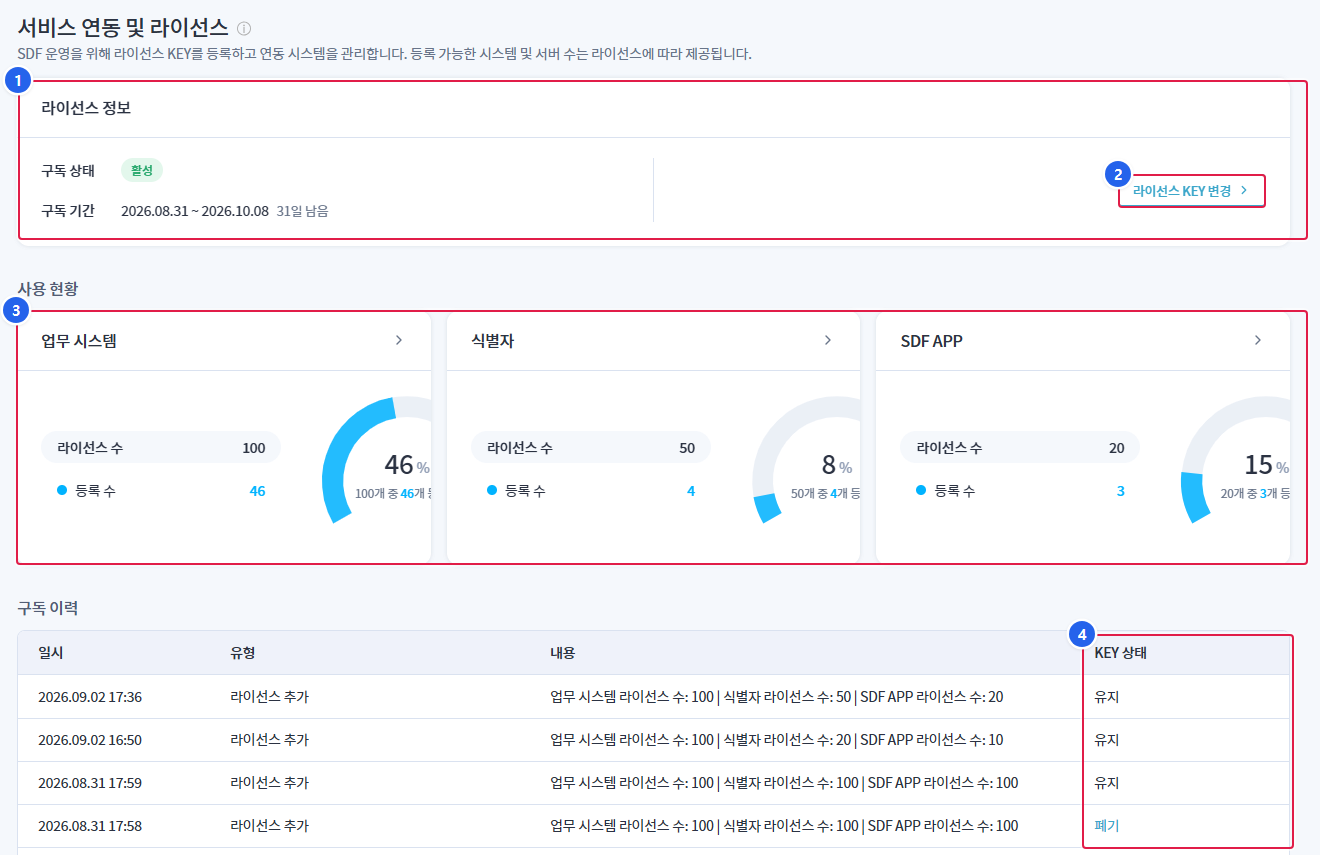
1. License Information
- Displays the current subscription status, subscription period, and the remaining days until expiration.
2. License KEY Change
- Replaces the registered KEY with a new KEY. If the KEY is not registered, then
KEY 등록A button will be displayed.
3. Usage Status
- Displays the number of licenses (quotas) and registrations for the 3 types of slots on cards. Clicking on the card will take you to the corresponding management screen.
4. Subscription History
- Displays the registration and change history of the license KEY and the status of each KEY (active / discarded) in chronological order.
3. License Information
3.1 Display Items
| item | Explanation |
|---|---|
| Subscription Status | Active / Renewal imminent / Expired / Inactive |
| Subscription Period | License Start Date ~ Expiration Date |
| Remaining/Elapsed Days | Days remaining until expiration ("N days left") or days elapsed after expiration ("N days elapsed") |
3.2 Status Classification
| status | Explanation |
|---|---|
| active | Valid subscription normal state |
| Renewal imminent | State requiring renewal as expiration is imminent |
| expiration | Subscription period has expired |
| Inactive | License KEY is not registered. |
If the license KEY is not registered, provide an empty state guide in the card area along withKEY 등록A button will be displayed. If registered, it will be on the right.라이선스 KEY 변경A button will be displayed.
4. Usage Status
Displays the number of licenses (quotas) and registrations for the 3 types of slots on cards. Clicking each card will take you to the corresponding management screen.
| card | Moving Screen | Display Information |
|---|---|---|
| Business System | Work System Management | License Count / Registration Count |
| Identifier | Identifier Management | License Count / Registration Count |
| SDF APP | SDF APP Management | License Count / Registration Count |
Each card displays the usage rate of registered numbers compared to the number of licenses in a donut chart. As the usage rate approaches the limit, it is indicated by different colors on the chart.
5. Subscription History
Displays the registration and change history of the license KEY in chronological order.
| Column | Explanation |
|---|---|
| Date and Time | Occurrence Date and Time |
| Type | Initial Registration / Add License / Change License |
| Content | Changed slot quota information (business system·identifier·SDF APP license count) |
| KEY state | Maintenance / Disposal |
5.1 KEY Status
| status | Explanation |
|---|---|
| maintenance | The KEY is in a valid state |
| Disposal | The corresponding KEY has been revoked and is no longer usable. |
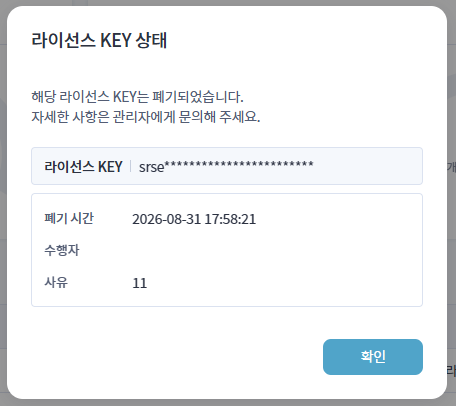
If you change the KEY, the existing KEY will be immediately invalidated in the subscription history.폐기It is displayed as . With a discarded KEY, you cannot call APIs related to the business system, management center, SDF console, identifier, and SDF App, and no license expiration notification email will be sent.
Disposal Details
Subscription history > You can check the details regarding disposal in the KEY status.
6. License KEY Registration
In a state where the license KEY is not registeredKEY 등록Clicking the button will open the registration modal.
- issued
라이선스 KEYEnter __PH_0__. (Required) 등록Click the button.
When there is an input value error, the following guidance will be provided.
| situation | Guide Message |
|---|---|
| Not entered | Please enter the license KEY. |
| Format error | The license KEY format is incorrect. |
| duplication | This license KEY is already registered. |
| expiration | Expired license KEY cannot be registered. |
| invalid | Invalid license KEY. |
| Permission Denied | You do not have permission to register the license KEY. |
7. License KEY Change
already registered state라이선스 KEY 변경Clicking the button will open the change modal.
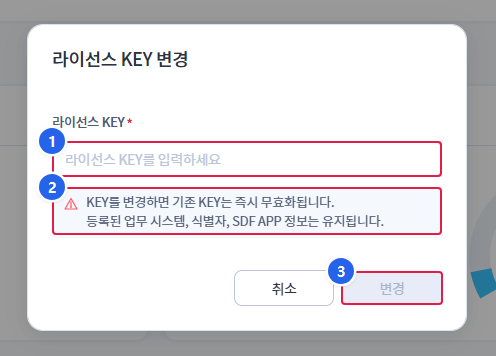
- 1. Enter License KEY
- Enter the newly issued license KEY. (Required)
- 2. Notes on Changes
- If you change the KEY, the existing KEY will be immediately invalidated, and the registered business system, identifier, and SDF APP information will remain unchanged.
- 3. Change
- Replaces with the entered KEY. It will be displayed as inactive before entering the KEY.
7.1 License Exceeded Notification
If the number of slots for the new license is less than the currently registered number, the KEY cannot be changed, and the excess items will be indicated in a table.
| Column | Explanation |
|---|---|
| item | Work System / Identifier / SDF APP |
| Registration number | Currently registered number |
| Number of New Licenses | Number of slots for the KEY to be changed |
| excess number | Exceeded number |
You need to try again after deleting the exceeded items for the KEY change to be completed.
8. Expiration Notice Banner
If the license is about to expire or has expired, an alert banner will be displayed at the top of the console.
| point of view | Guide |
|---|---|
| 30 days before expiration | License KEY Change Preparation Guide |
| 14 days before expiration | Notice of Service Limitations if Not Changed |
| 7 days before expiration | Immediate KEY Change Notice |
| 1 day before expiration / on the day | Immediate Renewal Notice |
| after expiration | Block all API calls, console read-only notice |
When the license expires, all API calls will be blocked, and the management console will only be available in read-only mode. Data will be retained for 90 days after expiration. The banner's라이선스 KEY 변경You can immediately move to the change screen with the button.
Expiration notification email's sending time and frequency is설정 > 알림 설정You can change it in.