Home (Dashboard)
The home (dashboard) is the screen that the administrator enters immediately after logging in, and it is a page where the status of document conversion processing and license usage can be checked at a glance. At the top, there are 2 types of status cards, and at the bottom, there are 4 types of charts.
The displayed widget may vary depending on the client's environment and menu exposure settings.
1. Screen Configuration
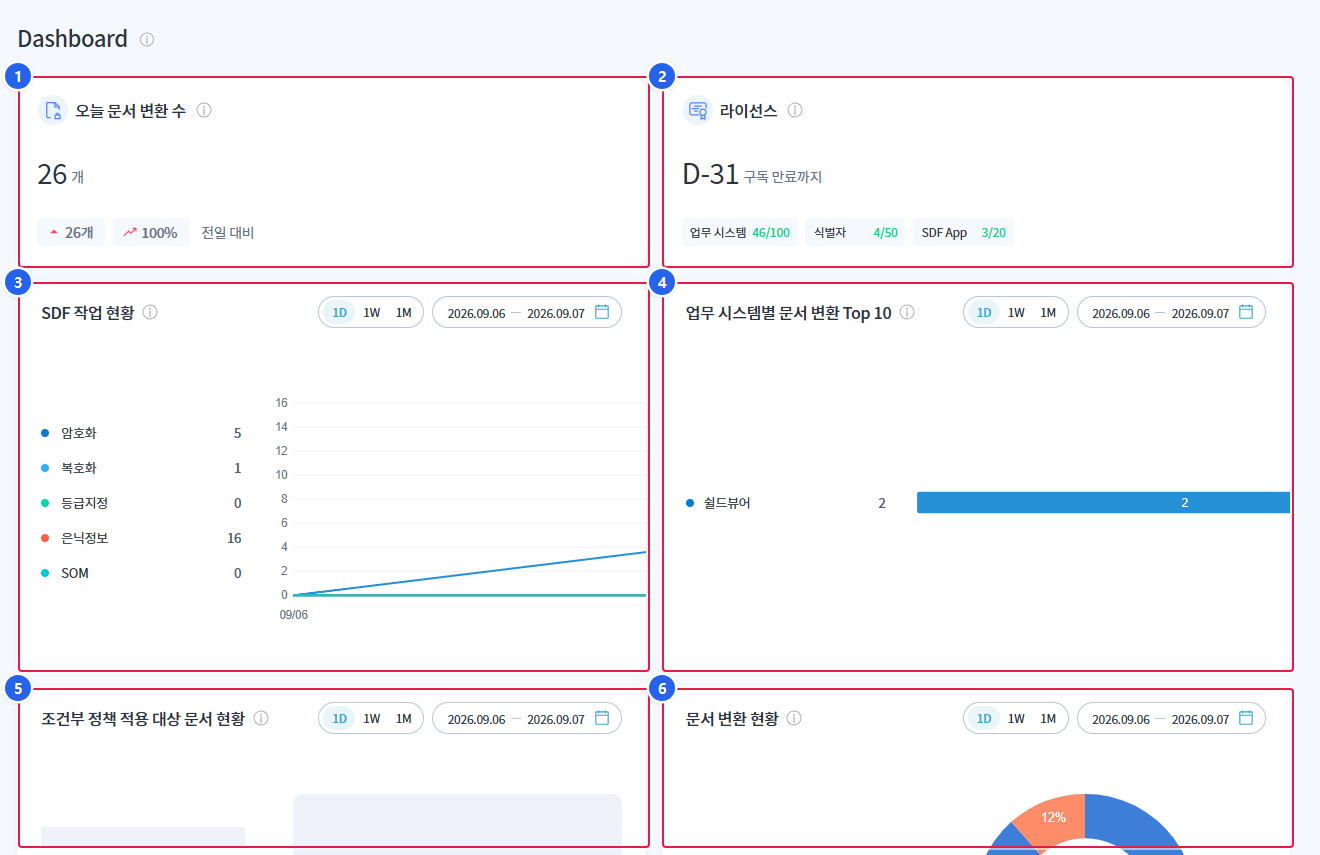
1. Today's document conversion count
- Today is the total number of document conversions processed by SDF.
- Below, the number of changes and the rate of change compared to the previous day are displayed together.
2. License
- the remaining days until subscription expiration
D-NIt is displayed in the format. - Business System · Identifier · SDF App 3 Types of Slots
등록 수 / 라이선스 수Displays together.
3. SDF Work Status
- Displays the number of processing cases by type of work and the trend by period.
4. Document Conversion Top 10 by Business System
- Displays the top 10 business systems with the most document conversions in a bar chart.
5. Status of Documents Subject to Conditional Policy Application
- Displays the status of documents with conditional policies applied.
6. Document Conversion Status
- Displays the number and ratio of successes and failures in a pie chart.
2. Status Card
| card | Display Items |
|---|---|
| Today’s document conversion count | Today's processing count, change count compared to the previous day · change rate |
| License | Days remaining until subscription expiration (D-N), Work System · Identifier · SDF App Slot Usage Status |
Clicking on the status of the license card slot will take you to the corresponding management screen.
3. Work Type
The SDF work status chart is aggregated based on the following 5 types of work.
| Work Type | Explanation |
|---|---|
| Encryption | Processing of encrypted documents |
| Decryption | Decryption of encrypted documents |
| Rating Designation | Processing of assigning security levels to documents |
| hidden information | Processing of inserting security metadata (hidden information) into the document |
| SOM | Processing exported as Security Review Only (SOM) file |
4. Select Duration
The four types of charts at the bottom can each have their own selected viewing period.
| button | Query Range |
|---|---|
| 1D | Recent 1 day |
| 1W | Recent 1 week |
| 1M | Last 1 month |
The currently queried period will be displayed as a date next to the button.