Conditional Policy Management
Conditional policies are a feature that automatically executes security policies such as encryption/decryption/transformation by combining the type of document, user, event, conditions (location/time), etc.
Administrators can create, modify, delete, and change the priority of conditional policies on this page.
1. Policy List Screen
When you enter the conditional policy menu, the list of registered policies is displayed in a table format.
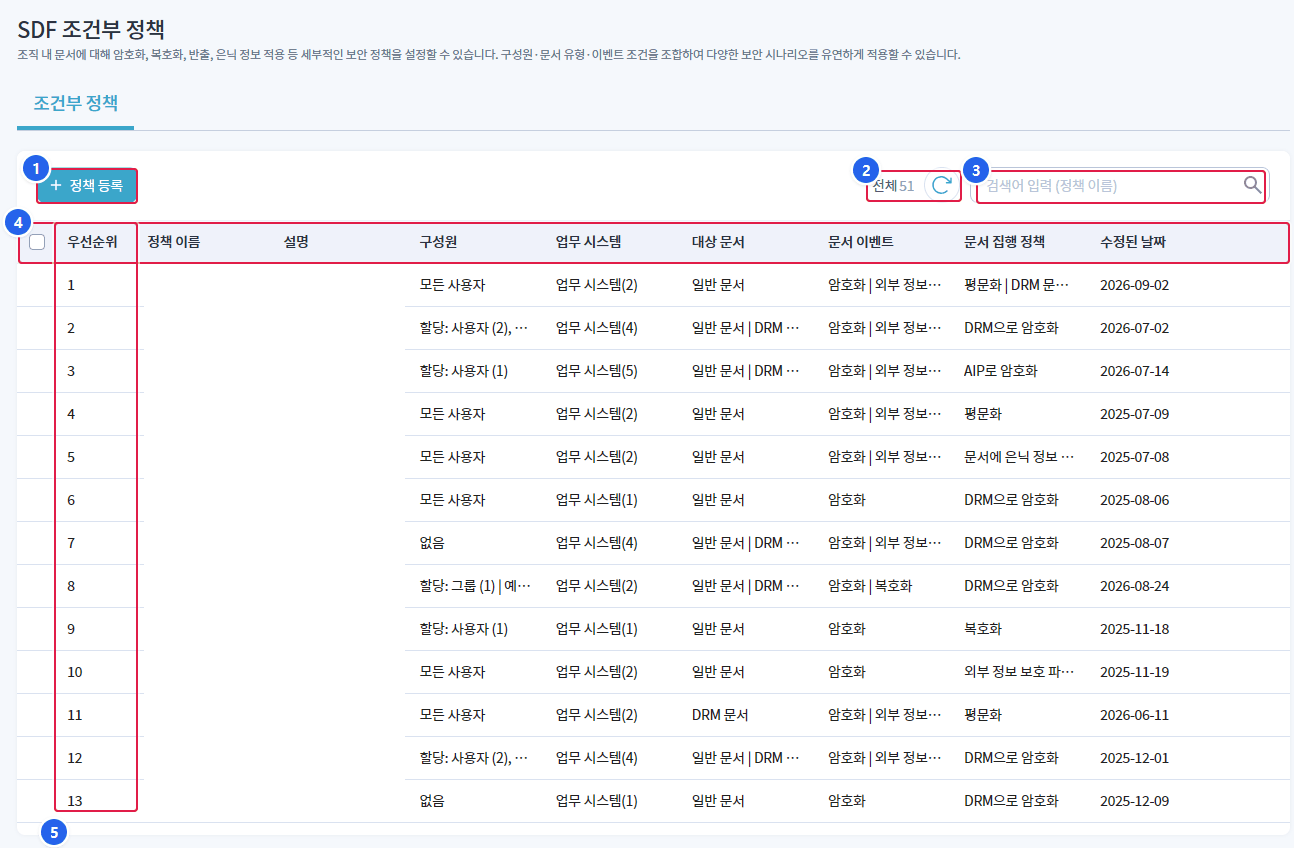
1. Policy Registration
- Open the new conditional policy creation panel.
2. Total Count / Refresh
- Displays the total number of registered policies and refreshes the list with a refresh.
3. Search
- Searching by policy name.
4. List
- Registered policies are displayed in order of priority. Clicking a row opens the detailed panel on the right.
5. Priority
- This is the order of policy execution. The lower the number, the earlier it is evaluated.
1.1 List Table Structure
| Column | Explanation |
|---|---|
| Priority | Policy Execution Order (the lower the number, the earlier the evaluation) |
| Policy Name | Policy Name |
| Explanation | Description of the policy |
| Members | User/Group Information to Which the Policy Applies |
| Business System | Number of business systems to which the policy applies |
| Target Document | Document Types Subject to Policy Application (General Document / DRM Document / AIP Document) |
| Document Events | Trigger events for policy execution |
| Document Execution Policy | Execution policy combinations that are executed when conditions are met |
| Modified Date | Last modified date of the policy |
1.2 List Screen Features
| Function | Explanation |
|---|---|
| Policy Registration | Open the new conditional policy creation panel |
| Refresh | Update Policy List |
| delete | Delete Selected Policies (Multiple Selection Allowed) |
| Change Priority | Change the execution order of the selected policy |
| copy | Create a new policy by duplicating the selected policy |
| Search | Search by policy name |
| Detailed View | Open the detail panel on the right when clicking on a policy in the list. |
When a document event occurs, policies with higher priority (smaller numbers) are evaluated in order. The first policy that matches the conditions is executed, so it is important to set the priority between policies.
2. Policy Creation/Modification
When you click the policy registration button or edit an existing policy, the policy settings panel opens on the right. The settings panel is정책 기본 정보, 조건, 집행 정책, 사용 설정It consists of 4 sections.
2.1 Policy Basic Information
This section sets the core attributes of the policy.
2.1.1 Policy Name/Description
| item | Explanation | Constraints |
|---|---|---|
| name | Unique Name of the Policy | Required, up to 20 characters, special characters (!@#$%^&*) not allowed |
| Explanation | Additional explanation about the policy | Selection, up to 200 characters |
2.1.2 Members
Specify the users and groups to which the policy will apply.
| Settings | Explanation |
|---|---|
| All members | Apply policy to all registered users |
| User and Group Assignment | Apply policy to specific users/groups only |
- Allowed Targets: Search for and add users/groups to apply the policy
- Exclusion Target: Specify users/groups to be excluded as exceptions from the allowed targets
Even when "All Members" is selected, you can set exclusions separately to exclude specific users/groups from the policy.
2.1.3 License App
Select the target app (license) to which the policy will be applied.
| Settings | Explanation |
|---|---|
| App Selection | Select one or more from the list of registered licensed apps (required) |
The policy applies only to document events generated through the selected app.
2.1.4 Target Document
Set the document types to which the policy applies.일반 문서, DRM 문서, AIP 문서You can set individual configurations for the three types.
General Document
| Settings | Explanation |
|---|---|
| Not applied | Exclude general documents from policy targets |
| All general documents | Apply to all general documents without distinguishing extensions |
| Specify extension | Applies only to documents with specific extensions (.docx, .xlsx, .pdf, etc.) |
DRM Document
| Settings | Explanation |
|---|---|
| Not applied | Exclude the DRM document from the policy target |
| All DRM Documents | Applied to all DRM encryption documents |
| Designated DRM Document | Filtering by DRM types (DAC, MAC, GRADE), file extensions, and other detailed conditions |
AIP Document
| Settings | Explanation |
|---|---|
| Not applied | Exclude AIP documents from the policy target |
| All AIP documents | Applied to all AIP protected documents |
| Designated AIP Document | Filtering by specific AIP labels, extensions, and other detailed conditions |
Security Classification Label Filter
You can additionally apply security classification label filters in each document type of General/DRM/AIP.
- Documents without labels only: Apply policies only to documents that are not assigned a security label.
- Documents with specified labels only: Policies apply only to documents assigned a specific security classification label.
2.1.5 Document Events
Select the trigger events for the policy. You must select one or more events.
| event | Explanation |
|---|---|
| Encryption | Execution of policy upon document encryption request |
| Decryption | Policy execution upon document decryption request |
| Encapsulation Export | SOM file creation (capsule export) request policy execution |
2.2 Conditions
Sets additional conditions for policy execution. The conditions are optional, and if not set, the policy will be evaluated based only on the conditions of the default information.
2.2.1 Location (IP)
Limits the scope of policy application based on the user's connection IP address.
| Settings | Explanation |
|---|---|
| All Locations | Apply policies from all locations without IP restrictions |
| Specify Registered Location Conditions | Apply/Exclude Policy Only from Specific IP Range |
How to register location conditions:
- In the location (IP) settings area
위치 등록Button Click - Enter the condition name (required, up to 20 characters), description (optional, up to 200 characters), and IP address in the condition registration popup.
- After registration is complete, select and apply the corresponding conditions in the policy.
IP address input format:
| format | example | Explanation |
|---|---|---|
| Single IP | 10.10.10.100 | specific IP address one |
| IP Range | 10.10.10.101-10.10.10.200 | Range from start IP to end IP |
- Allowed Location: Select the IP range to apply the policy
- Exclusion Location: Select IP range to exclude as an exception from the allowed targets
2.2.2 Time
Limits the scope of policy application based on the time zone in which the document event occurs.
| Settings | Explanation |
|---|---|
| No time limit | Apply policies to all time zones |
| Specify registered time conditions | Apply/Exclude Policy Only at Specific Time Zones |
How to register time conditions:
- in the time setting area
시간 등록Button Click - Enter the condition name (required, up to 20 characters), description (optional, up to 200 characters), and time zone (start~end, 24-hour format) in the condition registration popup.
- After registration is complete, select and apply the corresponding conditions in the policy.
- Allowed Time: Select the time zone to apply the policy
- Exclusion Time: Select time zones to exclude as exceptions from the allowed targets
When setting both location and time conditions, it operates as an AND condition. In other words, both conditions must be met for the policy to be executed.
2.3 Execution Policy
Set the security policy (action) to be executed when the conditions are met. The enforcement policy consists of three independent groups, each operating independently at an equal level.
| division | group | Selection Rules | Required 여부 |
|---|---|---|---|
| Group 1 | File Conversion Execution Policy | Single Choice (Choose 1 out of 6 options) | mandatory |
| Group 2 | Grade Application Execution Policy | Single Selection (1 Grade) | Selection |
| Group 3 | Document Security Metadata Application Enforcement Policy | Multi-Setting (Multiple Registration of Key-Value Pairs) | Selection |
- Between groups: Multiple selection allowed (all combinations permitted)
- Within the group: Single selection (file conversion, rating) or multiple settings (metadata)
File conversion execution policy is mandatory, and cannot be saved if not selected.
2.3.1 Group 1 - File Conversion Execution Policy
Select the file conversion action to perform on the document. You must choose one of the 6 options.
| Option | Explanation |
|---|---|
| Execute as requested | Perform file conversion based on the incoming API request (encrypt if it's an encryption request, decrypt if it's a decryption request) |
| Encryption with DRM | Encrypt the target document using DRM (DAC/MAC/GRADE) method. |
| Encryption with AIP | Assign an AIP label to the target document for encryption |
| Normalization | Restore all encryption layers completely to a plain document. |
| Security Viewing (SOM) Export | Create the target document as a SOM file |
| Original Preservation | No file conversion performed (event request ignored) |
DRM Encryption Detailed Settings
| Settings Item | Explanation |
|---|---|
| Choosing an Encryption Method | Select from DAC(ACL), MAC(Forced), GRADE(Rank) |
| Policy ID | DRM encryption policy ID input |
| Document Permission Settings | Reading, Editing, Release, Export, Output, Marking, Permission Change |
| Expiration Date | Setting the Expiration Date for Encrypted Documents (Optional) |
AIP Encryption Detailed Settings
| Settings Item | Explanation |
|---|---|
| AIP label selection | Select from the AIP label list defined by the organization |
| Select Sub Label | Select down to the sub-label if there is a sub-label under the parent label. |
Security Viewing (SOM) Export Detailed Settings
| Settings Item | Explanation |
|---|---|
| Save As | Allow/Deny |
| Reading (Viewing) | View Count Limit |
| Print Permission and Limit on Number of Times | |
| Destruction | Automatic destruction after expiration date |
| Viewer Settings | OLESOM / Image / Text Viewer Selection |
Example of Combination with Original Preservation
| Combination | Action |
|---|---|
| Maintain Original Standalone | No file conversion, no additional actions |
| Maintain original + apply rating | Do not convert the file, but assign a grade. |
| Original Preservation + Document Security Metadata | Insert only metadata without converting the file. |
| Original Preservation + Grade + Metadata | Do not convert the file, but apply all grades and metadata. |
If there are documents under specific conditions where encryption processing is unnecessary, placing a "Preserve Original" policy for those conditions at a high priority can prevent file conversion due to subordinate policies.
2.3.2 Group 2 - Grade Application Execution Policy
Assign a security level to the document. Only one level can be selected from the list of registered levels in the Security365 portal.
| Settings Item | Explanation |
|---|---|
| Select Security Level | Select one of the security levels registered in the organization (C/S/O or custom level) |
The selected grade will be applied to the document metadata. It operates independently of the file conversion policy, so it can be combined with any file conversion options.
2.3.3 Group 3 - Document Security Metadata Application Enforcement Policy
Inserts security metadata for classification/tracking into the document. Multiple Key-Value pairs can be registered.
| Settings Item | Explanation | Constraints |
|---|---|---|
| Key | Meta Information Key Name | Up to 20 characters |
| Value | Meta information value | up to 1000 characters |
등록You can add Key-Value pairs with a button, and multiple pairs can be registered. The registered items are displayed as a list, and individual deletion is possible.
The inserted metadata is retained even after document encryption/decryption and is used for document identification and tracking.
2.3.4 Example of Combination Between Groups
Policy List Screen문서 집행 정책The column displays the combinations of the configured groups.
| Combination | Example of Display |
|---|---|
| File conversion only settings | Encryption with DRM |
| File Conversion + Grade | Execute as requested + Apply rating |
| File Conversion + Grade + Metadata | Encryption with DRM + Grade Application + Document Security Metadata Application |
| File Conversion + Metadata | Security Viewing (SOM) Export + Document Security Metadata Application |
| Original Maintenance + Grade | Maintain original + apply rating |
2.4 Configuration
Manages the activation status and validity period of the policy.
| Settings Item | Explanation |
|---|---|
| Usage Status | Policy Activation/Deactivation Toggle |
| Expiration Date | Setting valid start date ~ end date for the policy (optional) |
- Not in use: The policy is disabled and will not be executed.
- Expiration date not set: The policy applies at all times without any time limit.
- Setting Expiration Date: The policy will only be applied within the specified period, and it will automatically be deactivated after the end date.
If the expiration date is earlier than the current date, the policy will be marked as expired.
3. Policy Details
Clicking on a policy in the list will open a detailed information panel on the right. In the detailed panel, all configuration information of the policy can be viewed in read-only mode.
| section | Display Information |
|---|---|
| Basic Information | Policy Name, Members, License App, Target Document, Document Event |
| condition | Location (IP) condition, time condition |
| Execution Policy | Execution Policy Types and Detailed Settings |
| Settings | Usage status, validity period |
| Revision Date | Last modified date and time |
4. Delete Policy
- Select the policy to delete from the list using checkboxes (multiple selections allowed)
- top
삭제Button Click - Confirm deletion by entering the policy name in the confirmation popup.
Deleted policies cannot be restored. Please ensure to check the scope of impact of the policy before deletion.
5. Considerations When Designing Policies
5.1 Priority Design
Policies are evaluated in order of priority, and the first policy that matches the conditions is executed.
- Place narrow (specific) policies at a high priority and broad (general) policies at a low priority.
- You can use the "Maintain Original" policy to exclude documents with specific conditions from subsequent policies.
5.2 Summary of Required Configuration Items
This is a required field that must be entered/selected to save the policy.
| item | Required 여부 |
|---|---|
| Policy Name | mandatory |
| License App | Required (select at least 1) |
| Target Document | Required (set at least 1 type) |
| Document Events | Required (select at least 1) |
| Execution Policy - File Conversion | Required (Choose 1 out of 6 options) |
| Execution Policy - Grade Application | Selection (1 grade) |
| Execution Policy - Document Security Metadata | Selection (Key-Value Multiple Registration) |
| Members | mandatory |
| Condition (Location/Time) | Selection |
| Settings | Selection (Default: On) |