Dashboard Guide
※ Last updated: 2025-09-08
The SHIELD Mail dashboard is a screen that allows you to monitor the status of email transmission and reception, attachment processing and error status, and license usage in real-time.
You can access the dashboard menu from the admin page, which provides an intuitive overview of the system operation status.
1. Dashboard Configuration
SHIELD Mail Admin Page
홈Click the menu to access the dashboard screen.
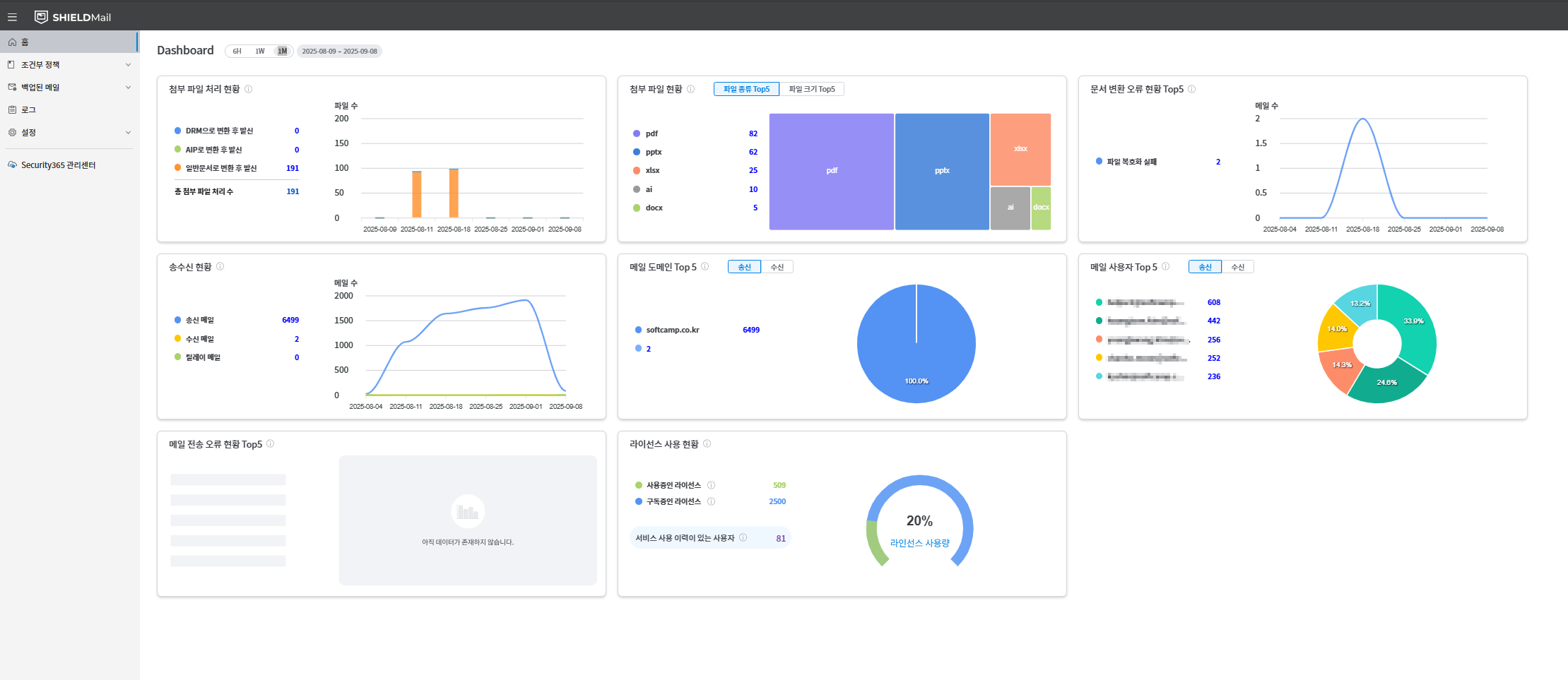
- The dashboard screen consists of cards and charts as shown below:
- Attachment Processing Status
- Attachment Status (Top 5 by Type/Size)
- Top 5 Document Conversion Error Status
- Transmission and Reception Status
- Top 5 Mail Domains (Sending/Receiving)
- Top 5 Mail Users (Sent/Received)
- Top 5 Email Sending Error Status
- License Usage Status
2. Dashboard Card Information
2-1. Status of Attachment Processing
- Monitor the conversion, decryption, removal, and sender blocking status of email attachments in real time.
- Processing items:
- Send after conversion to DRM
- Send after conversion to AIP
- Convert to a regular document and send.
2-2. Status of Attached Files
- attached fileby type / By Size RangeVisualize the number of cases based on the Top 5 criteria.
2-3. Document Conversion Error Status Top 5
- Displays the types and counts of errors that occurred during the document conversion process based on the Top 5 criteria.
- Example Item:
- File conversion failed
- File encryption failed
2-4. Transmission and Reception Status
- This card visualizes and displays the number of email sent and received, as well as the number of relay emails, by time zone.
- Each data point is updated in real-time, and the number of sent, received, and relay emails is distinguished by different colors on the graph.
- **Sent Mail (Blue):**Number of Sent Emails
- **Received Email (Yellow):**Number of received emails
- **Relay Mail (Green):**Relay Mail Count
- The graph shows the number of emails by time zone, making it easy to identify the email traffic patterns for specific time zones.
2-5. Top 5 Mail Domains
- Displays the top 5 domains most used for sending/receiving.
- You can switch between the Send/Receive tabs to view each one.
2-6. Top 5 Mail Users
- Displays the top 5 by mail sender/recipient.
- You can switch between the Send/Receive tabs to view each one.
2-7. Top 5 Email Sending Error Status
- Displays the types and counts of errors that occurred during the email transmission process based on the Top 5 criteria.
- Example Item:
- EML transmission error
- Mail server related errors
- Recipient-related error
2-8. License Usage Status
- Visualizes the actual usage compared to the licenses allocated to the system.
- The status of user-based/subscription licenses will also be displayed.
- Example: License usage rate 50%
3. Notes
- Data can be filtered by 6 hours, 1 day, or 1 week, and data for each period can be compared graphically.
- Each dashboard card can be clicked to navigate to a detailed page where more detailed statistics and records can be viewed.
Internal document link
Scheduled for update.