DRM Key Management (Encryption KEY Management)
DRM key management (encryption KEY management) is a screen for registering and managing encryption keys and permission policies used for document encryption and decryption. It supports two methods: directly registering keys as files and integrating with the document security server (SCI server).
1. Screen Configuration
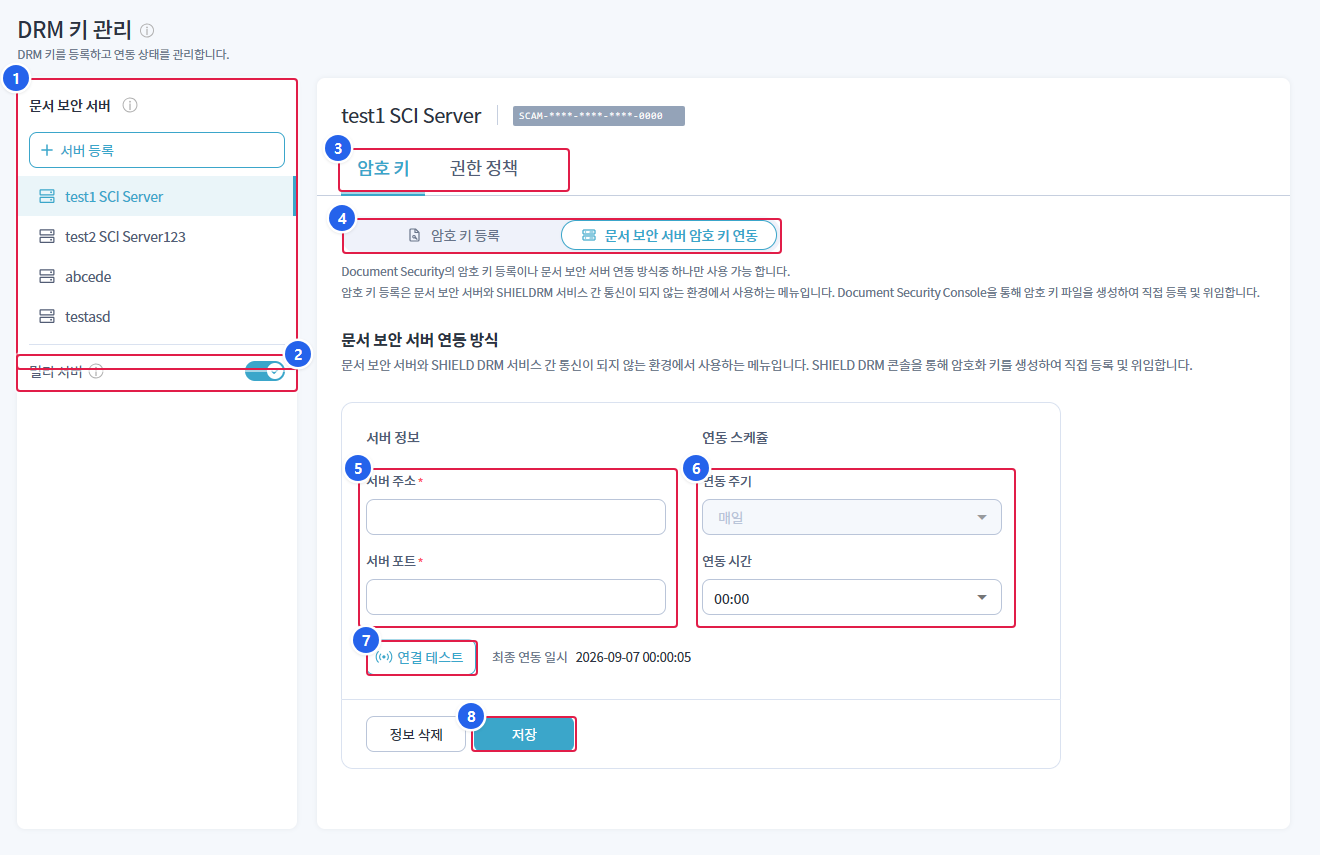
1. Document Security Server List
- The registered document security server is displayed,
서버 등록Add a server. When you select a server, the settings for that server are displayed in the right panel.
2. Multi Server
- Activate when operating multiple servers together. A warning will be displayed when switching to deactivate.
3. Encryption Key / Permission Policy Tab
- Switching the management target. Set both tabs in the same way.
4. Key Management Method Selection
암호 키 등록(Direct file upload) or문서 보안 서버 암호 키 연동You can only use one of the (server integration) options.
5. Server Information
- Enter the address and port of the document security server to be linked.
6. Integration Schedule
- Specify the integration cycle and time to receive the key from the server.
7. Connection Test
- Check if the integration is possible with the entered server information. The final integration date and time will be displayed on the right.
8. Save
- Applying the entered integration settings.
정보 삭제You can remove the integration settings.
Clicking the guide (tooltip) icon at the top will open the step-by-step guidance panel.
2. Key Management Method Selection
Choose one of the two methods for each of the encryption key and permission policy.
| method | Explanation |
|---|---|
| Registering the encryption key file | Register by directly uploading the key file |
| Server Integration | Regularly retrieves keys by linking to the document security server (IP·Port) |
If there is an impact when switching methods (if a file is already registered or the server is configured), a warning modal will be displayed.
3. Registering the Encryption Key File
암호 키This is the procedure when selecting the file registration method in the tab.
- Create a key file for encryption -
암호 키 파일 생성Clicking will open the step-by-step guide panel. This guides you through the process of creating a key file in the SHIELD DRM console and obtaining an authentication token after registering the service in Security365 to create the key file. - Registering the encryption key file -
등록Drag or drop the key file in the upload panel after clicking the button.찾아보기Select __PH_0__, check the agreement, and then upload. - Check / Delete List- The registered key files are displayed in the list along with the file name and creation date, and can be selected and deleted.
An invalid key file or format error file will display an error message during upload.
4. Permission Policy File Registration
권한 정책In the tab, the permission policy file is managed in the same way as the password key, either by directly registering the file or through server integration. The procedures for creation, upload, and deletion are the same as those for the password key.
5. Server Integration
When selecting the server integration method, enter the document security server information.
| item | Explanation |
|---|---|
| Server Address | Server IP (IP format validation) |
| Server Port | Encryption Key Basic 62000 / Permission Policy Basic 62004 (numbers only) |
| Integration Cycle | Daily (Fixed) |
| Integration Time | Select between 00:00 and 23:00 |
연결 테스트Check the possibility of integration with저장is displayed along with the final integration date and time,정보 삭제You can remove the integration settings.
6. Server Registration and Multi-Server
Left서버 등록Add a document security server.
| item | Pharmaceuticals |
|---|---|
| Server Name | No duplication |
| Server ID | Duplicate not allowed, modification not allowed after registration |
| Server Description | Selection |
When you need to operate multiple servers멀티 서버Activate the toggle. A warning will be displayed when switching to deactivate.
7. Permissions
The registration, modification, and deletion of this screen areDocumentSecurityYou need ReadWrite permission. If you do not have permission, the button will be disabled.