Document Conversion Log
The document conversion log screen is a screen that monitors the document conversion status according to conditional policies. You can view, search, and download the processing results by document, document types before and after application, business systems, identifiers, processing times, and more.
Left Menu로그 > 문서 변환 로그Entering from.
1. Screen Configuration
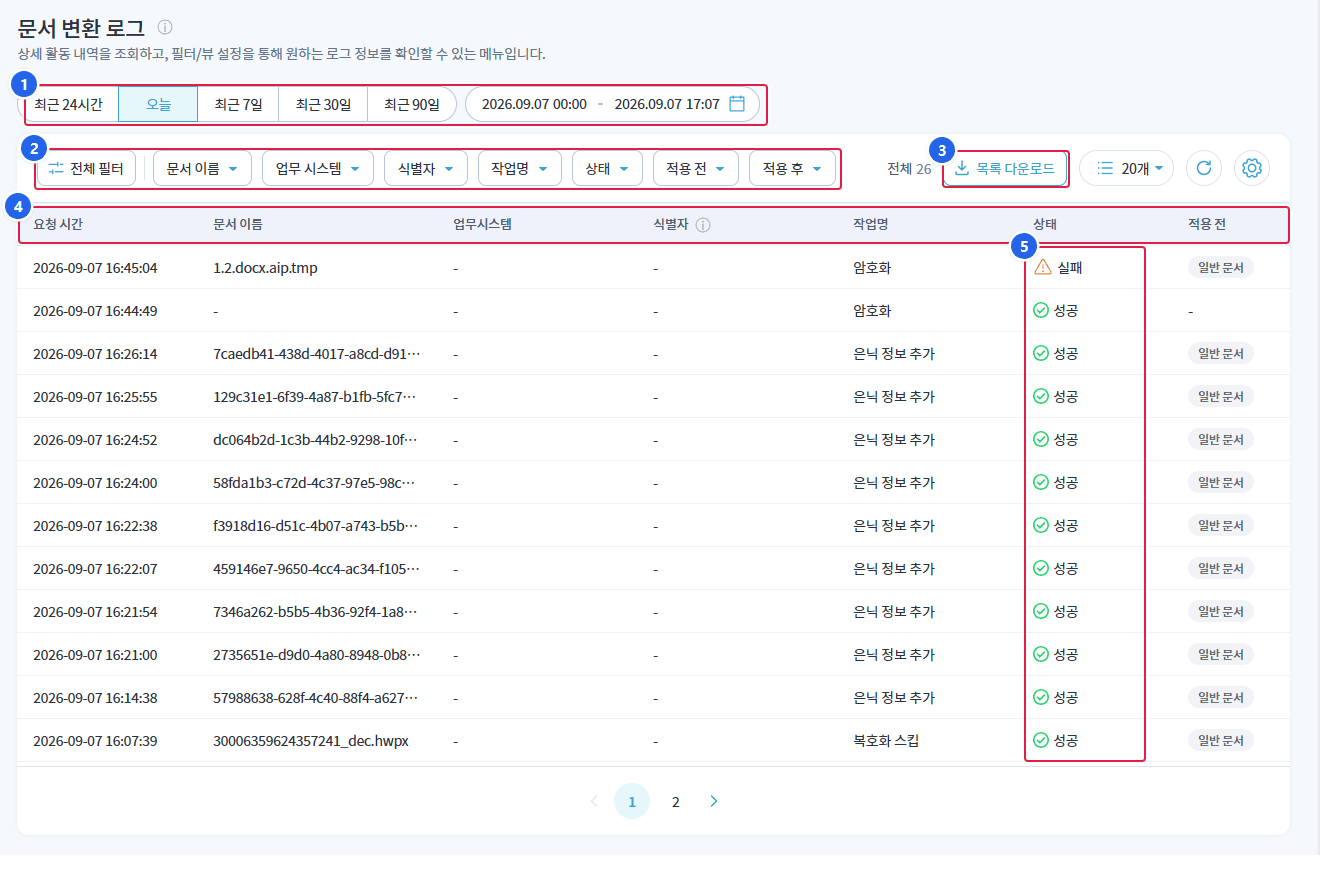
1. Query Period
최근 24시간/오늘/최근 7일/최근 30일/최근 90일Select from the preset or specify the start and end date and time directly in the date input field on the right.
2. Filter
전체 필터/문서 이름/업무 시스템/식별자/작업명/상태/적용 전/적용 후to narrow down the search range.
3. Download List
- Download the retrieved list as a file.
4. List
- The document conversion history that meets the search criteria is displayed in reverse chronological order.
5. Status
- The result of each case is displayed with an icon.
2. List Column
The default display columns are as follows, and you can change the display items and order in the column settings at the top right.
| Column | Explanation |
|---|---|
| Request Time | Date and time when the conversion request was made |
| Document Name | Document Name for Processing |
| Business System | Task system where the request occurred |
| Identifier | Tagged identifier for the request (if not present-) |
| Task Name | Types of Processing Performed |
| status | Processing result (Success / Failure) |
| Before Application | Document type before conversion |
| After application | Document Type After Conversion |
| Processing time | Time taken from request to completion |
3. State Value
| status | meaning |
|---|---|
| success | The conversion has been processed normally. |
| failure | Conversion failed |
4. Task Name
The types of processing performed are recorded. The main items are as follows.
| Task Name | Explanation |
|---|---|
| Encryption | Processing of encrypted documents |
| Decryption | Decryption of encrypted documents |
| Decryption Skip | Skipped processing because it is not a decryption target. |
| Add hidden information | Processing of inserting security metadata (hidden information) into the document |
The complete list of task names is작업명You can check in the filter's selection options.
5. Document Type (Before Application · After Application)
| Type | Explanation |
|---|---|
| General Document | Unencrypted document |
| DRM | Document encrypted with DRM |
| MIP | Documents labeled with AIP·MIP |
6. Features
| Function | Explanation |
|---|---|
| Select Query Period | 5 types of presets or specify date range directly |
| Filter | Document Name / Business System / Identifier / Task Name / Status / Before Application / After Application |
| Download List | Download the retrieved list as a file |
| Page Size | Select the number of items to display on a page |
| Refresh | Re-query data with current conditions |
| Column Settings | Display Column and Change Order |
7. Related Log Screen
| log | Content |
|---|---|
| Admin Log | Administrator Activity Audit Log Performed in the Management Console |
Depending on the environment, additional screens for each backend service log (SKMS · EKMS) may be provided.