Domain Menu Guide
※ Last updated: 2025-05-21
The SHIELD Mail domain management menu is a menu that allows you to manage mail domains and set up and manage the mail servers to be used for sending and receiving emails for each domain.
1. Entering the Domain Menu
Settings > DomainYou can access the domain management screen from the menu.
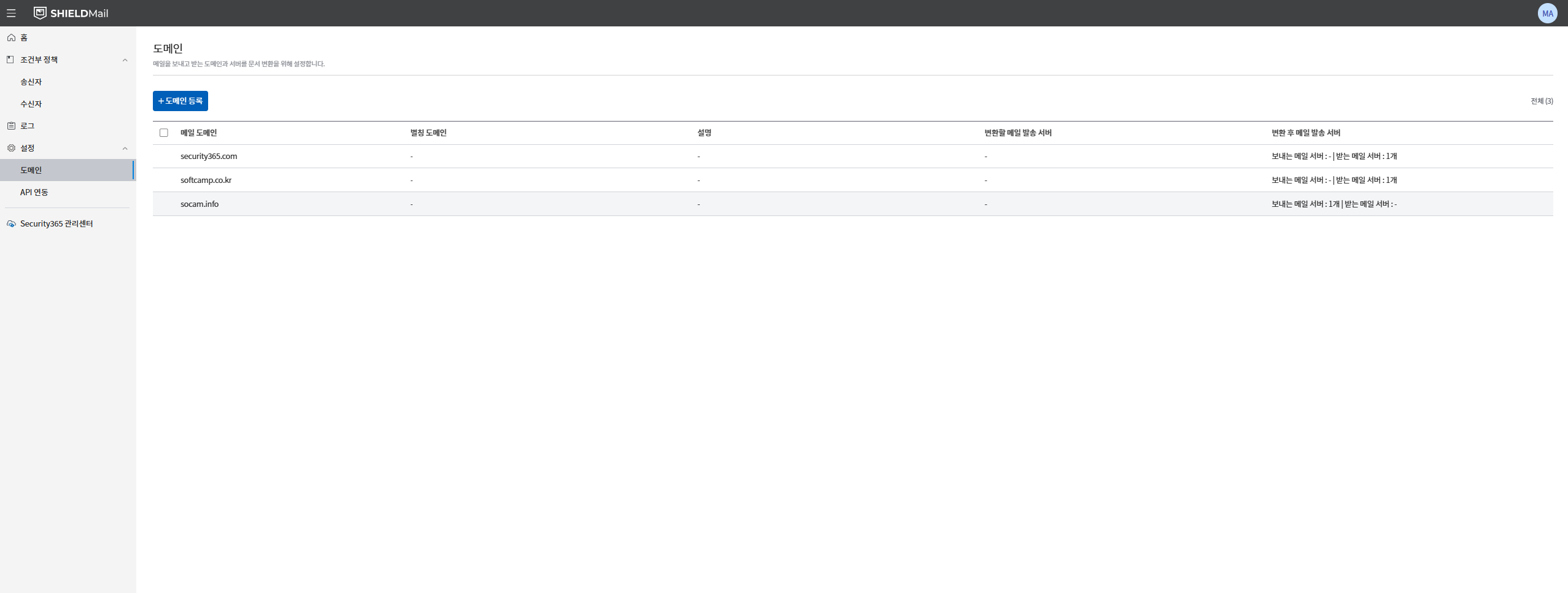
- At the top of the screen,
도메인 등록There is a button, and the currently registered domain list is displayed in a table format. - Each domain item hasDomain Name, Alias Domain, Description, Mail Sending Server After ConversionInformation will be displayed.
2. Registering a Domain
To register a new domain
도메인 등록Click the button.
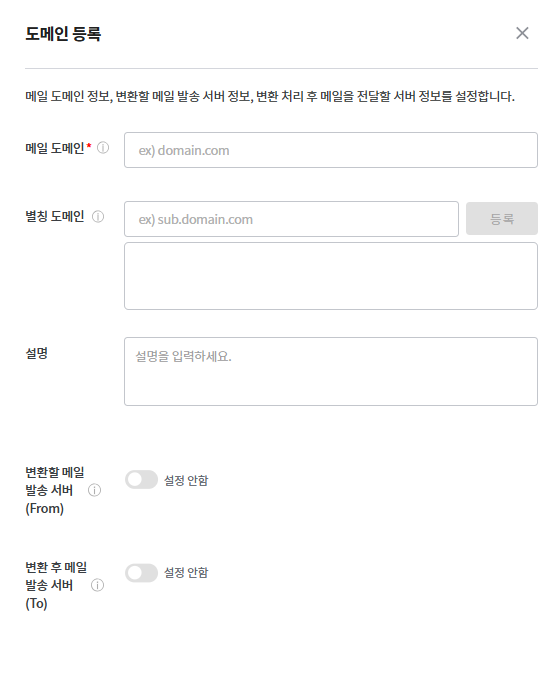
- **Domain name (required):**Enter the email domain name to manage. For example: SOFTCAMP.co.kr
- Input tooltip: 'Set the domain of the email.'
- **Alias Domain (Optional):**You can add alias domains for the corresponding domain. For example: sub.SOFTCAMP.co.kr
- Tooltip: 'Set up to send/receive emails with various domain names.'
- You can enter multiple alias domains,
등록Press the button to add.
- **Description (optional):**Enter the purpose or objective of the domain.
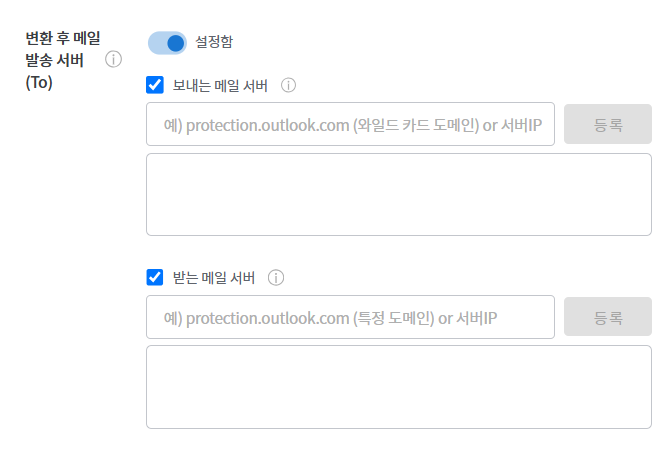
- **Mail sending server to be converted (From):**Enter the mail server information for delivering mail to SHIELD Mail. For example: *.protection.outlook.com
- **Mail Sending Server After Transformation (To):**Enter the mail server information to be delivered for each sender and receiver after mail conversion. For example: securemail.SOFTCAMP.co.kr
- **Sending mail server:**Specify the mail server to be used for sending emails after conversion.
- **Receiving mail server:**Specify the mail server to forward to when receiving mail after mail conversion.
After completing the setup,
등록Click the button to save the domain information.
3. Domain List
Once the domain registration is complete, it will be added to the domain list.
- The domain name, alias domain, description, sending server, and receiving server are displayed.
- Registered domains can be clicked to edit or delete.
4. Domain Editing and Deletion
- **Edit:**Clicking on the registered domain item will take you to the domain information editing page.
- **Delete:**from the domain list
삭제Clicking this button will delete the corresponding domain.
Note: Deleted domains cannot be restored, and any existing email sending and receiving policies will also be deleted.
5. Precautions When Registering a Domain
- The domain is a required field. It must be entered, and duplicate domains cannot be registered.
- The sending server and receiving server are optional, but if entered,Domain and receiving server are 1:1 mappingThis is required.
- Alias domains can be registered in multiple ways. For example: sub1.SOFTCAMP.co.kr, sub2.SOFTCAMP.co.kr
6. Notes
- If the domain information is changed or deleted, the existing registered send/receive policies will also be updated.
- The sending server and receiving server information for each domain is integrated with the Security365 platform and is used for email conversion and sending.
Internal document link
It is scheduled for an update.