Sending interconnection files
This document provides guidance on how to send files from SHIELD Drive to another network (connected network) in a network-separated environment and how to check the transmission results. The menu will only be displayed if the company uses network interconnection and the administrator has granted permission to send files to the storage role.
1. Usage Conditions
| item | condition |
|---|---|
| Company Settings | Using a network connection |
| Storage | Secure storage. Not provided in standard storage. |
| Permission | Send file permission for the storage role |
| Target | Only files are allowed. Folders or selections that include folders cannot be sent. |
| File Status | Files for which synchronization has been successfully completed |
2. Sending Files
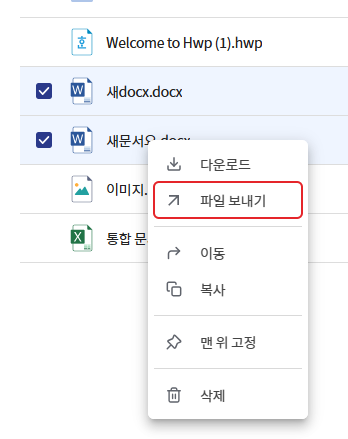
- Select the file to send. You can select multiple files together.
- Right-click the file and select [Send to].
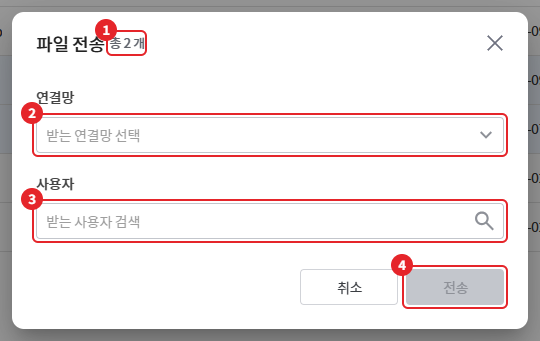
- Specify the receiving network and the receiving user in the "File Transfer" window.
- Press [Send].
- [Send File] is only available in the right-click menu. It is not in the top selection menu.
| number | item | Explanation |
|---|---|---|
| 1 | Transmission Target | Number of selected files ("Total N files") |
| 2 | network | Select receiving network. Displayed only when there are two or more networks. |
| 3 | User | Search for receiving users. When you enter a name with 2 or more characters, the search results will be displayed, and the selected users will be shown as chips below. Only displayed for companies set to send to multiple users. |
| 4 | [Send] | Activate when all required items are specified. |
- In companies where user items are not displayed, it is sent to the user's account of the receiving network. If there is only one network, it is sent directly without the "File Transfer" window.
- The number of files and the capacity that can be sent at once follow the administrator's settings. If exceeded, a "File Transfer Count Exceeded" or "File Transfer Capacity Exceeded" window will display the maximum count and capacity. Please reduce the selected files and try again.
- If the user search fails, "Unable to load the user list due to a temporary error." will be displayed.
- If a conditional policy is applied to the inter-company transmission, a policy check will be conducted before the transmission.
3. Check Transmission Results
When the transmission starts, the progress status of "Network Connection Transmission" will be displayed in the notification at the bottom right of the screen.
| result | display |
|---|---|
| In Progress | Display during inter-network transmission |
| complete | Inter-network transmission completion notification |
| failure | Display "File Transfer Failed" window along with the notification of transmission failure. |
The sent file will be recorded as "File Transfer" in the [Activity History] of the detailed information slide.
4. In case of transmission failure
(Image to be attached later)
The "File Transfer Failed" window displays the list of failed files and their status.
- When you hover over the status message, the reason for failure sent by the network system will be displayed.
- If there are files that can be sent again, "The file was not sent. Would you like to try again?" will be displayed, and you can resend by clicking [Retry All].
- If it is an error that cannot be sent again, "File transfer failed. A transfer error has occurred and cannot be retried. Please contact the administrator." will be displayed.
- You can delete items from the list using the close icon, and clicking [OK] will close the window.
| Guide text | Action |
|---|---|
| File transfer failed. Please try again later. If the problem persists, please contact the administrator. | Try again later. |
| You can transfer up to N files at a time. | Reduce the number of selected files |
| The file transfer capacity can transmit up to a maximum of NMB at a time. | Reducing the size of the selected file |
If the problem persists or you cannot determine the reason, please request confirmation from the administrator. The administrator can check the transmission failure history and detailed reasons in the log menu of the admin console.