Search and Filter Guide
This document guides you on how to find files, folders, and comments of SHIELD Drive using the search bar and search filters at the top of the screen. It also explains how to access previously found or viewed items through recent search terms and recent documents.
1. Search Target
| division | content |
|---|---|
| Search Items | File, Folder, Comment |
| Search Term Match Range | Name, Description, Tags, File Content (File Only) |
| Target Storage | Storage with secure storage method |
| Target Scope | The area in use among the personal box, common box, shared box, Teams box, and Teams Nas box displayed in the left menu. |
- Files and folders in storage with a standard save method are not displayed in the search results.
- Only items that you have access to will be displayed.
- Teams app and Teams Nas app are only applicable when the administrator uses Teams integration (Teams NAS integration).
2. Searching
- Enter the search term in the search box at the top of the screen.
- Press the Enter key or click the search icon in the search box.
- The search panel opens and the search results are displayed.

- Clicking the filter icon in the search bar opens the search panel without executing the search.
- When entering multiple search terms, separate them with a comma (,) or space.
- Clicking the X icon in the search box deletes the entered search term.
3. Using Search Filters
After specifying the conditions in the filter area on the left of the search panel, click [Search] to search only for items that match the conditions.
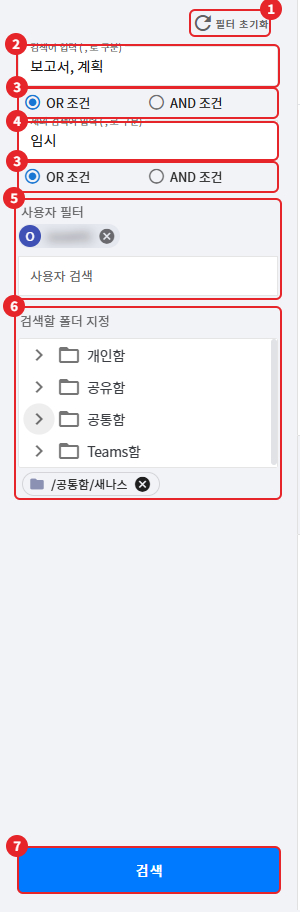
| number | item | Explanation |
|---|---|---|
| 1 | [Filter Reset] | Reset all entered search terms and filter conditions |
| 2 | Search term input | Enter the word to search. Separate multiple words with a comma (,). |
| 3 | [OR condition] / [AND condition] | Selection of Combination Methods for Multiple Search Terms |
| 4 | Exclusion search term input | Enter words to exclude from the results. Separate multiple words with a comma (,). |
| 5 | [User Filter] | Search for items related to a specific user |
| 6 | [Specify Folder to Search] | Search only within the specified folder |
| 7 | [Search] | Execute search with specified conditions |
3-1. OR / AND Conditions
Select a combination method for the search term and the exclusion search term.
| condition | search term | Exclusion keywords |
|---|---|---|
| [OR Condition] (Basic) | Search for items that contain any of the entered words | Exclude items that contain any of the entered words. |
| [AND Condition] | Search only for items that contain all the entered words | Exclude only items that contain all the entered words. |
3-2. User Filter
- [User Search] Enter the username or account in the input field.
- Select a user from the displayed list. You can also select a group.
- The selected users will be displayed under [User Filter]. You can add multiple users, and exclude them with the X icon.
3-3. Specify the folder to search
Select the folder to search in the folder tree of the [Specify Search Folder] area.
- Multiple folders can be selected. The selected folders are displayed below the tree and can be removed with the X icon.
- If no folder is specified, search within the entire scope of "1. Search Target".
Reference - Folding the Filter Area: Clicking the fold button on the right of the filter area will fold the filter area, allowing you to view the results list more broadly.
4. Checking Search Results
The search results are displayed under the title of 'search term' result value (total count) divided into [File] / [Folder] / [Comment] tabs. Each tab shows the corresponding result count, and scrolling down the list will load the next results.
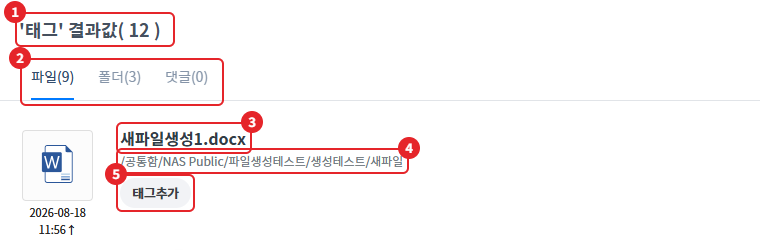
| tab | Display content | Action on Click |
|---|---|---|
| [File] | File name, path, modification time, tags, and some content that includes keywords | Clicking the name opens the file, clicking the path moves to the corresponding folder. |
| [Folder] | Folder name, path, modification time, tags | Move to the corresponding folder when clicking the item |
| [Comment] | File/Folder names and paths with comments, authors, comment content | Clicking the name opens the file, clicking the path navigates to the corresponding location. |
- Tags that match the search term are highlighted.
- If there are no results, display "No search results found."
- If the search fails, display an alert saying "Search failed."
4-1. After moving from the search results
When you click on the path in the search results to navigate to the folder, the search results panel will close. To view the results list again, click on the corresponding search term in the [Recent Searches] section of the left menu. The search will be conducted again with the filter conditions specified at that time.
5. Finding by Tag
If you register tags for files and folders, you can find them by entering the tags as search terms.
- Select a file or folder, then open the right [Details] panel.
- Click the tag addition icon in the [Tag] section.
- Type a tag in the "Enter tag after input" field and press the Enter key.
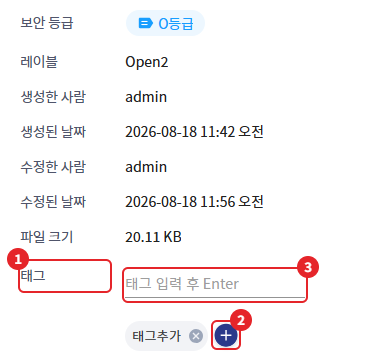
- The registered tag can be deleted with the X icon in the detail information panel.
- Tag names cannot use / * \ < > ? : " | characters.
- If the search term matches the tag, the corresponding tag is highlighted in the search results.
6. Recent Search Terms
When you expand the [Recent Searches] in the left menu, the recently executed search terms will be displayed in reverse chronological order.

- Store up to 5 recent search terms
- Clicking on the search term will search again with the filter conditions specified at that time.
- Clicking the X icon will delete the corresponding search term.
- If there is no search history, display "There are no recent search terms."
7. Recent Documents
The recently viewed documents can be checked in the [Recent Documents] on the home screen and the left menu.
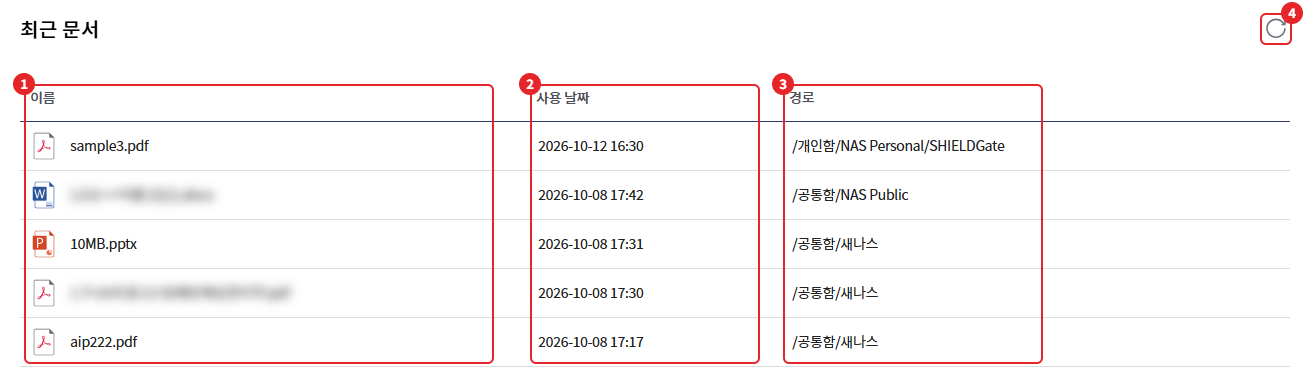
| item | Explanation |
|---|---|
| name | Document name. Double click to view the document. |
| Usage Date | Last viewed time |
| path | Location of the document. Click to navigate to the corresponding folder. |
- Clicking the refresh icon updates the list to the latest state.
- If the list cannot be retrieved, display the notification "Failed to retrieve recent documents."