Check Detailed Information
You can check the information, activity history, comments, and previous versions of files and folders in the details slide. The slide opens overlapping above the list on the right side of the screen.
1. Open Detailed Information Slide
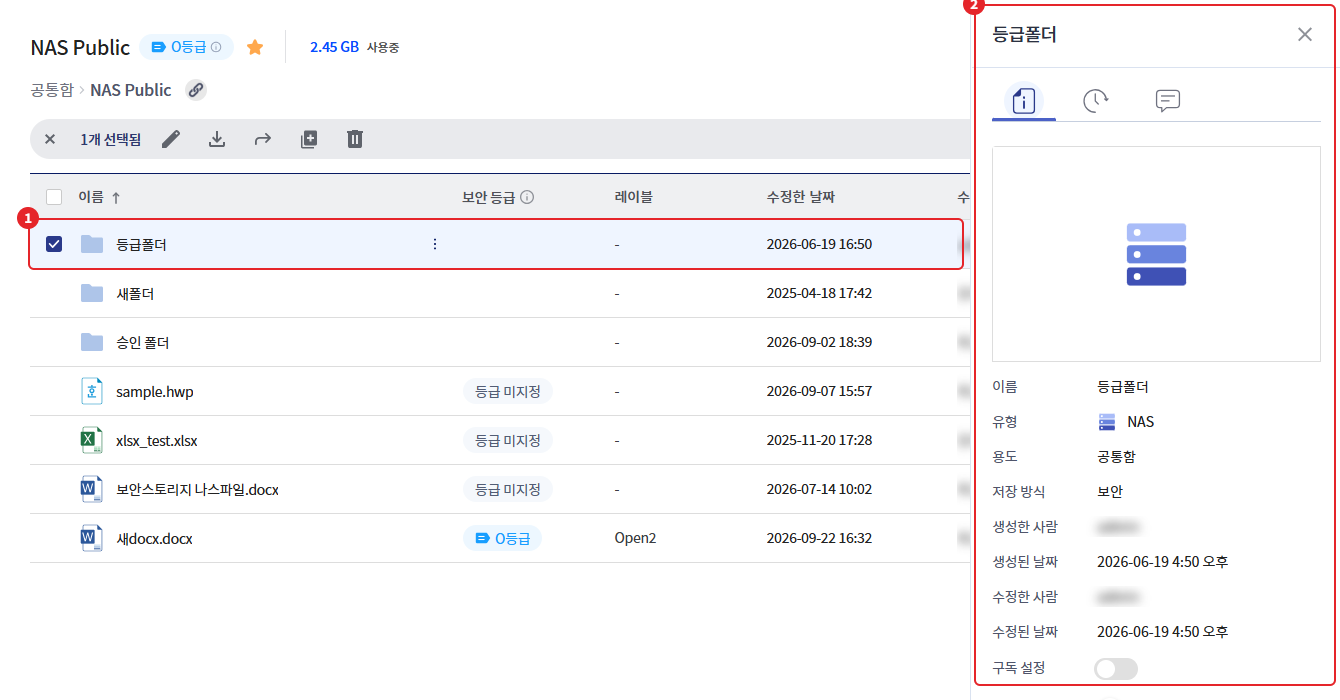
| Method | Display target |
|---|---|
| Select 1 item from the list | Selected item. The slide opens automatically. |
| Top right detail information button (select 1 item) | Selected Item |
| Top right detail information button (no selection) | Current Folder |
| Top right detail information button (select 2 or more) | Button Disabled |
- When entering a folder, the slide does not open automatically. To view the current folder information, press the details button without selecting anything.
- If you deselect or select more than two, the slide will close.
- The slide will close if you click the close icon or the details button in the upper right corner again.
2. Tab Configuration
Switch the content with the icon tab at the top of the slide. The tab name will be displayed when you hover over the icon.
| tab | content | Display Conditions |
|---|---|---|
| Detailed Information | Item Information, Subscription Settings, Tags | always |
| Activity History | Item's Work History | Secure Storage |
| comment | Comments left on the item | Secure Storage |
| File Version | File Save History and Previous Version Download | Security storage, when selecting a file |
In general storage, only the [Details] tab is displayed.
3. Detailed Information Tab
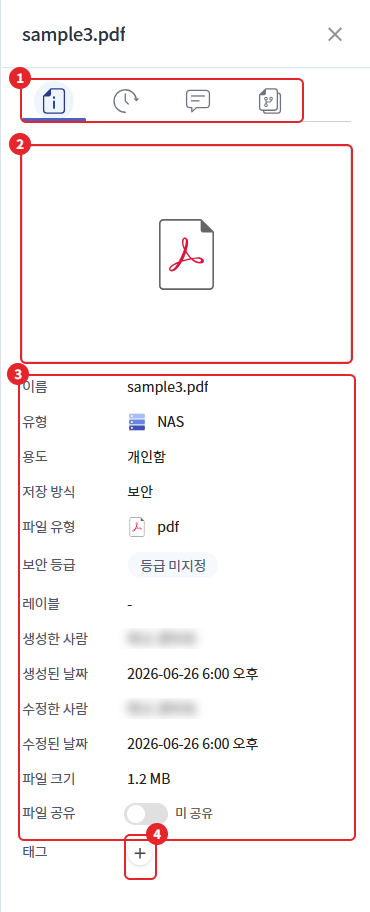
A preview is displayed above. Files that cannot create a preview show a file extension icon, and folders show a storage type icon.
| item | folder | file | Explanation |
|---|---|---|---|
| name | O | O | Item Name |
| type | O | O | Storage Types (NAS, SharePoint, Google Drive, etc.) |
| Usage · Storage Method | O | O | Personal box, common box, shared box, etc. purpose, security, general storage method |
| File Type | - | O | Document Types by Extension |
| Security Level · Label | O | O | Display in storage with security level applied |
| Creator · Created Date · Modified By | O | O | Secure Storage |
| Modified Date | O | O | Last modified date and time |
| File Size | - | O | File Size |
| Subscription Settings | O | - | Secure Storage. Refer to Chapter 4 |
| File Sharing | - | O | Personal file and when there is sharing permission. Refer to "Sharing and Collaboration Guide" |
| Automatic deletion | O | - | The top-level folder of the automatically deleted personal mailbox. Refer to "Personal Mailbox Automatic Deletion Exception Folder Settings." |
| tag | O | O | Secure Storage. Refer to Chapter 5. |
| Explanation | O | - | Shared Folder of the Shared Box |
| Folder · File · Size | O | - | Number of subfolders in the folder, number of files, total size (secure storage) |
If the information cannot be retrieved, "Detailed information unavailable" will be displayed at the bottom.
4. Subscription Settings
When you turn on the [Subscription Settings] toggle for a folder, you will receive notifications when changes occur in that folder. Turning off the toggle will unsubscribe you. The subscription/unsubscription history will remain in the [Activity History] tab.
5. Tags
- Click the add icon for the [Tag] item.
- Type a tag in the "Enter tag after input" field and press the Enter key.
- When you click the close icon of the tag chip, the tag will be deleted.
- Tags include
/ * \ < > ? : " |,%,.You cannot use characters. - You cannot register the same tag for the same item twice.
- OneDrive·SharePoint·Google Drive items can edit tags after account linking.
6. Activity History Tab
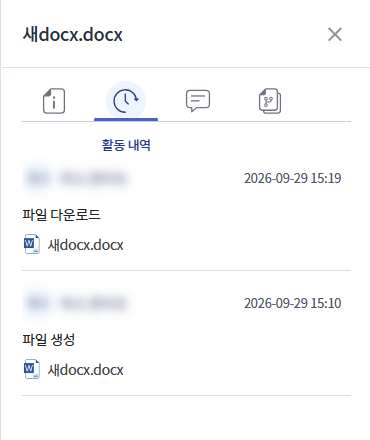
Displays the tasks performed in the item in reverse chronological order. Each history entry shows the person who performed the task, the date and time of the task, and the details of the task.
| division | Recorded Tasks |
|---|---|
| folder | Create folder, rename, copy, move, delete, restore, download folder, change tags·description, pin·unpin |
| file | File creation, viewing, editing, downloading, renaming, copying, moving, deleting, restoring, file transfer |
| Common | Comment registration, modification, deletion, subscription settings enable/disable, sharing settings modification, invitation/invitation cancellation, automatic deletion exception settings enable/disable |
7. Comment Tab
- You can enter content in the input field. You can enter up to 200 characters.
- Click [Register].
- You can [edit] · [delete] the comments you have written.
- Comment registration, modification, and deletion are recorded in [Activity History].
8. File Version Tab
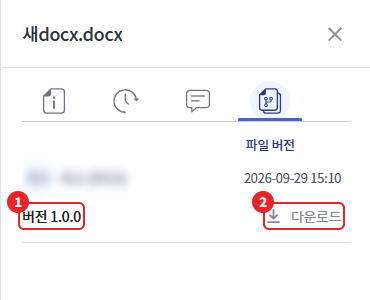
Files in secure storage accumulate versions each time they are saved. Overwrite uploads, web/app edit saves are all recorded as new versions.
- The list displays the version number, the person who saved it, and the save date and time.
- If you have download permissions, you can receive the files for each version by clicking [Download] at that point in time.
- The feature to revert to the immediately previous version is not provided in the version list.