Control
1. Overview
Automatically perform encryption and security processing on documents at the time of upload and download to external storage (OneDrive, SharePoint, etc.) to comply with the organization's information security policies.
2. Document Status Indication
The security status of the document is visually indicated through the file icon.
| User Screen | Content | Note |
|---|---|---|
 | Classification(Label) + Protection(Protect) | The PowerPoint document is marked as a preview. |
 | Label | The PowerPoint document is displayed as a preview. |
3. When uploading to external storage
3.1 Overview
When uploading documents from a local path to external storage such as OneDrive/SharePoint, the system automatically applies security policies to encrypt and process the documents.
3.2 Security Processing Steps
- Upload Detection: Detecting File Move/Copy Events (ZTCAP fileEvent)
- Policy Check: Check ZTCAP policy for the original file
- Document Conversion: Converted to a security document according to policy (AIP label applied or DRM conversion)
- Upload Execution: Upload the converted document to an external storage.
- Backup Storage: (When setting policies) Backup of the original document
3.3 Support Scenarios
|
구분 |
Document Security 6 |
비고 |
|
일반 경로 → OneDrive/SharePoint |
변환 후 업로드 |
ZTCAP fileEvent - CopyFileTo_OneDrive - CopyFileTo_Sharepoint |
|
일반 경로 → 일반 경로 |
미지원 |
내부 이동이므로 통제 미적용 |
3.4 Actions by Authentication Status
- DS6 Login Status: Upload the converted file according to the ZTCAP policy for the original file.
- DS6 Logout Status: Uploading files to external storage is blocked.
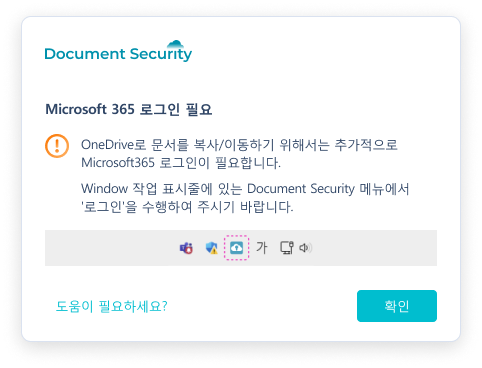
4. Warning Popup Functionality During Upload
4.1 Feature Overview
When uploading files or folders to the OneDrive path, a notification window will appear indicating that the document conversion process is in progress.
- Feature Planning Document
[File Conversion Warning Dialog Design]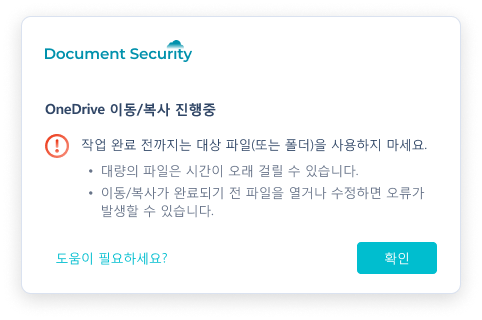
4.2 Supported Modules
| Module Name | version |
|---|---|
| DS365.Agent.exe | 6.2.0.1 |
| SCRA_DS365Shell.dll | 6.0.0.37 |
| SCRA_DS365Shell64.dll | 6.0.0.37 |
4.3 Resource Application Information
- Resource key
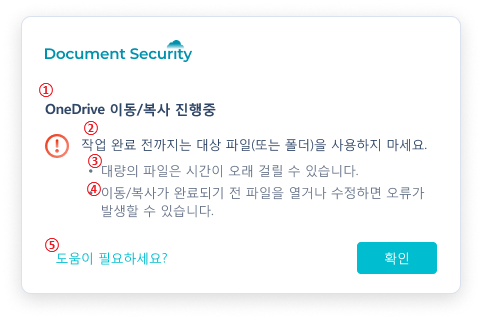
① Title
② MainMsg
③ SubMsg1
④ SubMsg2
⑤ HelpUrl
# 리소스 파일 정보 c:\Windows\softcamp\sdk\Res\DS\ResUIKOR.rc, 버전 6.0.0.13
....
[CloudCopyMoveWarning]
Title = OneDrive 이동 / 복사 진행중
MainMsg = 작업 완료 전까지는 대상 파일(또는 폴더)을\r\n사용하지 마세요.
SubMsg1 = *대량의 파일은 시간이 오래 걸릴 수 있습니다.
SubMsg2 = *이동 / 복사가 완료되기 전 파일을 열거나 수정하면\r\n오류가 발생할 수 있습니다.
HelpUrl = (안내 사이트 주소)
....
4.4 Limitations
- If you start another copy before the current copy finishes, duplicate windows will occur. (up to 10 windows)
- By default, the window will automatically close once the copying is complete, but the user can also close the window by clicking the confirm button.
5. Backup File Storage Function During Upload
5.1 Feature Overview
This is a feature that backs up and stores the original documents uploaded to external storage.
5.2 Supported Modules
| Module Name | version |
|---|---|
| SCRA_DS365Shell.dll | 6.0.0.37 |
| SCRA_DS365Shell64.dll | 6.0.0.37 |
5.3 Policy Information
- By adding the DS_MIP_INIT policy as below, you can enable/disable the feature (when the "CloudCvtBackup" object value is added to the json, it is On; if the object is not present, it is Off).
- The save path can also be specified separately as a policy (if not specified, the default is to use the My Documents path).
{
  ...
  "CloudCvtBackup": {         // "CloudCvtBackup" 객체 미지정시 백업 기능 off
    "path" = "C:\\MyBackup"   // path 값 지정시 C:\MyBackup으로 백업 경로가 지정됨.
  }
}
5.4 Limitations
- The backup path is designated by the policy, or a default path (My Documents) where a "CloudDrv_Backup" folder is created, and subfolders are created by date, after which the backup files are stored in those folders.
- When copying a folder, the folder structure is not maintained, and all converted files are saved under the date folder.
6. When Downloading from External Storage
6.1 Overview
When downloading documents from external storage such as OneDrive/SharePoint to a local path, the system automatically applies security policies to process the documents.
6.2 Security Processing Steps
- Download Detection: Detecting File Move/Copy Events (ZTCAP fileEvent)
- Policy Check: Check the security status of the downloaded target file
- Document Conversion: Convert to appropriate security documents according to policy
- Download Execution: Save the converted document to a local path
6.3 Support Scenarios
|
구분 |
Document Security 6 |
비고 |
|
OneDrive/SharePoint → 일반 경로 |
변환 후 다운로드 |
ZTCAP fileEvent - CopyFileFrom_OneDrive - CopyFileFrom_Sharepoint |
|
OneDrive/SharePoint → OneDrive/SharePoint |
미지원 |
클라우드 간 이동이므로 통제 미적용 |
6.4 Actions by Authentication Status
- DS6 Login StatusWhen downloading files from external storage, the converted files are saved according to the policy.
- DS6 Logout Status: Downloading files from external storage is blocked.
7. Security Controls for Document Access
7.1 Overview
When accessing the document, the system automatically checks the security policy and, if necessary, converts the document to ensure safe viewing.
7.2 Security Processing Steps
- Access Request Detection: Document Viewing Event Detection (ZTCAP fileEvent: ApplicationFileOpen)
- Policy Check: Check policies based on document path and security status
- Document Conversion: Converted to a security document according to policy (if necessary)
- Access Permission: Safely view the converted document
7.3 Access Policy by Path
|
구분 |
Document Security 6 |
비고 |
|
일반 경로 문서 |
변환 후 열람 |
ZTCAP fileEvent 커스텀 정책 |
|
OneDrive 경로 문서 |
일반문서 : 미지원 보안문서 : 열람 차단 AIP문서 : 미지원 |
보안문서는 AIP 변환 후 열람 필요 |
|
SharePoint 경로 문서 |
일반문서 : 변환 후 열람 보안문서 : 변환 후 열람 AIP문서 : 변환 후 열람 |
모든 문서 타입 변환 지원 |
7.4 Policy Application Mechanism
-
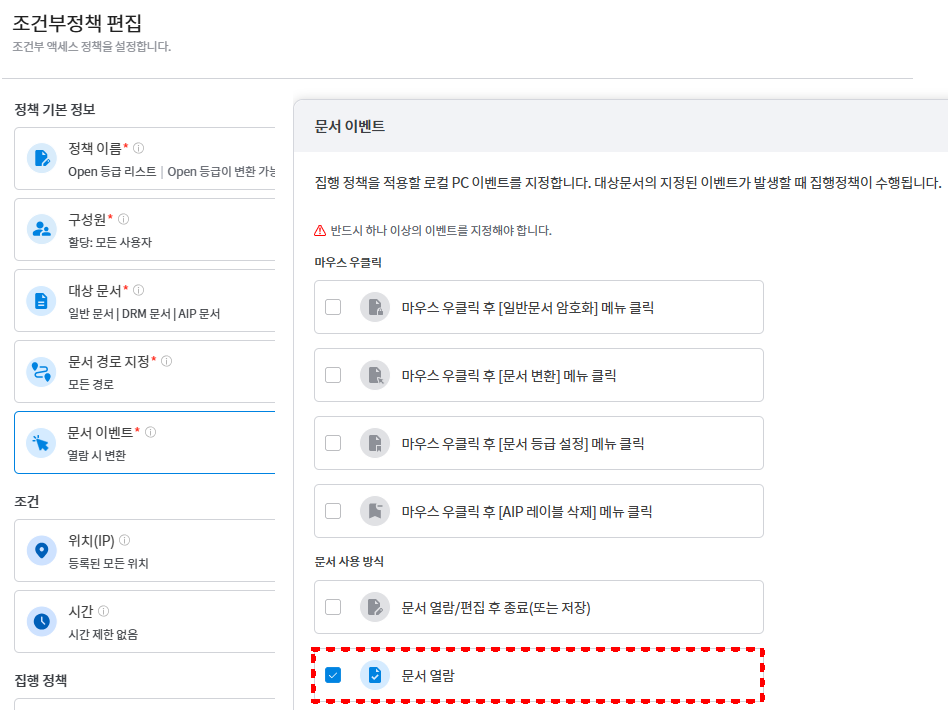
Application of ZTCAP Policy at Document Viewing TimeDocument Event - Specify conversion policy upon document viewing to support conversion to documents registered in the execution policy at the time of viewing.
-
Access Restrictions for Security DocumentsViewing secure documents (DRM) in the OneDrive path is possible after converting them to AIP documents via the SHILDRM service (or by right-clicking the user menu to switch to AIP/general documents before viewing).

Cases that do not support conversion when viewing documents
- Before Integrated Login
- Document files in the local OneDrive path
- Files with a document size of 0 bytes
- If the AIP supported extension is not an Office extension
8. Document Conversion and Security Label Management
8.1 Overview
This is the ability for users to manually change the security level of documents or manage AIP labels.
8.2 Supported Features
- General Document → Create AIP Label
- Convert Security Document (DRM) to AIP Document
- AIP Document → Delete AIP, Convert to DRM Document
8.3 Supported Features by Path
|
구분 |
Document Security 6 |
비고 |
|
일반 경로 문서 |
일반문서 : AIP 레이블 생성 보안문서 : AIP 문서로 변환 AIP 문서 : AIP 삭제, DRM문서로 변환 다중 파일/폴더 지원 |
커스텀 정책 DS6 : ZTCAP 정책으로 변환 |
|
OneDrive 경로 문서 |
일반문서 : AIP 레이블 생성 보안문서 : AIP 문서로 변환 AIP 문서 : AIP 삭제 다중 파일/폴더 지원 |
OneDrive 경로 특성상 |
|
SharePoint 경로 문서 |
일반문서 : AIP 레이블 생성 보안문서 : AIP 문서로 변환 AIP 문서 : AIP 삭제, DRM문서로 변환 다중 파일/폴더 지원 |
모든 변환 기능 지원 |