DS for Mobile Login Guide
This document explains how to log in to DS for Mobile and how to troubleshoot authentication issues.
1. Login Overview
The DS for Mobile6 app offers two login methods.
- Security Server Login (SCI Server Standalone)- For internal users
- Single Sign-On (SHIELD ID)- For users using the Security365 service
2. Guide by Login Method
2) Unified Login (SHIELD ID)
Users of the Security365 serviceIntegrated Authentication AccountYou must log in with.
Login Procedure
- When you first run the app, the document security server login screen is displayed.
→ After entering ID/PWIdentifying as a Security365 userYou will be automatically redirected to the unified login screen. - Enter your ID and password on the integrated authentication login screen.
- Upon successful login, you will be redirected to the app's main screen.
| Document Security Server ID/Email Input | Enter Password |
|---|---|
 | 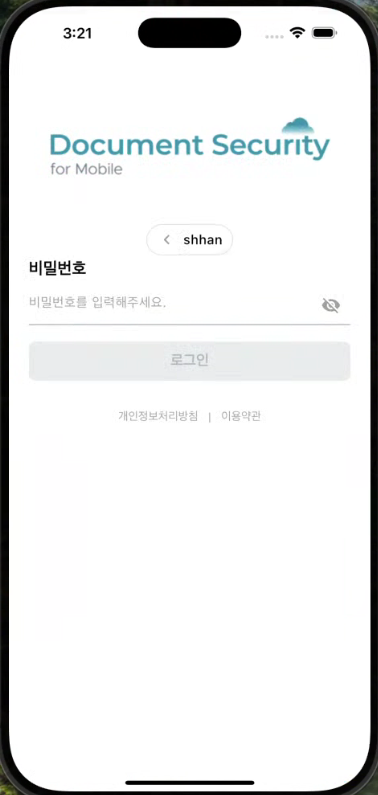 |
| Integrated login ID/Email input | Enter Password |
|---|---|
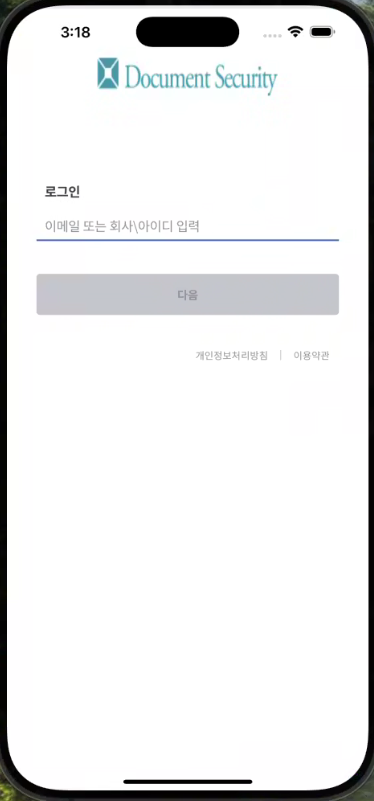 | 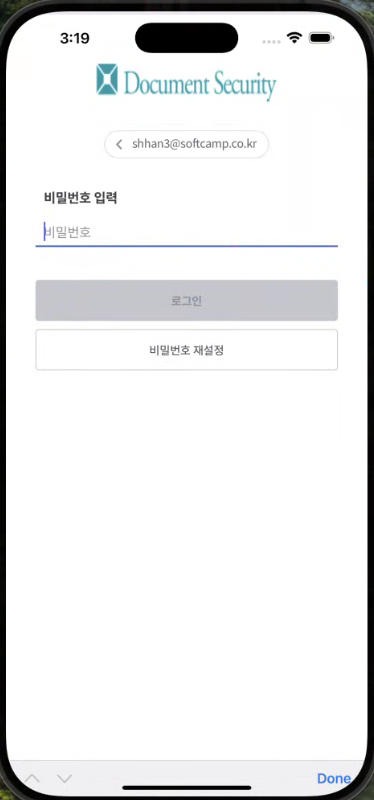 |
Authentication Method (to be supported later)
- Instead of a password after the first login**Biometric authentication (fingerprint/facial recognition)**Login available with
- **OTP Authentication (Microsoft Authenticator, etc.)**Support
4. Login Errors and Verification Methods
| Situation | Cause | Action Method |
|---|---|---|
| Login Failed (Password Error) | Incorrect ID/PW | Retry with accurate information |
| Connection Error | Network instability | Check Wi-Fi or VPN connection |
| SHIELD ID authentication failed | OTP or biometric authentication error | Retry or contact the administrator |
| Automatic login not working | Policy changes or device reset | Manual login retry required |
warning
- The document security server login for Security365 users is used for mapping only once at the first time.
- After this, it will automatically switch to single sign-on.
- You may need to log in again when the app is updated or account policies change.