DS for Mobile Document Function Guide
This document describes the document-related features of DS for Mobile.
1. Document Function Overview
This document provides guidance on the main features related to the documentation of the DS for Mobile6 app.
The app provides various features from viewing document lists to browsing, checking information, searching, and sorting.
This allows for efficient document management and viewing within the app.
2. Overall Flow
| step | Description |
|---|
| Document List | After logging into the app, on the main screenDocument Listis displayed. |
| Viewing / Information Confirmation | Select the desired document toViewor,Check document informationYou can do it. |
| Delete / Register Important Document | Select multiple documents at the same timedeleteorRegister as an important documentYou can do it. |
| Search / Sort | topSearch bar and sorting featureYou can quickly find the desired document using __PH_0__. |
3. Feature Guide
3.1 Document List
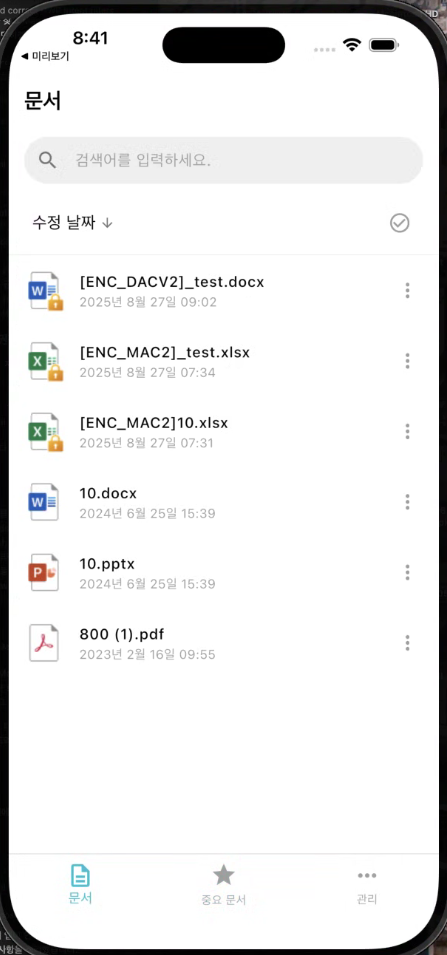
- After launching the app, the main screen displays a list of all available documents.
- sorted by the latest modification, and each document item hasDocument Title, Type, Modification Date, SizeInformation such as this will be displayed together.
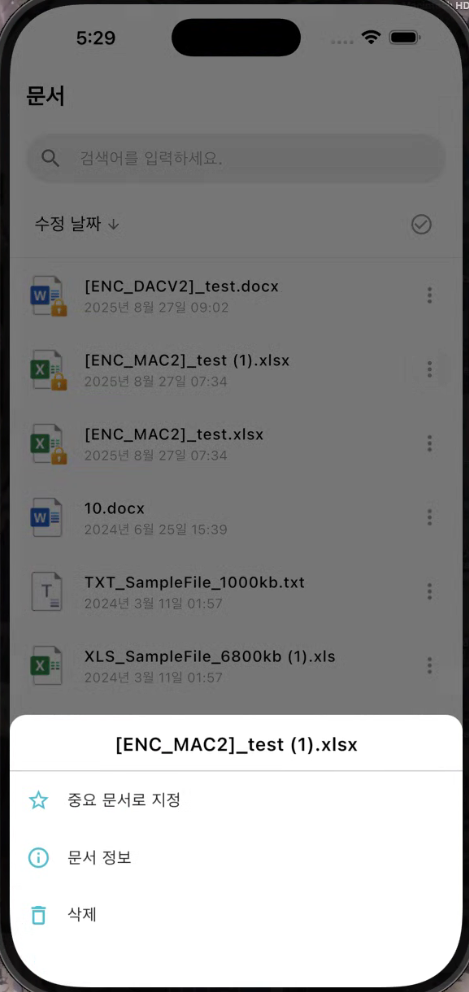
- Tap the document to view it, or in the upper right corner,**More button (⋯)**You can use additional features through __PH_0__.
| Document List | More button |
|---|
 |  |
3.2 Document Viewing
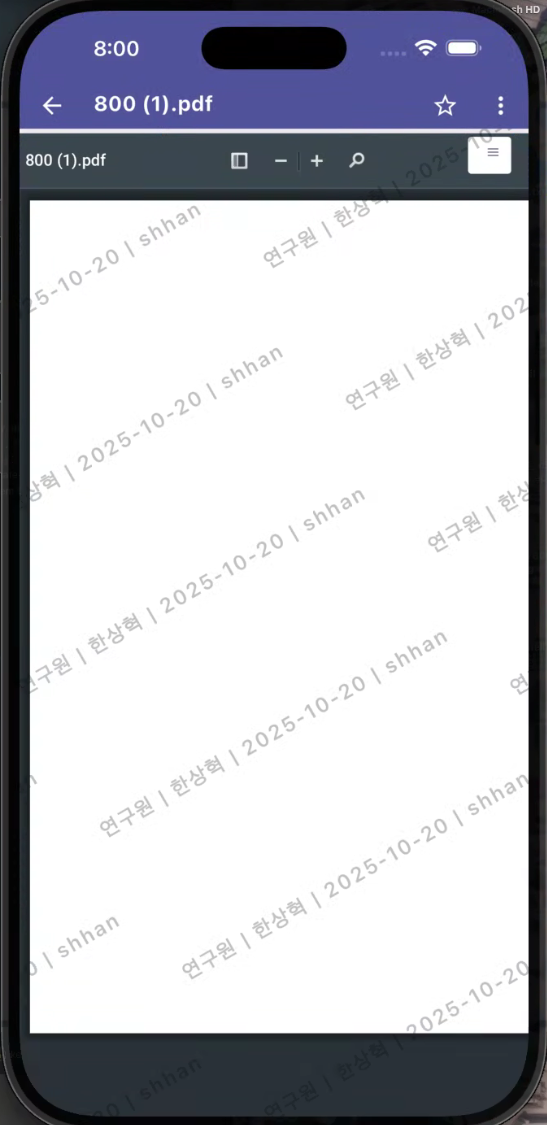
- When you select an item from the document list, the document will beWebView PageIt will be held at.
- It supports functions such as zooming in and out and navigating pages within the viewer.
Trash Document Processing:
- If you open a document with the same file name as the one in the recycle bin, a notification window will appear.
- in the alert windowCreating a New DocumentIf you select it, the documents in the recycle bin will be permanently deleted and a new document will be created.
- CancelSelecting will cancel the document opening operation.
| Document Viewing - Applying Screen Marking |
|---|
 |
3.3 Basic Document Features
- Each document item**More button (⋯)**You can use the basic functions of the document by clicking.
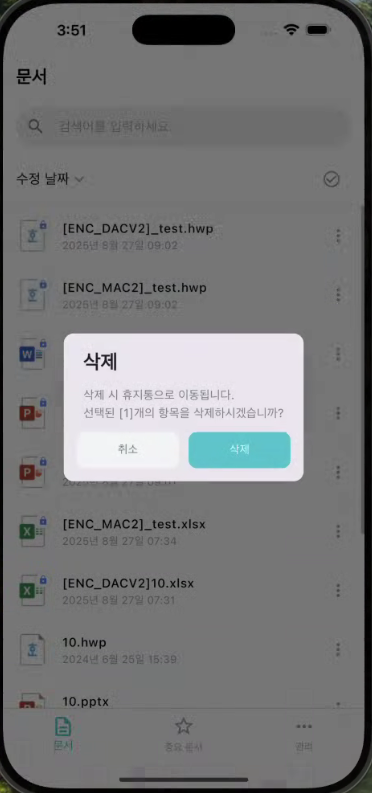
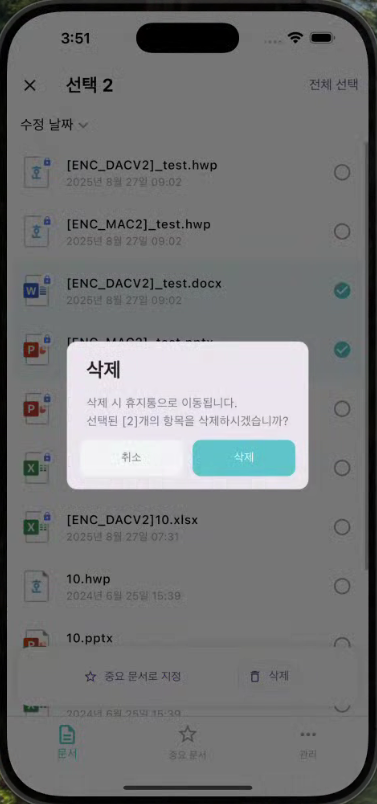
Document Deletion
- You can delete the document through the More button (⋯).
- Deleted documents are moved to the trash, where they can be restored or permanently deleted.
| Document Deletion |
|---|
 |
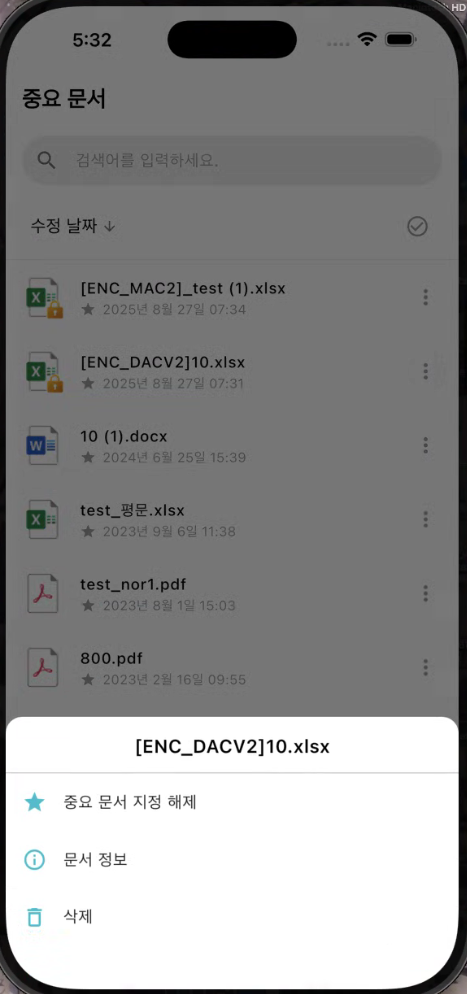
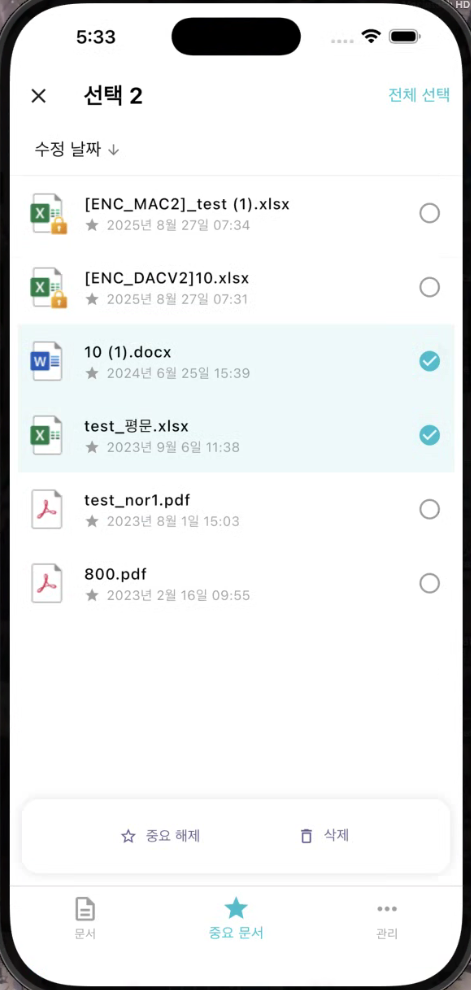
Important Document Designation
- You can designate a document as an important document through the More button (⋯).
- Documents designated as important can be found on a separate important document page.
| Important Document Designation |
|---|
 |
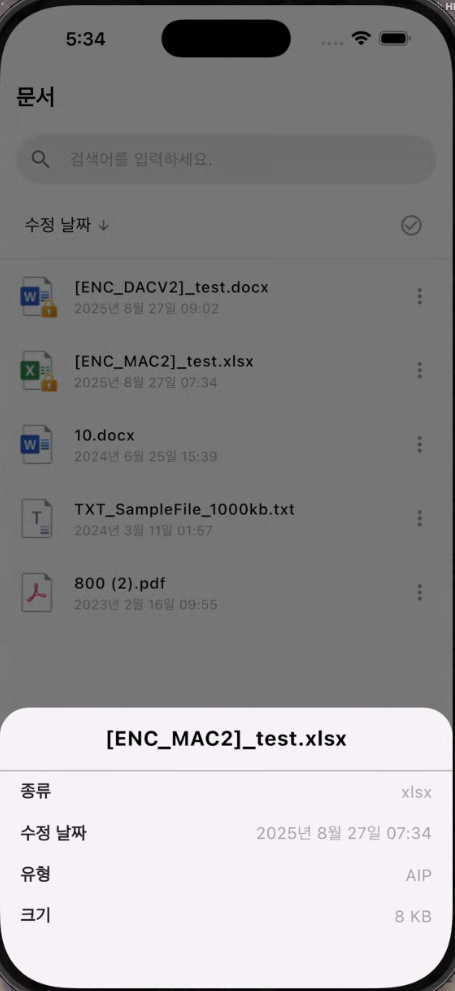
Document Details
- Displayed items:
- Document Title
- Document Types
- Modification Date
- Type (Security Document Status)
- Document Size
| More - Document Information | Document Information |
|---|
|  |
Document Sharing (Editing)
- DRM Documentonly forConvert to MIP documentso that it can be shared with external apps.
- This feature isPurpose of Document EditingIt is provided as a converted MIP document that can be opened and edited in external apps such as MS Office.
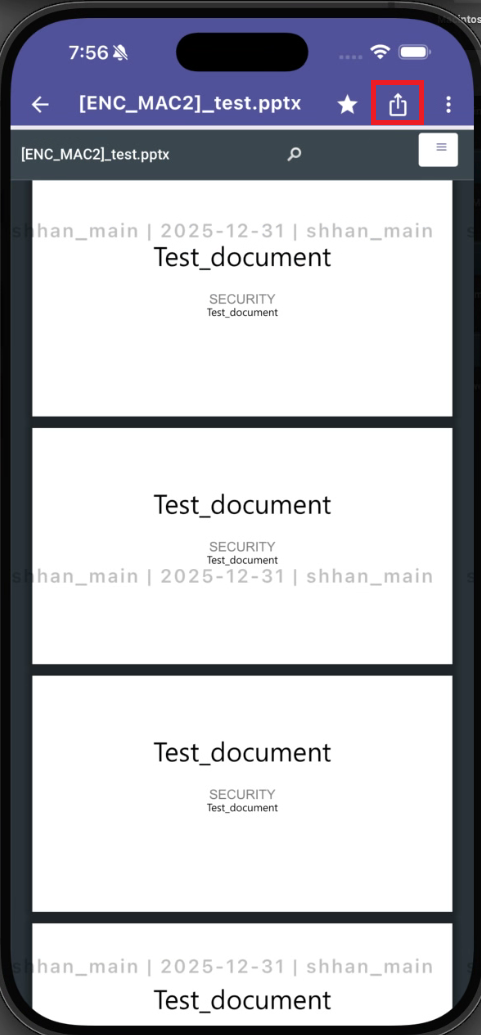
- Top bar of the document viewing screenShare ButtonThis will be displayed, and by clicking the share button, the DRM document can be shared with external apps after being converted to a MIP document.
Conditions for displaying the share button:
- You may be viewing the DRM document.
- In conditional policiesSharing (Downloading) is AllowedIt should be a completed document.
- Document extension isSupported MIP Conversion Targetswill be (docx, pptx, xlsx, pdf, etc.)
Sharing Method:
- In the document viewing screen, the top bar'sShare ButtonClick.
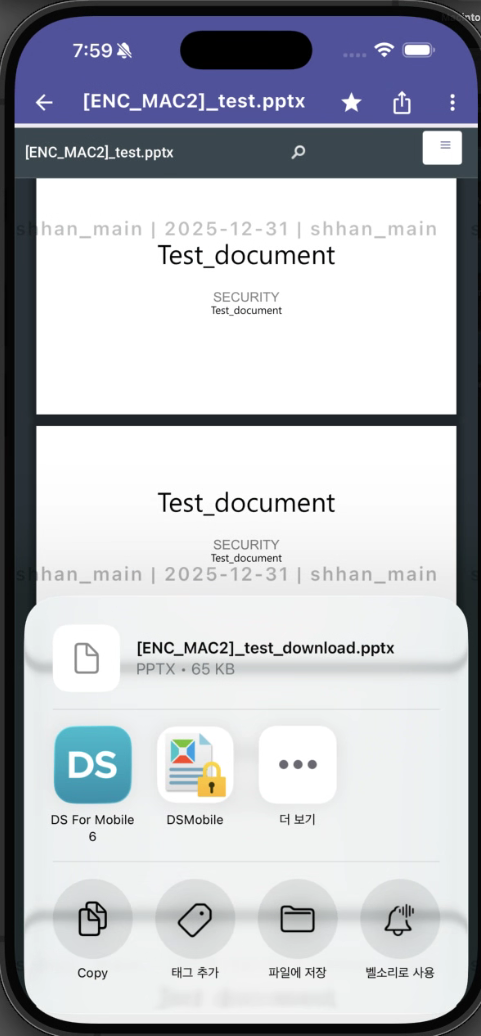
- The DRM document is converted and downloaded with the specified MIP label.
- A list of apps that can be connected through the OS's sharing feature is displayed.
- You can select an editable app such as MS Office to open and edit documents.
Reference:
- The shared MIP document isThe app's document list is not saved..
- The document is temporarily saved internally and can be used after editing in external apps.
| Document Viewing - Share Button | Select Sharing App |
|---|
 |  |
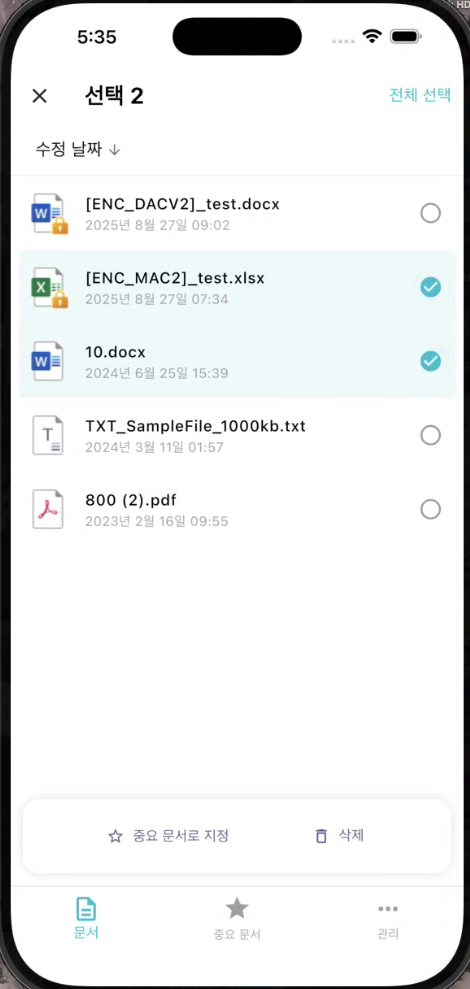
3.4 Document Selection (Multiple Selection)
- top menu of theSelection ModeEnabling this allows you to select multiple documents at once.
- Features available in the selected state:
- **Delete:**Move the selected document to the trash.
- **Important Document Designation:**Move the selected document to the important documents list
- Even without multiple selections, each document'sMore buttonYou can perform the same function individually through __PH_0__.
| Document Multi-Selection | Document Deletion | Important Document - Multiple Choice |
|---|
 |  |  |
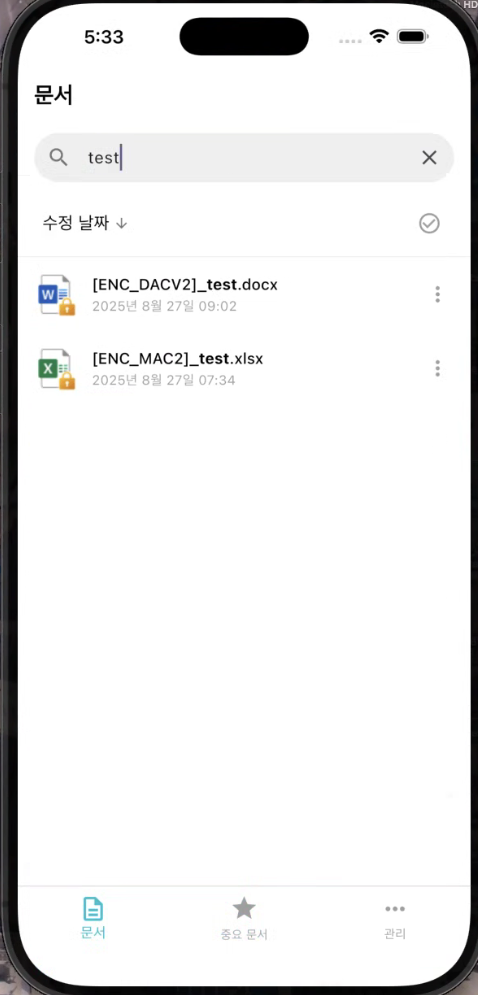
3.5 Search
- If you enter the document name in the search box at the top, it will immediatelyReal-time filtering of document listIt works.
- It automatically displays matching results even if only a few words are entered.
| Search Screen |
|---|
 |
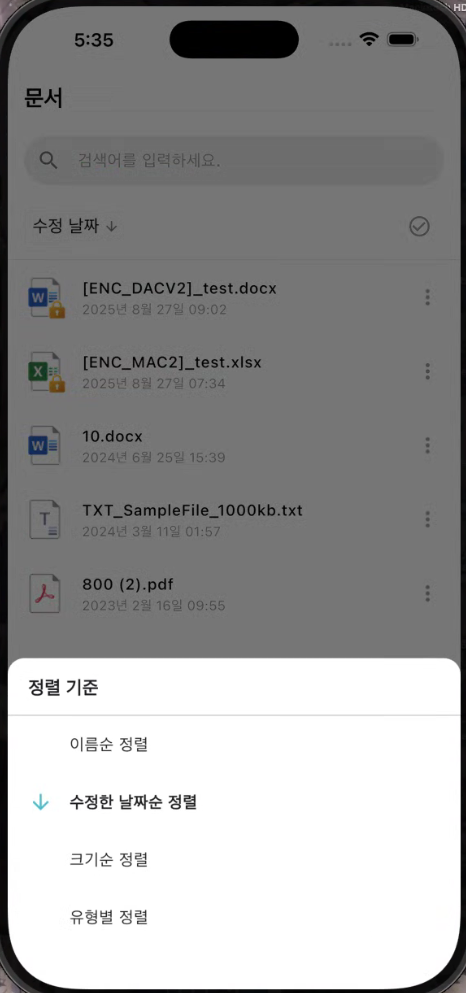
3.6 Document Alignment
- You can sort the documents based on the following criteria.
- Modification Date (Default)
- Name
- Size
- Type
- Clicking the sorting criterion once will change it to descending order, and clicking it again will change it to ascending order.
- The sorting status can be checked through the sorting icon at the top.
| Sorting Options |
|---|
 |
Reference
- The deleted document isTrash CanYou can restore or permanently delete from the menu.
- Items registered as important documents are separateImportant Document PageYou can check it at.
- The loading speed of document viewing may vary depending on the network environment of the Viewer server.
- Document Sharing FeatureThis is provided only in the DRM document and can be used only if sharing is allowed under conditional policies.
- The shared MIP document can be edited in external apps such as MS Office and is provided for editing purposes.