Home
Overview
This document introduces how to use the [Home] menu.
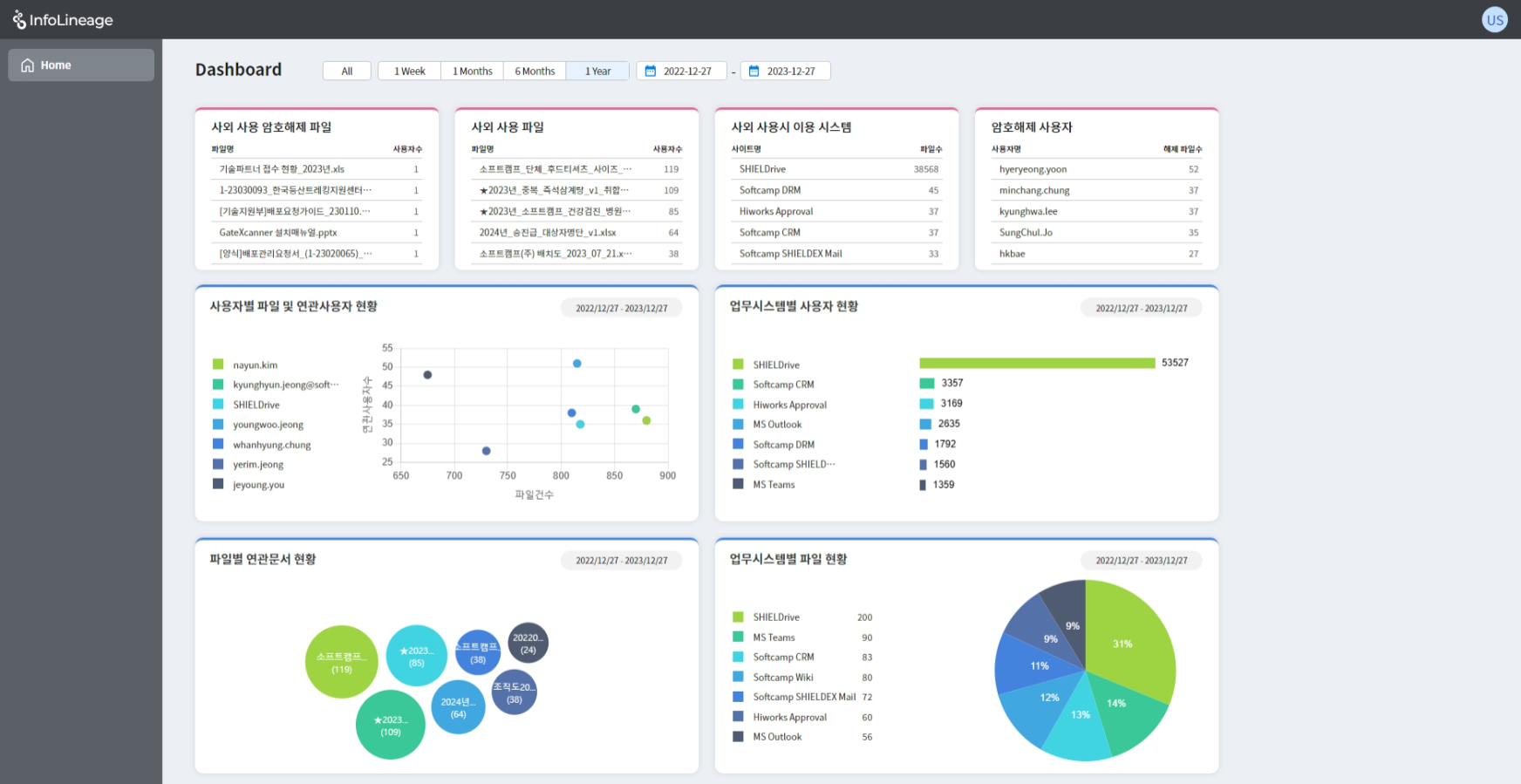
1. Check Risk Data(Box with a red line at the top)
-
External Use Decryption Files: You can check the top 5 decryption files used externally in order of the number of users.
-
External Use Files: You can check the top 5 files used externally in order of the number of users.
-
External Use System: You can check the top 5 systems used for external use based on the number of files utilized.
-
Decrypted Users: You can check the top 5 users who have decrypted the most files.
-
Clicking on the list will take you to the status page of the corresponding file (or user or system).
-
You can customize the dashboard by clicking the button on the (scheduled) box and modifying it with the desired data.
2. Check File, User, and System Usage Status(Box with a blue line at the bottom)
- User-specific file comparison with related users status: You can check the number of related users compared to the people who use files the most by user.
- User Status by Business System: Displays up to 7 business systems where files are frequently used.
- File-related Document Status: Displays up to 7 files with a high number of derived documents.
- File Status by Business System: Shows the proportion of business systems that users frequently use, up to 7 systems.
- You can click the button on the (scheduled) box to modify it with the desired data or customize the dashboard with the desired graph.
3. Select Duration(Top button)
- You can select a desired period to view only the data for the selected period.
© SOFTCAMP Co., LTD. All rights reserved.