12. Linux OS Installation Package Guide
◈ scsl.jar
- Java 1.6 or higher
◈ SDF App
- Ubuntu 20.04 / 22.04 / 24.04
- MIP SDK Supported platform
◈ Required External Communication Targets When Using MIP SDK
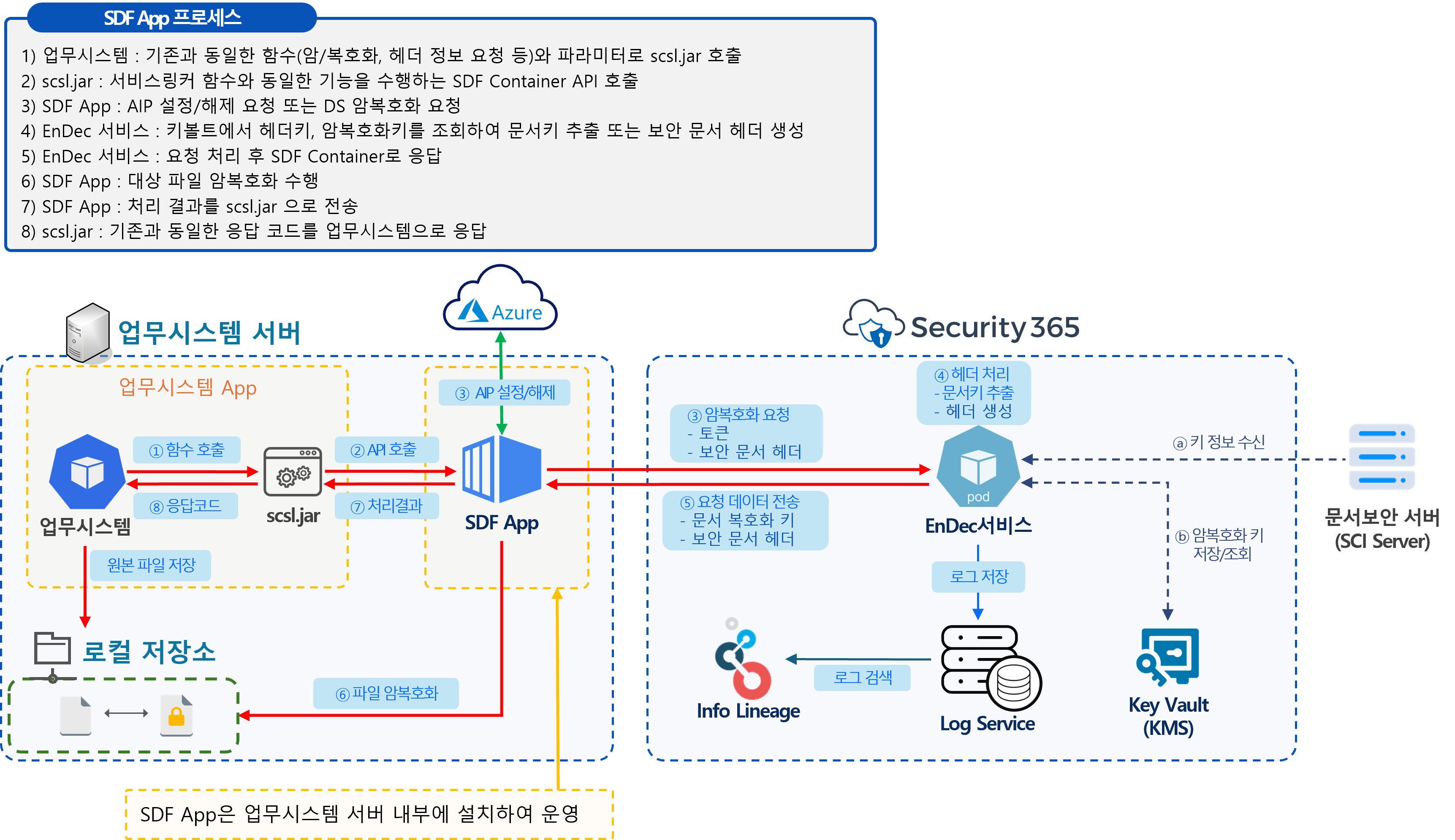
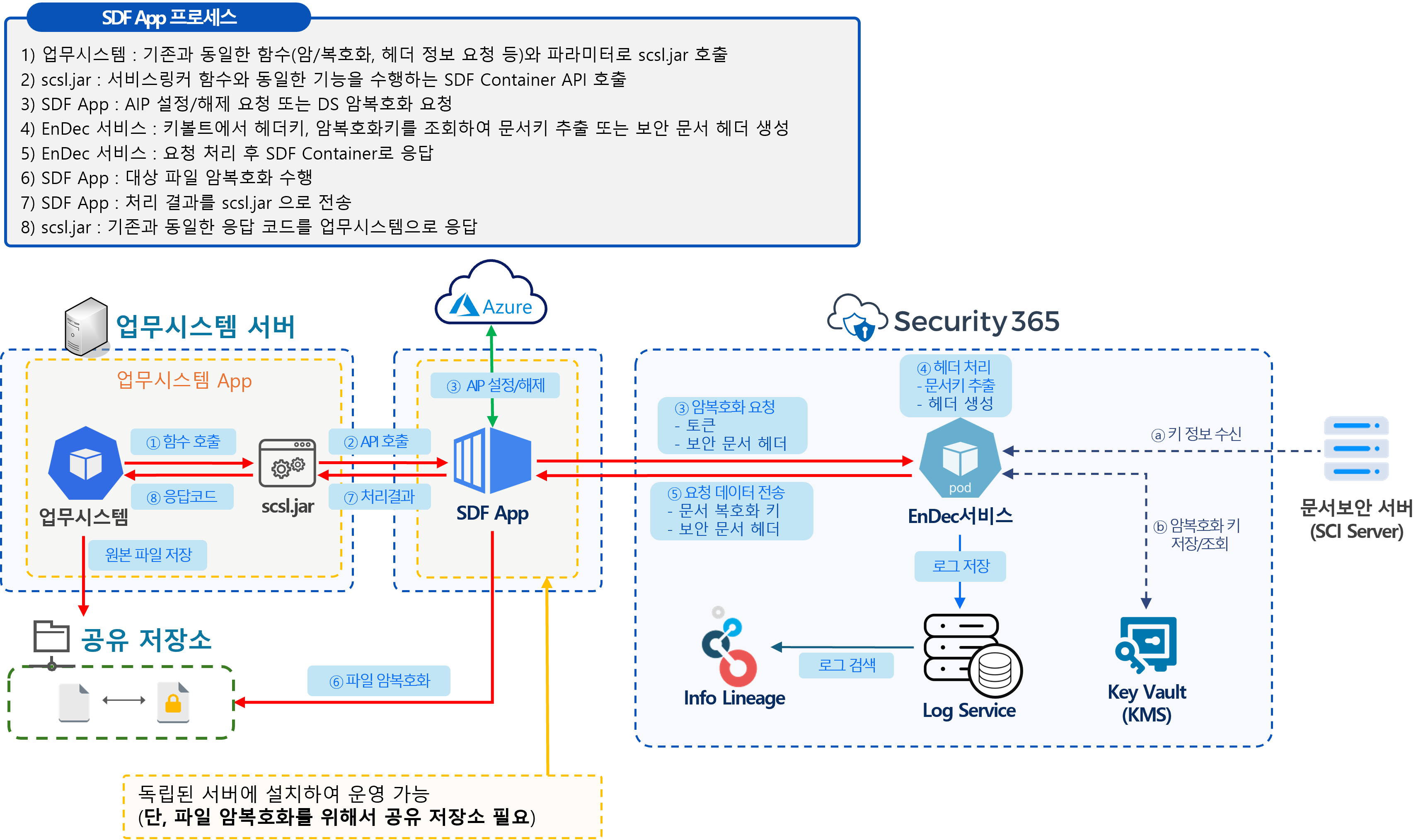
00. SDF Service Configuration Diagram
01. Upload Installation File
Upload and Extract Installation Files
◈ Upload Installation File
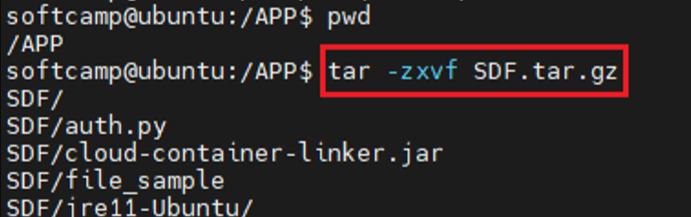
- Upload installation file: SDF.tar.gz
- Decompression command: tar -zxvf SDF.tar.gz
02. Environment Setup
Modify SKMS Service URL
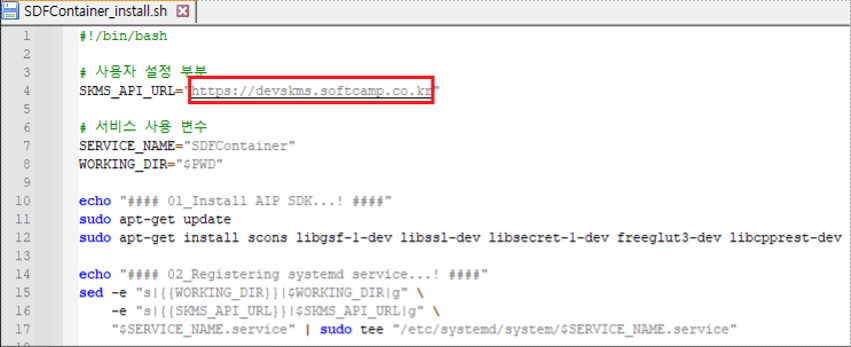
◈ Modify the contents of the SDFContainer_install.sh file
- File path: /SDF/SDFContainer_install.sh
- SKMS_API_URL : Enter the SKMS service URL that matches the customer's environment.
03. Service Installation
Running the installation script file
◈ File path: /SDF/SDFContainer_install.sh
- Run the installation script: ./SDFContainer_install.sh
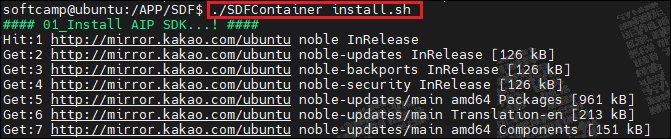
- Installation and service execution completed
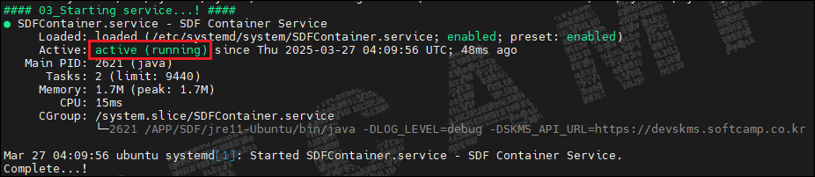
04. Security365 - SHIELDRM Administrator Settings
SHIELDRM Administrator Settings
◈ User Guide
- IDOCS Reference Page
https://idocs.softcamp.co.kr/sdf/category/3-shieldrm-%EA%B4%80%EB%A6%AC%EC%9E%90-%EC%84%A4%EC%A0%95
- Registering Custom Header Key Policy: Follow the guide for registering custom policies in the SCI server CS console.
- Key Management – Key File Upload: Used when the Security365 service cannot access the SCI server (closed network).
- Key Management - SCI Server Integration: Used when the Security365 service can access the SCI server.
- Integration App Management - License Issuance: Issuing licenses to use the SDF Container in the business system.
05. Service Operation Status Check
SHIELDRM Administrator Settings
◈ Calling the SDF container status check API with the CURL command
- A license issued from the integration app management menu of the SHIELDRM admin page is required when making an API call.
- Access the server where the SDF container is installed and call the API of the SDF container using the CURL command.
- curl http://127.0.0.1:8181/api/healthCheck/{licenseKey}
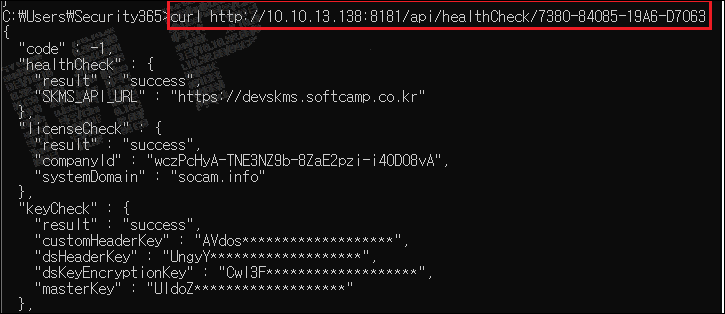
Status Check Item Description and Failure Action Plan
◈ Description of Inspection Items and Actions in Case of Failure
| Inspection Items | Description | Action Plan in Case of Failure |
|---|---|---|
| healthCheck | Check communication between SDF container and EnDec service | - Check the SKMS_API_URL information of the SDF config map - Check communication network and DNS settings between clusters - Check if it is a valid certificate |
| licenseCheck | Check if the issued license is valid | - Check if the issued license matches the input value. - Check the usage status of the issued license in the integration app management menu. |
| keyCheck | Check Required Key Data Linked with the SCI Server | - Check if the key registration (SCI) service is functioning properly. - Register the custom policies DS_CUSTOM_HEADER_KEY and DS_KEY_ENCRYPTION_KEY on the SCI server and check whether they are applied to the top-level department. - Custom policy registration key integration reset required |
| azureInfoCheck | Check for the existence of required configuration values related to Azure | - Check SHIELD ID mapping information in the SDF config map (namespace, etc.) - Check if the service is properly registered in SHIELD ID. - Verify the matching value of the Microsoft Azure Tenant ID of the company registered in SHIELD ID. - Check whether AZURE_INFO is entered in the SKMS integration information. |
| azureInfoValidCheck | Check Azure Token Issuance Availability | - Validate token issuance for the Microsoft Azure Tenant ID of the company registered with the SHIELD ID using the AZURE_INFO information from the SKMS config map. - Need to verify if it is a valid value for Azure authentication. - Check SSL certificate-related issues when token authentication fails (also verify the root certificate) |
06. Check Service Execution Logs
Log Check
◈ Log file path: /APP/SDF/logs/container-linker-logger.log
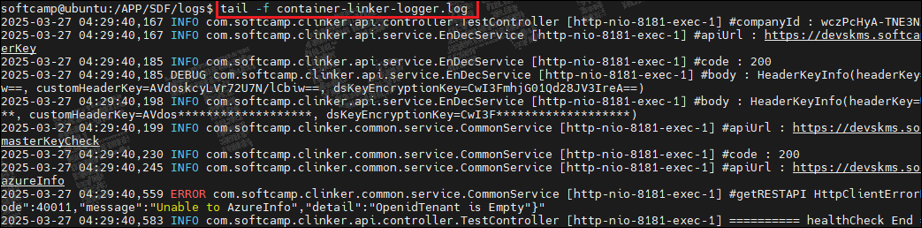
07. Start/Stop/Delete Service
Run Script
◈ Start script execution:./SDFContainer_start.sh (Automatically starts the service upon initial installation)

◈ Stop script execution: ./SDFContainer_stop.sh

◈ Execute delete script: ./SDFContainer_delete.sh

08. SDF App User Guide
scsl.jar patch
◈ After deleting the existing scsl.jar used in the business system, patch the SDF App (scsl.jar)
- The location of scsl.jar may vary by project.

◈ Check SDF App (scsl.jar) Version
- scsl/resources/version.info

Modify SOFTCAMP.properties
◈ Added settings to SOFTCAMP.properties previously used in scsl.jar
- The location of SOFTCAMP.properties may vary by project.
################################################################################
#
# SDFApp 사용 시 필수로 사용하는 옵션
#
################################################################################
# SDF 컨테이너 URL
SDF_CONTAINER_URL = http://127.0.0.1:8181

# SDF 컨테이너 라이선스(SHIELDRM 관리자 페이지의 연동 앱 관리 메뉴에서 발급 받은 라이선스)
SDF_LICENSE_KEY = EFB4-19136-DB9E-201B9

# 암호화 시 사용할 회사명 (미사용 시 서버 이름으로 암호화 됨)
#SDF_COMPANY_NAME =  소프트캠프

# SDF 멀티 서버 사용 시 SCI 서버 구분용 서버 ID (미사용 시 단일 서버 사용)
#SDF_SCI_SERVER_ID = SCAM-ED72-262C-433A-0004

# DS 복호화 후 AIP 해제 여부(0: DS 복호화만 수행 / 1: DS 복호화 후 AIP 해제)
msDocuDec = 0

# 암호화 시 AIP 문서인 경우 bypass 옵션(0: AIP 문서도 DS 암호화 수행 / 1: AIP 문서인지 확인 후 DS 암호화 하지 않음)
msDocuEncBypass = 0
################################################################################
Modify dssom.properties
◈ Added configuration to dssom.properties used in scsl.jar
- The location of dssom.properties may vary by project.
################################################################################
#
# SDFApp 사용 시 필수로 사용하는 옵션
#
################################################################################
# SDF 컨테이너 URL
SDF_CONTAINER_URL = http://127.0.0.1:8181

# SDF 컨테이너 라이선스(SHIELDRM 관리자 페이지의 연동 앱 관리 메뉴에서 발급 받은 라이선스)
SDF_LICENSE_KEY = EFB4-19136-DB9E-201B9
################################################################################