Account Management and Profile
Check your account information in the profile menu at the top right of the screen, and manage the integration status of external service accounts such as Microsoft 365 and Google Workspace. Account information such as name and position is managed in the Security365 management center, and can only be viewed in SHIELD Drive.
1. Profile Menu
Clicking the profile icon (name initials) at the top right corner of the screen will open the profile menu.
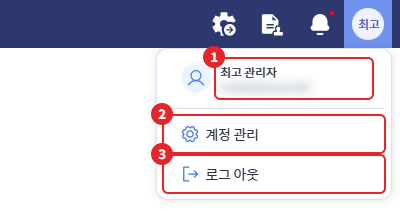
| number | item | Explanation |
|---|---|---|
| 1 | Name / Account | Name and account (email) of the logged-in user |
| 2 | [Account Management] | Open Profile Window |
| 3 | [Log Out] | Move to the login screen after logging out |
2. Profile Verification
Clicking on [Account Management] in the profile menu will open the profile window.
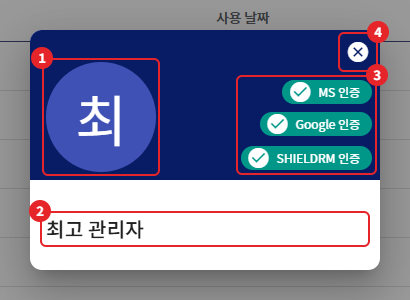
| number | item | Explanation |
|---|---|---|
| 1 | Profile Image | Registered profile picture. If not available, display the first letter of the name. |
| 2 | Name / Position | Names and positions registered in the Security365 management center |
| 3 | External Service Authentication Status | MS Certification / Google Certification / SHIELDRM Certification Status (Displayed according to administrator settings) |
| 4 | Close | Close Profile Window |
- Name, position, and profile image cannot be changed in SHIELD Drive. If you need to change information, please contact the administrator.
- The external service authentication status is displayed only when the company uses OneDrive, SharePoint, or Google Drive storage, and it is not displayed when accessed from Teams.
3. External Service Account Integration
To use files from OneDrive, SharePoint, and Google Drive storage, you need to link the respective service accounts to your SHIELD Drive account. Check the connection status in the authentication indicator of the profile window.
| display | meaning |
|---|---|
| green check mark | Integration Complete |
| red X mark | Integration required. Click to start the integration process. |
| Authentication Items | if necessary | Display Conditions |
|---|---|---|
| MS Certification | Using OneDrive·SharePoint Storage | When using Microsoft 365 integration at the company |
| Google Authentication | Using Google Drive Storage | When using Google Workspace integration in the company |
| SHIELDRM Authentication | SHIELDRM Document Security Service Integration | When using MS or Google integration |
3-1. Linking Microsoft 365 / Google Workspace Accounts
- Click the red [MS Certification] or [Google Certification] in the profile window.
- In the "Account Linking Required" window, click on [Account Linking].
- Log in with the account you want to link on the Microsoft or Google login screen.
- When the "Account Linking Complete" window appears, click [Re-login].
- When you log in again, the linked account will be applied.
(Image to be attached later)
- After linking, you can also log in using the [Start with Microsoft] / [Start with Google] options on the login screen.
- If you log in without linking, a "Account Linking Required" window will appear immediately after logging in. If you press [Cancel], you can continue to use it without linking, but you will not be able to upload or download files from the service storage.
- If you upload or download storage files from OneDrive, SharePoint, or Google Drive without linking, a message such as "MS authentication has not been completed, so upload is not possible." will be displayed along with a linking window.
Reference - Using Teams: To use SHIELD Drive in Microsoft Teams, MS account integration is required. If the MS account linked to the Teams login account is different, you will be redirected to the login screen.
3-2. SHIELDRM Authentication
- If the [SHIELDRM certification] is red, click it to go to the certification screen and proceed with the certification according to the instructions.
- "Cannot connect to the SHIELDRM service." If this message is displayed, it means that the SHIELDRM service is temporarily unavailable. Please try again later, and if the issue persists, contact your administrator.
4. Display Language
The SHIELD Drive screen is displayed in Korean, English, or Japanese depending on the browser language settings. There is no separate language selection menu.
| Browser Language | Screen Language |
|---|---|
| Korean | Korean |
| Japanese | Japanese |
| English and other languages | English |
- To change the display language, change the language settings of your browser and then reconnect to SHIELD Drive.
- If you access from Teams, it follows the language settings of Teams.