Setting Permissions for External Users in the Shared Folder
In the shared folder where the administrator has enabled "External User Permission Management," this guide explains how the shared folder owner can register and manage access permissions for external users (such as partners). For the basic usage of the access permission management window, please refer to "Setting Access Permissions for Shared Folders."
1. Overview
The shared mailbox using external user permission management divides access permissions into internal user permissions and external user permissions for registration.
| division | Internal User Permissions | External User Permissions |
|---|---|---|
| Members | Users within the organization | External Users (Search or Email Invitation) |
| Permission Limit | Items Allowed by Owner Permissions | Items allowed by the administrator in the external user policy |
| Usage Period | Choice. Unlimited possibilities | Required. Select within the maximum period set by the administrator. |
| Invitation Notification Email | Selection | Automatic Sending |
- The shared mailbox that does not use external user permission management is the same as before. (See "Inviting External Users")
- If the "Permission Type" item is visible in the access permission registration window, it is a shared folder that uses external user permission management.
2. Access Permission List
Right-click on the shared folder and select [Settings] to open the access permission management window.
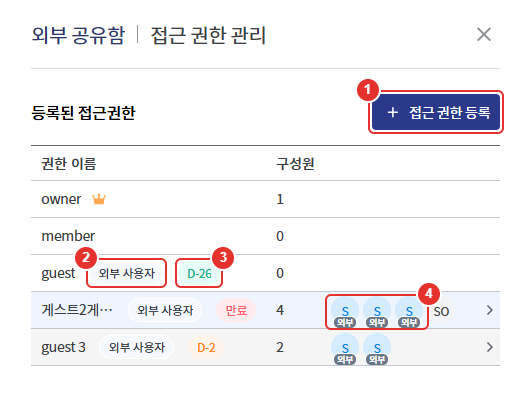
| number | item | Explanation |
|---|---|---|
| 1 | [Access Permission Registration] | New Access Permission Registration |
| 2 | External User Badge | Access rights for external users are displayed in the permission type. |
| 3 | Expiration Badge | Display the remaining days until the expiration of the usage period |
| 4 | Members | External users are indicated by the first letter of their email and an "External" badge. |
2-1. Basic Access Rights
When you create a shared folder, 3 access permissions are automatically created. The default access permission cannot be deleted.
| Permission Name | Usage | Note |
|---|---|---|
| owner | Shared Folder Owner | The user who created the shared folder is registered as a member. |
| member | Internal User | Created without members |
| guest | External User | Created without members. The usage period is designated as the maximum period set by the administrator. |
The access permissions added by the owner can be deleted. However, if there is only one external user permission left, it cannot be deleted.
2-2. Expiration Badge
| display | color | meaning |
|---|---|---|
| D-4 or more | Abstract | More than 4 days remaining until expiration |
| D-3 or less | orange | Expiration Approaching |
| expiration | red | Expiration of usage period. External user access blocked status |
3. External User Permission Registration
- In the access permission management window, click on [Register Access Permission].
- Select "External User" from the permission type.
- Enter the permission name.
- Add members. (Refer to 3-1)
- Set permissions. (Refer to 3-2)
- Specify the usage period. (Refer to 3-3)
- Click on [Register].
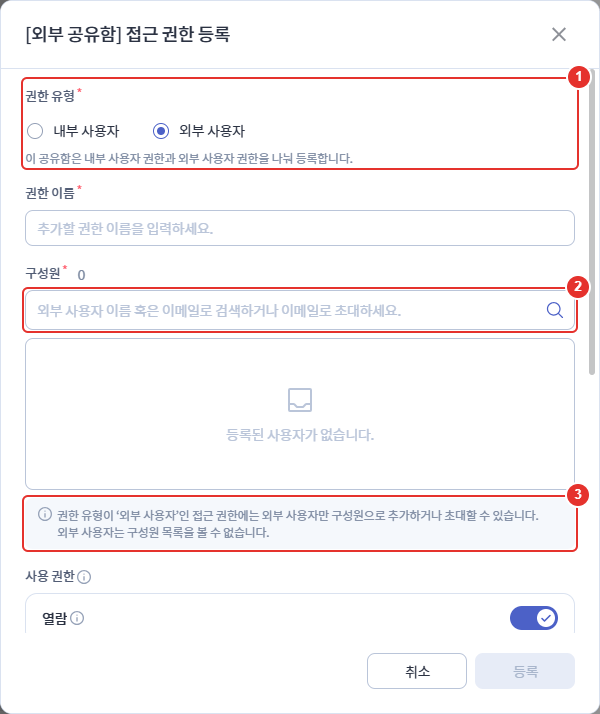
| number | item | Explanation |
|---|---|---|
| 1 | Permission Types | Internal user or external user. Can only be selected at the time of registration and cannot be changed after registration. |
| 2 | Member Search | Search by external username or email, or enter an email to invite |
| 3 | Guide text | Guide to Adding Members to the Selected Permission Type |
If you change the permission type during registration, the selected members, permissions, and usage period will be reset.
3-1. Add Member
| Method | Action |
|---|---|
| Search and add | Search for and select external users who are already registered by name or email. |
| Invite by email | Enter the email address of an external user who has not registered and select the invitation item from the search results. |
- Only external users can be added or invited for access permissions of the type "external user."
- Access permissions for the internal user type can only include users within the organization, and email invitations cannot be sent.
- An invitation notification email will be sent automatically to external users without any separate settings.
- If you invite an already registered email, the message "This email is already registered with SHIELD ID. Please add it through user search." will be displayed. In this case, search and add it.
- External users cannot view the member list.
3-2. Permissions
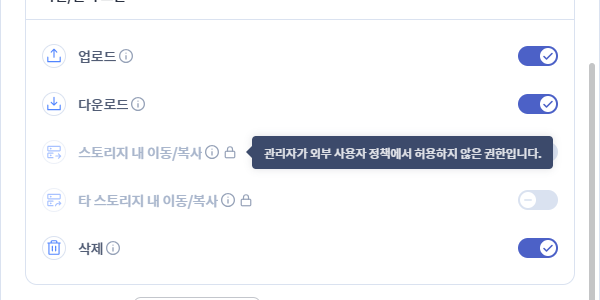
The administrator can only set permissions allowed in the external user policy. Permissions that are not allowed are disabled with a lock icon.
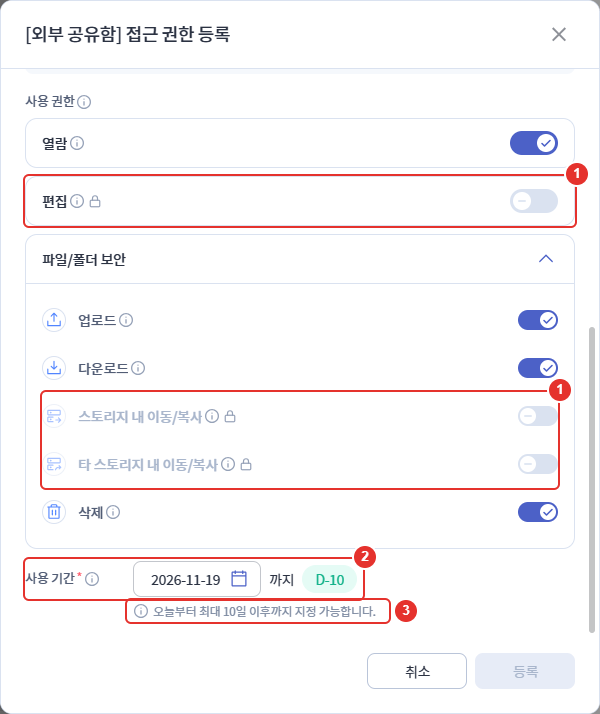
| number | item | Explanation |
|---|---|---|
| 1 | Locked Permissions | Permission that cannot be set because the administrator does not allow it. Lock icon displayed |
| 2 | Usage Period | Expiration date and remaining days display |
| 3 | Maximum Duration Guide | Guidance on the maximum period that can be specified |
Hovering over the lock icon will display the reason. If permission changes are needed, please request them from the administrator.
3-3. Usage Period
- External user permissions must specify a usage period. Indefinite cannot be selected.
- From today, the administrator will select the expiration date within the maximum period set.
- When you first register, the last selectable day is set as the default.
4. Modify External User Permissions
Clicking on the access permission row to be modified in the access permission management window will open the modification window.
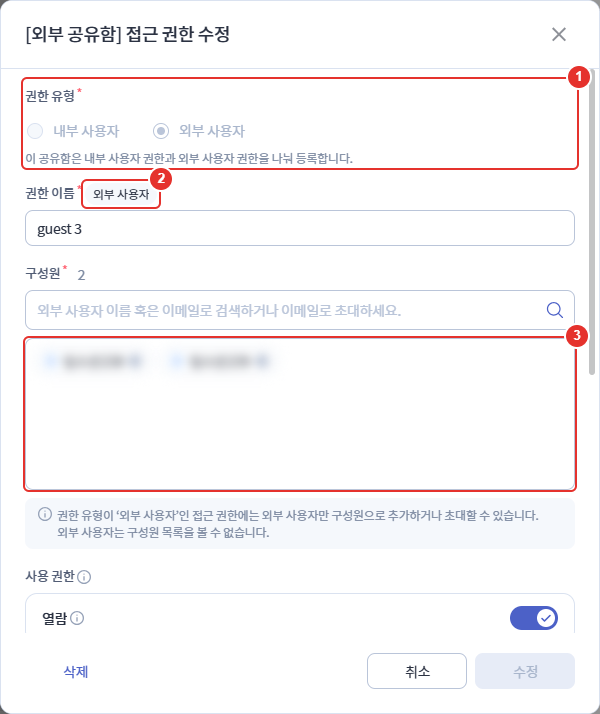
| number | item | Explanation |
|---|---|---|
| 1 | Permission Types | Display the type selected during registration. Cannot be changed. |
| 2 | External User Badge | Indicate external user permissions |
| 3 | Members | Registered external users and invited emails. Exclude with the delete icon of the item. |
- Modify the permission name, members, permissions, and usage period, then click [Modify].
- The additional registered access rights can be deleted by [deleting].
5. Expiration and Renewal of Usage Period
Once the expiration date has passed, external users of the corresponding access rights will not be able to access the shared folder.
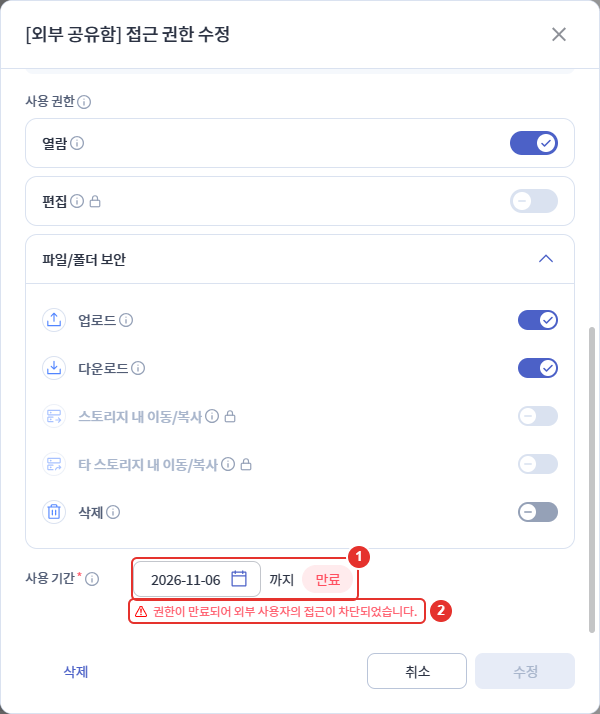
| number | item | Explanation |
|---|---|---|
| 1 | Expiration Marking | Expiration Date and "Expired" Badge |
| 2 | Expiration Notice | "Access by external users has been blocked due to expired permissions." |
5-1. Extending
- Click on the corresponding access permission in the access permission management window.
- Select the expiration date of the usage period again. You can choose within the maximum period from today.
- Click on [Edit].
- You can extend in the same way before expiration. There is no limit to the number of extensions.
- If you reassign the expiration date of expired access rights, external users can access again.
- Expired access rights cannot invite external users. If you see the message "You cannot invite with expired rights. Please reassign the usage period first.", reassign the usage period first.
6. Guide Message
| Guide text | Cause and Action |
|---|---|
| The administrator has permissions that are not allowed in the external user policy. | Includes permissions not allowed by the administrator. Turn off those permissions and save again. |
| Only external users can be added to external user permissions, and only internal users can be added to other permissions. | Include members that do not match the permission type. Check the members. |
| External users cannot be added to this permission. Please invite them with external user permissions. | Attempt to add external users to internal user permissions. Invite from external user permissions. |
| Inviting external users can only be done from external user permissions. | Attempt to invite via email in internal user permissions |
| External user invitations are turned off. | The invitation of external users is turned off in the admin settings. Please contact the administrator. |
| The last external user permission cannot be deleted. | Only one external user permission remains. |
| External users cannot create folders in this shared mailbox. | External user attempts to create a shared folder |
| This shared folder cannot create folders because the external user policy is not set. Please contact the administrator. | The administrator has not set external user policies. Please contact the administrator. |