Inviting External Users
This guide explains how to invite external users who are not registered in the organization to a shared folder via email. The invited users will be added as members of the shared folder after signing up according to the instructions in the email and logging into SHIELD Drive.
1. Usage Conditions
The external user invitation feature is displayed only when all of the following conditions are met.
| condition | Settings Location |
|---|---|
| Set to use "Invite external users to the shared folder" | Admin Console > Settings > Enable |
| Mail Server (SMTP) Configuration | Security365 Management Center |
| Users who can edit access permissions | Shared Folder Owner |
If the conditions are not met, the [Invited Users] item will not be displayed in the member area, and if an email not associated with the organization is entered, "No users found." will be displayed.
2. Inviting External Users
- Open the access permission management window for the shared folder. (Refer to shared folder access permission settings)
- Click on the role to invite or create a new role by [Registering Access Permissions].
- Enter the email address of the person you want to invite in the member search field accurately.
- Click on the email item displayed in the search results.
- We confirm that the email has been added to the [Invited Users] section.
- Click [Register] or [Save]. An invitation email will be sent at the time of saving.
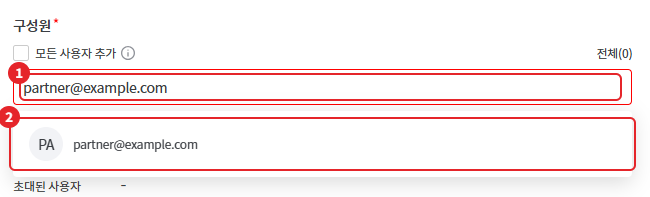
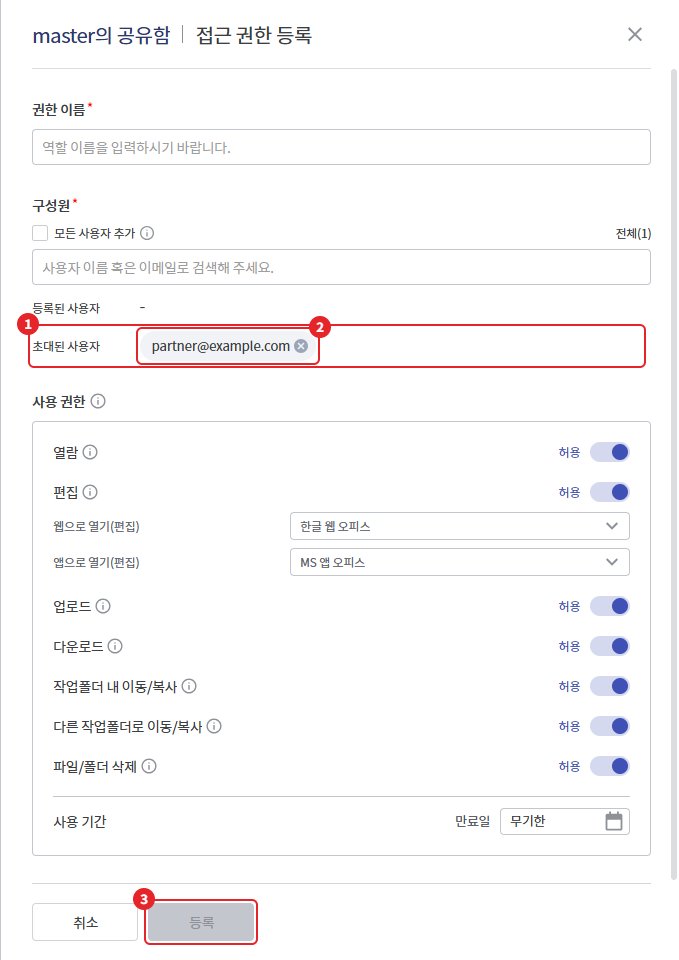
- Emails that are not in the correct format or are already part of the members or invitees will not be displayed in the search results.
- Even with [Add all users] checked, external users can be added via email. At this time, the message "External users can be added via email." will be displayed in the search box.
- Emails that have already been invited will not be resent. If you remove that email from all roles and add it again, it will be sent once more.
- The number of members in the access permission list includes the number of invited external users.
3. Invitation Cancellation
- Opens the details window for the role.
- Click the close icon next to the cancel email in the [Invited Users] section.
- Click [Save].
4. Invited User Registration Flow
| step | content |
|---|---|
| 1. Invitation email reception | Sending invitation email containing registration link at Security365 |
| 2. Sign Up | Sign up by entering your name, email, and password in the link. You will be registered as a user of the invited company. |
| 3. Login | Log in to SHIELD Drive with your registered account |
| 4. Member Reflection | As a member of the invited role, display the shared folder in the [Shared Box]. |
- If the email is already registered with Security365, you cannot sign up. In this case, search for the user by name or email and add them as a regular member.
- External users use shared folders within the permissions of the invited role.
Caution - External users who have completed registration will not be displayed separately from internal users on the screen. It is recommended to create a separate role to manage the permissions granted to external users.