Approval Request Guide
The approval feature is a function that requires approval when uploading or downloading files in storage where approval is applied. This document guides the actions on the user screen. For information on how to apply approval to storage, please refer to the "Approval Settings Guide (Administrator)." The functions below are displayed and operate only when there is one or more storage with approval applied.
1. Check storage that requires approval
When you enter a storage with approval applied, a [Approval Required] indicator will appear next to the storage name. Hovering over the indicator will display the following guidance.
This storage requires approval for file uploads and downloads. Files cannot be moved or copied from storage that does not use the approval feature.

In this storage, files are not processed immediately when uploaded or downloaded; they go through an approval process. The tasks and users subject to approval are determined according to the administrator's policy.
Caution - Move/Copy Restrictions: Files cannot be moved or copied between storage with applied approval and storage without applied approval. If blocked, the following message will be displayed in the move/copy window.
| situation | Guide text |
|---|---|
| From approval storage to another storage | Documents cannot be moved outside of the storage where approval has been applied. |
| From Other Storage to Approved Storage | Documents cannot be retrieved from storage where approval has not been applied. |
Moving and copying within the same storage is not restricted.
2. Request Approval
In storage where approval is applied, uploads and downloads are executed in the same way as usual. Instead of being processed immediately, an approval request is registered.
| work | Action |
|---|---|
| Download | The file is not downloaded directly and a request for approval is registered. "Once the approval is complete, you can download the file from the approval request." 안내 표시 |
| Upload | The file is not uploaded immediately and a request for approval is registered. Once approved, it is automatically uploaded to the specified location. |
When the request is registered, a [Request Completed] notification will be displayed. You can check the progress status in the approval request box.
3. Open Approval Request Box
Clicking the approval request icon in the upper right corner of the screen will open the [Approval Request Box].

If there are no storages with applied approvals, this icon will not be displayed.
4. Configuration of Approval Request Form
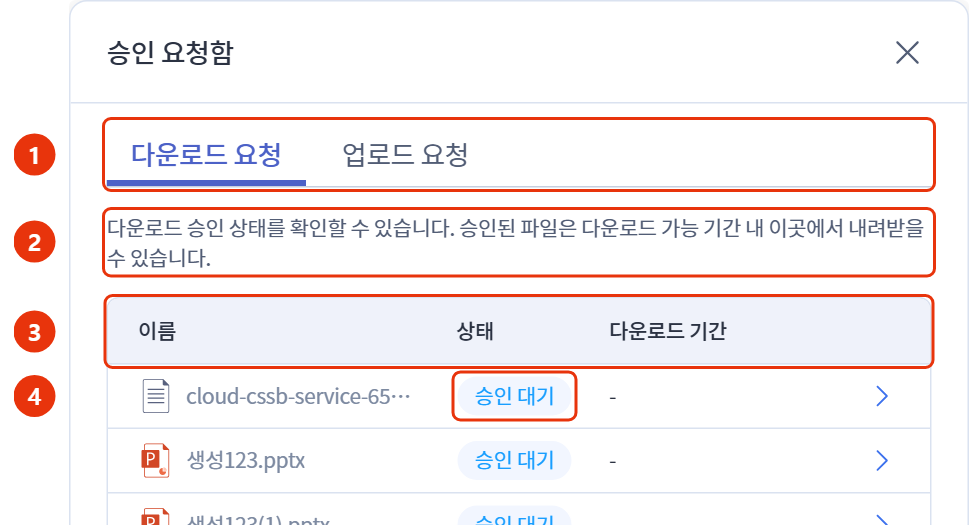
| number | item | Explanation |
|---|---|---|
| 1 | tab | [Download Request] / [Upload Request] Separation |
| 2 | Guide text | Guidelines for Handling the Selected Tab |
| 3 | List | Name, Status, Date of the requested file |
| 4 | status | Current Progress Status of the Request |
The items in the third column vary depending on the tab.
| tab | Third Column | meaning |
|---|---|---|
| [Download Request] | [Download Period] | Deadline for downloading the approved file |
| [Upload Request] | [Upload Date] | The point in time when the file is uploaded to the specified location. If the upload fails, display "Failure". |
- If there are no request details, display "There is no requested download approval" / "There is no requested upload approval"
- If the list cannot be retrieved, display "Failed to retrieve the list."
5. Status Display
| status | meaning |
|---|---|
| Pending Approval | In Progress of Approval |
| Approval | Approval completed. Download requests are available for file receipt, and upload requests will proceed with automatic upload. |
| companion | Approval denied. Check the rejection reason in detail. |
| Request Cancellation | Cancel Approval Request |
| expiration | Request automatically terminated due to expiration of approval deadline. A new request is needed. |
- The upload request will maintain the status as "Approved" even if the upload fails after approval, and the [Upload Date] column will display "Failed".
- The download request will remain in the "Approved" status after the download period has expired, and the file name will be grayed out and unavailable for download.
6. Receiving Approved Files - Download Request
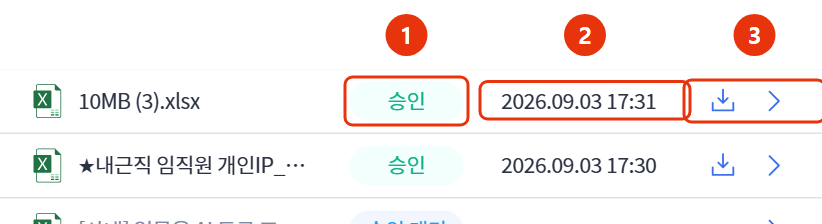
| number | item | Explanation |
|---|---|---|
| 1 | status | You can receive the file when it changes to "Approved". |
| 2 | [Download Period] | Available for receipt only within this deadline |
| 3 | Download Icon | File Download on Click |
- You can download multiple times during the download period.
- After the period expires, the download icon will be disabled and marked as "Download Period Expired." Request again from the folder.
If the file cannot be received, the following message will be displayed.
| Guide text | Action |
|---|---|
| The original cannot be received. Please request the file again. | Request again in the folder |
| Item not found | Reopen the approval request box to check the status |
| Currently, files cannot be received. | Try again later. |
| We are checking the temporary storage. Please try again shortly. | Try again later. |
| You do not have download permission. | Request for Permission Verification to the Administrator |
| You cannot export due to the grading policy. | "Document Grade Guide" reference |
| A temporary error has occurred. Please try again later. | Try again later. |
| Cannot receive now. | Try again in a moment. If it repeats, contact the administrator. |
7. Upload Request Processing
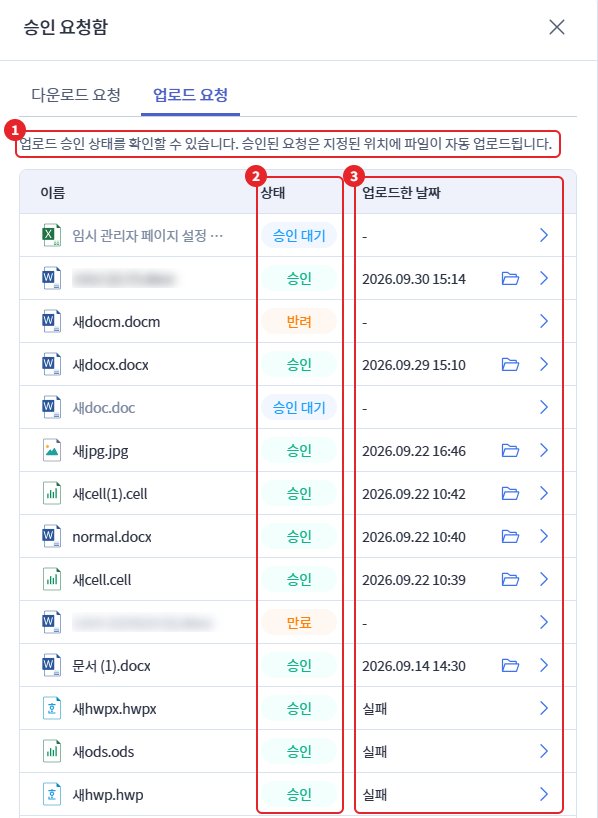
| number | item | Explanation |
|---|---|---|
| 1 | Guide text | Guidelines for Handling Upload Requests |
| 2 | status | Current Progress Status of the Request |
| 3 | [Upload Date] | Upload completion time or "failure" |
Once approved, the file will be automatically uploaded to the specified location. There is no need to upload it again separately.
| situation | screen | Action |
|---|---|---|
| Upload complete | Display date on [uploaded date] | Open the corresponding folder with the [Move to Upload Location] icon |
| Upload failed (retry possible) | "Failure" indicator on [uploaded date], [retry] icon displayed | Re-upload with [Retry] |
| Upload failed (retry not possible) | "Failure" mark on [upload date] | Re-upload file in folder |
- If the upload location folder has been deleted or access permissions are not granted, display the message "The folder does not exist or cannot be accessed."
- If you retry in a state where retries are not possible, display the message "Cannot retry."
8. Detailed Confirmation
Clicking the [Details] icon of an item in the list will expand the details.
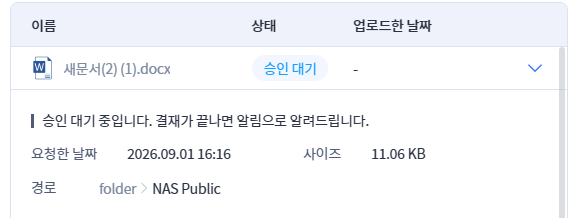
The details include [requested date]·[completed date]·[size]·[path], and rejected requests will display [rejection reason]. The status-specific guidance messages are as follows.
| status | Guide text |
|---|---|
| Pending Approval | Waiting for approval. You will be notified once the payment is completed. |
| Approval - Download | Approved. You can download the file during the download period. |
| Download period expired | The download period has expired, and you cannot receive the file. Please request it again. |
| Download failed - file loss | The file is lost and cannot be downloaded. Please try again from the folder. |
| Download failed - No original found | The original file is not available for download. Please request it again from the folder. |
| Approval - Upload | Approved. Proceeding to save the file in the specified location. |
| Upload complete | Approved. The file has been uploaded to the specified location. |
| Upload failed - retry possible | Approval has been completed, but the file upload has failed. You can refresh to try uploading the file again. |
| Upload failed | Could not save the file. Please re-upload the file in the folder. |
| Upload failed - No storage location | Cannot find the folder or file to save. Please upload again from the folder. |
| Retry period expired | The request has been automatically terminated as the retry period has expired. Please request again. |
| companion | The approval has been rejected. |
| Request Cancellation | The approval request has been canceled. |
| Approval Deadline Expired | The approval deadline has passed, and the request has been automatically terminated. Please request again. |
9. Notification
The approval result will be delivered via notification. Clicking the notification will open the corresponding request in the approval request box.
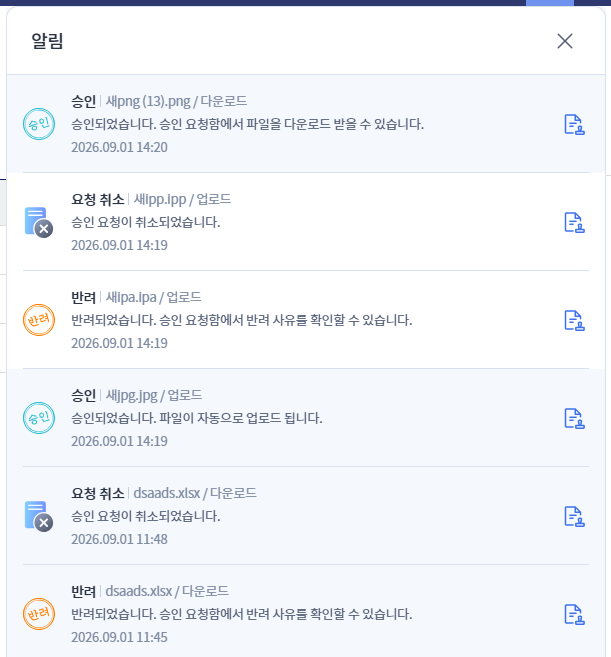
| result | Notification Title | Notification message |
|---|---|---|
| Upload Approval | Approval | Approved. The file will be automatically uploaded. |
| Download Approval | Approval | Approved. You can download the file from the approval request. |
| companion | companion | It has been rejected. You can check the reason for rejection in the approval request. |
| Request Cancellation | Request Cancellation | The approval request has been canceled. |
| Upload failed | Upload failed | Approval has been completed, but the file upload has failed. |
| Approval Deadline Expired | expiration | The deadline has passed and it has ended. Please request again. |
| Download period expired | Download period expired | The file download period has expired. |
If the requested item in the notification has been deleted or cannot be confirmed, a "Item not found" message will be displayed.