Screen Composition
The SHIELD Drive user interface consists of a top bar (GNB), a left menu (LNB), a center file list, and a right detail slide. This document provides guidance on the components and roles of each area. For instructions on how to use individual features, please refer to the respective feature guides.
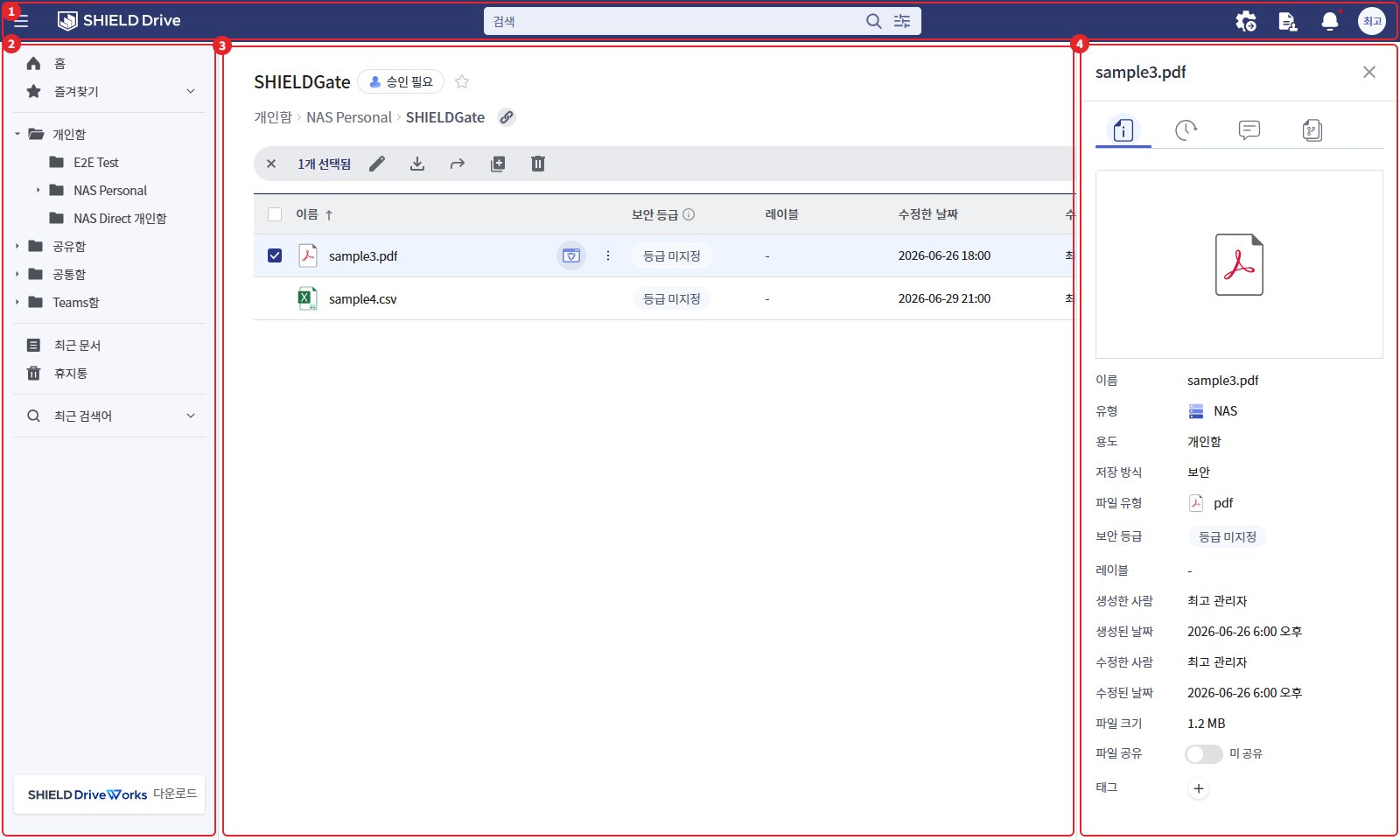
| number | area | role |
|---|---|---|
| 1 | Top Bar | Menu Collapse/Expand, Search, Notifications, Profile |
| 2 | Left Menu | Home·Favorites·Storage Folder Tree·Recent Documents·Recycle Bin·Recent Search Terms |
| 3 | File List | File and Folder List and Action Buttons of the Current Folder |
| 4 | Right Detail Slide | Detailed information, activity history, comments, file versions of the selected file/folder |
1. Top Bar

| number | item | Explanation |
|---|---|---|
| 1 | Menu Button | Collapse/Expand Left Menu |
| 2 | logo | Click to go to home. The company logo is displayed according to the admin settings. |
| 3 | search box | Search after entering a keyword and pressing Enter. Open detailed search conditions with the settings icon on the right. |
| 4 | Move to the admin page | Visible only to users with administrator privileges. Go to the admin page. |
| 5 | Approval Request Box | Display only when there is storage with approval applied. |
| 6 | My Notifications | Open notification list. If there are unread notifications, a red dot will be displayed. |
| 7 | Profile | Name · Account Verification, [Account Management], [Log Out] |
- The search method is referenced in the "Search and Filter Guide," the approval request box is in the "Approval Request Guide," and notifications are in the "Notifications" document.
- In an environment where the user page and the admin page are operated under separate addresses, [Go to Admin Page] is not displayed. In this case, access the admin page address directly.
2. Left Menu
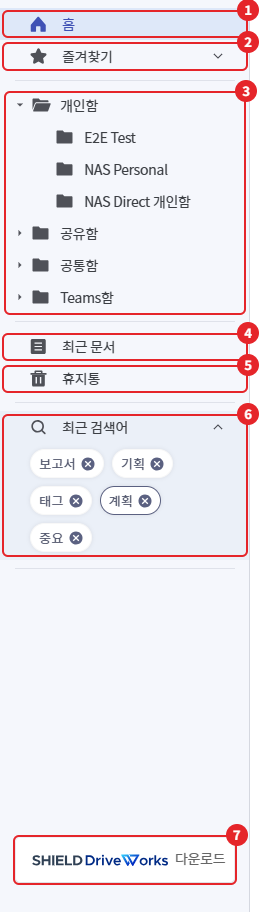
| number | Menu | Explanation |
|---|---|---|
| 1 | Home | The first screen that gathers favorites and recent documents |
| 2 | Favorites | List of favorite folders. Click to navigate to the corresponding folder. |
| 3 | Storage Folder Tree | Storage and Subfolders with Permissions |
| 4 | Recent Documents | Recently used document list |
| 5 | Trash bin | Check and Restore Deleted Files and Folders |
| 6 | Recent Search Terms | Recent search term list. Click to search again under the same conditions, individual deletion is possible. |
| 7 | Download SHIELD Works | Download SHIELD Works Agent Installation File (Displayed according to administrator settings) |
2-1. Storage Folder Tree
The folder tree only displays storages that the user has permissions for. The displayed storage groups are as follows:
| group | Explanation |
|---|---|
| personal box | User Personal Dedicated Storage |
| Share box | A storage that creates a shared folder for use with members. |
| Common function | Organization Shared Storage |
| Teams tab | Storage linked with Microsoft Teams teams and channels (Displayed when using Teams integration) |
| Teams Nas function | NAS storage linked with Teams (Displayed when using Teams NAS integration) |
- If there is no storage with permissions, a message saying "You do not have permission to use the folder." will be displayed. Please request permission from the administrator.
- You can expand or collapse subfolders using the arrow to the left of the folder name.
3. Home
When you log in, the home screen opens first.
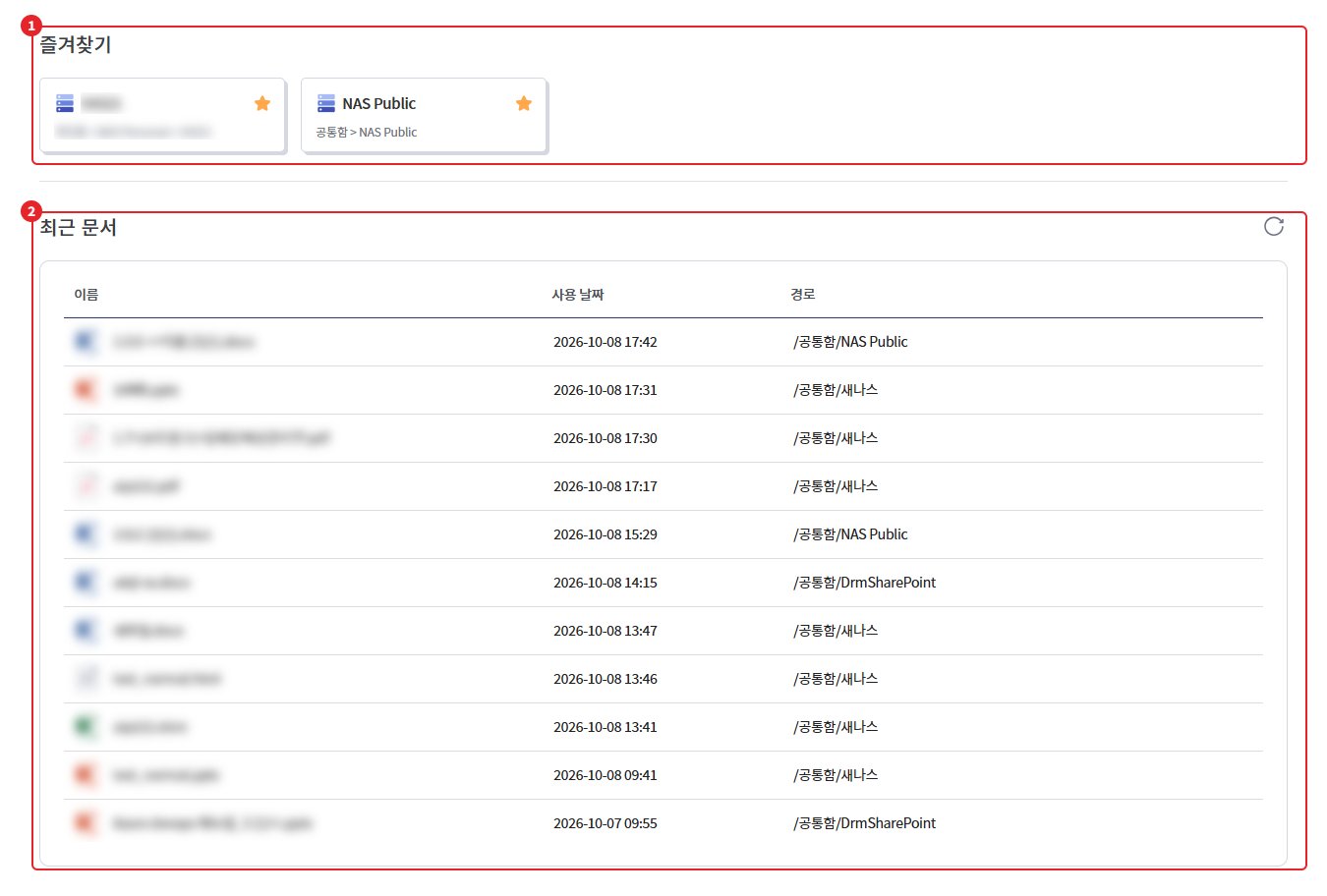
| number | area | Explanation |
|---|---|---|
| 1 | Favorites | Display the bookmarked folders in card format. Click to navigate to the corresponding folder. |
| 2 | Recent Documents | Recently used document list. Refresh to update the list. |
- If there are no favorites, a registration method guide will be displayed. In the folder screen, you can click the star icon next to the folder name or register as a favorite from the right-click menu of the folder.
- Favorites and recent documents are only supported in storage with secure storage.
4. File List
When you select storage or a folder from the left menu, the file list will be displayed in the center.
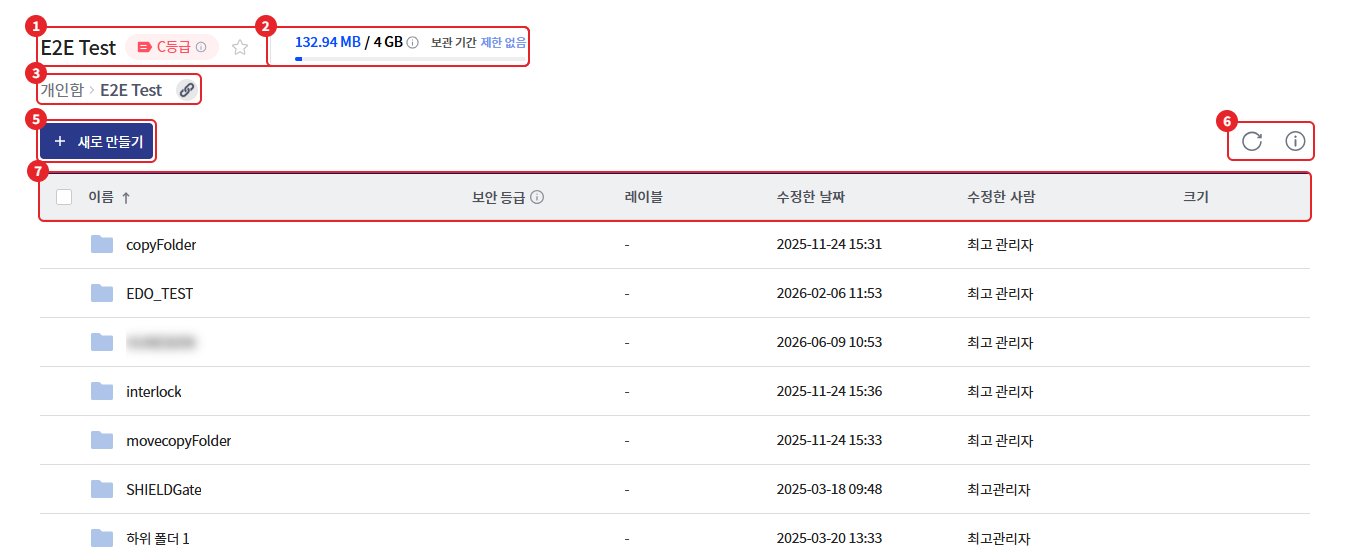
| number | item | Explanation |
|---|---|---|
| 1 | Folder Name | Current folder name. Approval needed indication based on status · Security level indication · Favorite star icon displayed together |
| 2 | Usage Capacity | Current storage usage. The personal space shows usage compared to the allocated maximum capacity. |
| 3 | Folder path | Current location path. Click the path to move to the parent folder, use the right icon to copy the path. |
| 4 | Fixed Top Item | Display pinned files and folders as cards at the top (only displayed when there are pinned items) |
| 5 | [Create New] | Create new folder, Create new document, Upload files and folders (Displayed only when upload permission is granted) |
| 6 | Refresh / Details | Reload list / Open/close right detail slide |
| 7 | List | File and Folder List. Click the column title to sort. |
4-1. List Item
| row | content | Sorting |
|---|---|---|
| name | File and Folder Names and Icons | possible |
| Security Level / Label | Document Grade Information (Displayed when Security Grade Feature is Enabled) | - |
| Modified date | Last modified date and time | possible |
| Person who modified | Last modified by user | Available only in secure storage. |
| size | File Size | possible |
- Clicking the column header once sorts in ascending order, and clicking it again sorts in descending order.
- Double-clicking an item will open the folder and view the file.
- Right-clicking on an item will display a menu available for that item. If no menu is available, it will display "No available menu."
- If you drag and drop files into the list area, they will be uploaded to the current folder. (When you have upload permissions)
- The security level indication refers to the "Document Classification Guide."
4-2. Item Selection and Action Menu
When you select an item from the list, the top button area changes to the action menu.
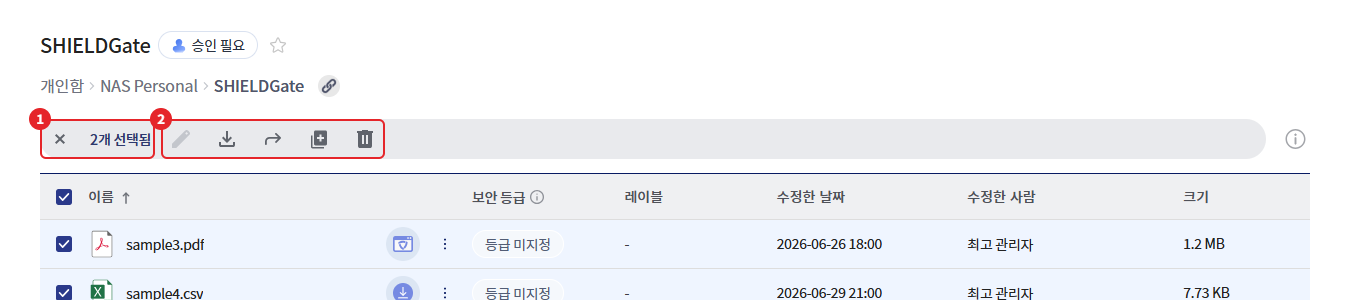
| number | item | Explanation |
|---|---|---|
| 1 | Number of selections | "N selected" display. Deselect with the close icon on the right. |
| 2 | Task Icon | Rename / Download / Move / Copy / Delete |
- Select multiple items with the checkbox in front of each item, or select all with the checkbox in the title row of the list. You can also drag an empty area to select multiple items at once.
- The action icon for the selected item without permission will be disabled.
- At the top of the shared folder, the action icons change to edit / settings / delete, and the [New Shared Folder] button is displayed. For instructions on how to use the shared folder, please refer to the "Sharing and Collaboration Guide."
- Pressing the Esc key will deselect the selection.
5. Right Detail Slide
When you select an item from the list, a detailed slide opens on the right side of the screen. If nothing is selected and you click the detailed information icon, the information for the current folder will be displayed.
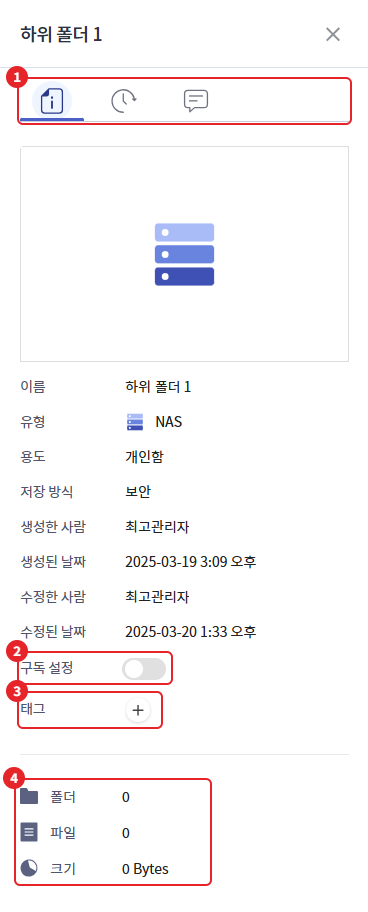
- If you select multiple items, only the message "N items have been selected." will be displayed instead of the tabs.
- Press the close icon or the details icon in the upper right corner again to close.
5-1. Tab Configuration
| tab | content | Display Conditions |
|---|---|---|
| Detailed Information | Basic information such as name, type, storage method, and subscription/tag settings | always |
| Activity History | Activity records for creation, modification, movement, and viewing of items | Secure Storage Storage |
| comment | Comment Writing, Editing, and Deletion | Secure Storage Storage |
| File Version | List of previous versions of the file and download by version | Files of Secure Storage |
5-2. Detailed Information Item
| item | folder | file | Explanation |
|---|---|---|---|
| name | O | O | Item Name |
| type | O | O | Types of Storage |
| Purpose / Storage Method | O | O | Storage Purpose, Security Storage · General Storage Classification (Excluding Top-Level Storage) |
| File Type | - | O | File Format |
| Security Level / Label | O | O | Grade Information (when security grade feature is enabled) |
| Creator / Creation Date / Modified By | O | O | Display in secure storage storage |
| Modified Date | O | O | Last modified date and time |
| File Size | - | O | File Size |
| Subscription Settings | O | - | Receive folder change notifications. For more details, refer to the "Notifications" document. |
| File Sharing | - | O | File Sharing Settings (Displayed when there are sharing permissions in the Personal Folder) |
| tag | O | O | Add/Delete Tags |
| Automatic deletion | O | - | Personal Mailbox Automatic Deletion Exception Settings (Displayed According to Administrator Settings) |
| Folder / File / Size | O | - | Number of subfolders, number of files, total size |
- In storage with a general storage method, only basic information such as name, type, and modified date is displayed.
- Automatic deletion exception settings can be found in the "Personal Folder Automatic Deletion Exception Settings" document, and for file sharing, please refer to the "Sharing and Collaboration Guide."
6. Work Progress Guide
When you perform tasks such as upload, download, move, or delete, the progress status is displayed at the bottom right of the screen.
(Image to be attached later)
- During the process, the progress will be displayed, and upon completion, the success or failure results will be shown. If multiple items are processed, it will be displayed as "{first item name} and N others."
- The task of creating a new document will display the [View](<Creation Complete>) or [Retry](<Creation Failed>) button depending on the result.
- You can close the guide with the close icon on the right.
Caution - Closing during new document creation: If you close the notification that a new document is being created, the creation request will be canceled.