Accessing SHIELD Drive
SHIELD Drive is accessed through a web browser or Microsoft Teams. This document provides guidance on the access process from login to logout, as well as the behavior in cases where automatic logout occurs according to administrator policies.
1. Accessing via Web Browser
- Enter the SHIELD Drive address provided by the company in the browser's address bar.
- When the Security365 login screen opens, log in with your Security365 account.
- Once the login is complete, you will be taken to the SHIELD Drive home screen.
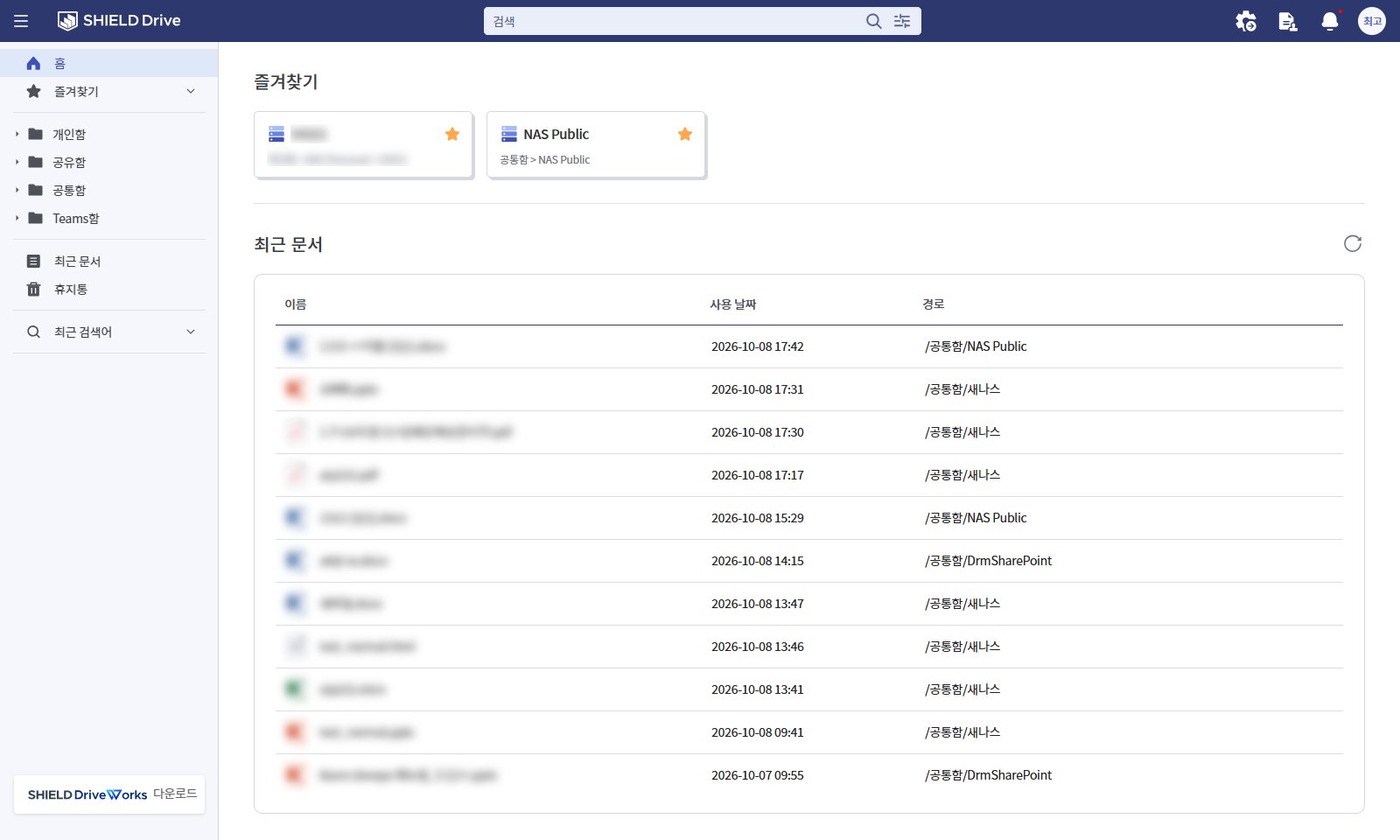
- The login screen is the common login screen for the Security365 management center. No separate account is created in SHIELD Drive.
- Users who have linked their Microsoft 365 or Google Workspace accounts can also log in using the [Start with Microsoft] / [Start with Google] options on the login screen. For information on how to link accounts, please refer to the "Account Management and Profile" document.
- If you access a file link or a specific folder address, you will be directed to that file or folder immediately after logging in.
Note - Supported Browsers: Available on the latest versions of Chrome, Edge, Firefox, and Safari. If accessed via Internet Explorer, a "Unsupported browser version" notification screen will be displayed, and the service cannot be used.
1-1. Check Recent Access Information (Displayed According to Administrator Settings)
Immediately after logging in, the previous connection information will be displayed at the top of the screen for about 5 seconds.
(Image to be attached later)
| item | content |
|---|---|
| Connection Date / Connection Time | Last login date and time |
| Access IP | Last login IP address |
- The displayed items (date and time, IP) vary according to the administrator settings.
- If you see a record of access that you did not make, please contact the administrator. ("If the access history seems suspicious, please contact the administrator.")
- If the information could not be retrieved, the value will be displayed as "-" and a message stating "Failed to retrieve information due to a temporary error." will be shown.
- It will not be displayed if accessed from Teams.
1-2. In case of login failure
If there is a problem during the login process, the "Login Failed" screen will be displayed. After taking action according to the instructions, press [Go to Login Screen] to try again.
| Guide text | Cause · Action |
|---|---|
| This account does not have a license assigned. Please contact the administrator. | SHIELD Drive license not assigned. Request license assignment from the administrator. |
| Service configuration is not complete. | Company unit service setup incomplete. Please contact the administrator. |
| User information is incorrect. Please try again. | Authentication information error. Please log in again. |
| User information could not be found. Please try again later. | Failed to retrieve user information. Please try again later, and if the issue persists, contact the administrator. |
| An unknown error has occurred. Please try again later. | Temporary error. Please try again later. |
2. Accessing Microsoft Teams
In Teams, you can access SHIELD Drive through the app icon or the tab of the team channel. (When using Teams integration)
| Connection Method | Procedure | Movement Range |
|---|---|---|
| Teams app | Search for SHIELD Drive in the left [Apps] of Teams and then click on SHIELD Drive in the left app bar. | SHIELD Drive Full Screen |
| Team Channel Tab | Click the SHIELD Drive tab at the top of the team channel. | Limited to the specified team/channel folder (cannot move to other paths) |
- You will be automatically logged in with your Teams account in Teams.
- The app name displayed in the Teams app bar may vary depending on the administrator settings.
- For detailed usage instructions, please refer to the "Teams Integration Guide."
3. Logout
- Click on the profile icon (name initials) at the top right corner of the screen.
- Click [Log Out] in the menu.
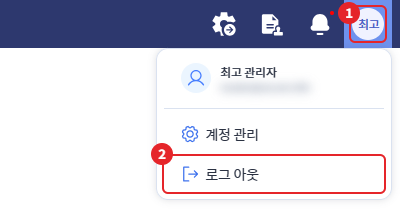
- Logging out will redirect you to the Security365 login screen. Once you log in again, the home screen will open.
4. Automatic Logout
According to the security policy set by the administrator in the Security365 management center, users may be automatically logged out even if they do not log out themselves. The automatic logout period and its applicability cannot be changed by the user.
| type | Occurrence Conditions | Screen Guidance |
|---|---|---|
| Unused time exceeded | No mouse movement, clicks, keyboard input, or scrolling for the set period of time. | "Automatic Logout" Window |
| Duplicate Access | Logging in from a different device (different IP) with the same account | "Log Out" Window |
4-1. Logged out due to unused time exceeding (operates according to administrator settings)
(Image to be attached later)
- If there is no activity for the specified time, a message will be displayed saying "You have been automatically logged out for security reasons due to inactivity for the specified time."
- Press [Log in again] to go to the login screen. After logging in again, you will return to the screen you were viewing just before logging out.
- If you have SHIELD Drive open in multiple tabs in the same browser, any activity in any tab will be considered as being in use.
- If you close the browser and reconnect after the set time has passed, you will be switched to a logged-out state and will need to log in again.
- It does not apply when accessed from Teams.
4-2. When logged out due to duplicate access (operates according to administrator settings)
(Image to be attached later)
- If a simultaneous connection limit is set, logging in with the same account on another device will display a message on the existing screen saying, "You have been logged out of the service. You have logged in with the same account on another device."
- Pressing [Confirm] will take you to the login screen.
Caution - Unsaved Input: The content you were entering on the screen (comments, tags, etc.) will not be saved upon automatic logout.