Label Query Menu Guide
※ Last updated: 2025-05-21
Label LookupThe menu is a feature that allows you to view the list of labels registered in Microsoft Entra ID on the SHIELD DRM admin page.
Through this menu, users can check the policy name, policy description, policy type, and policy scope of the currently registered labels.
Main Features
- **Check policy name and description:**A text is provided that describes the policy name set by the user and the purpose or scope of that policy.
- **Check the scope of policy application:**You can check which document each label applies to, and they are classified for various purposes such as basic documents and executive-only documents.
- **Providing Help:**By clicking the information icon (ℹ️) next to the policy type, you can check how the corresponding label policy is defined in terms of conditions and usage.
Caution:Label PolicyPolicy IDis for internal identification and will not be displayed on the screen.
This information serves as a reference when integrating conditional policies and document security settings in SHIELD DRM based on Microsoft Entra's sensitivity label configuration.
Label Query Screen Configuration
SHIELD DRM Admin Page
레이블 조회Click the menu to access the label list screen.
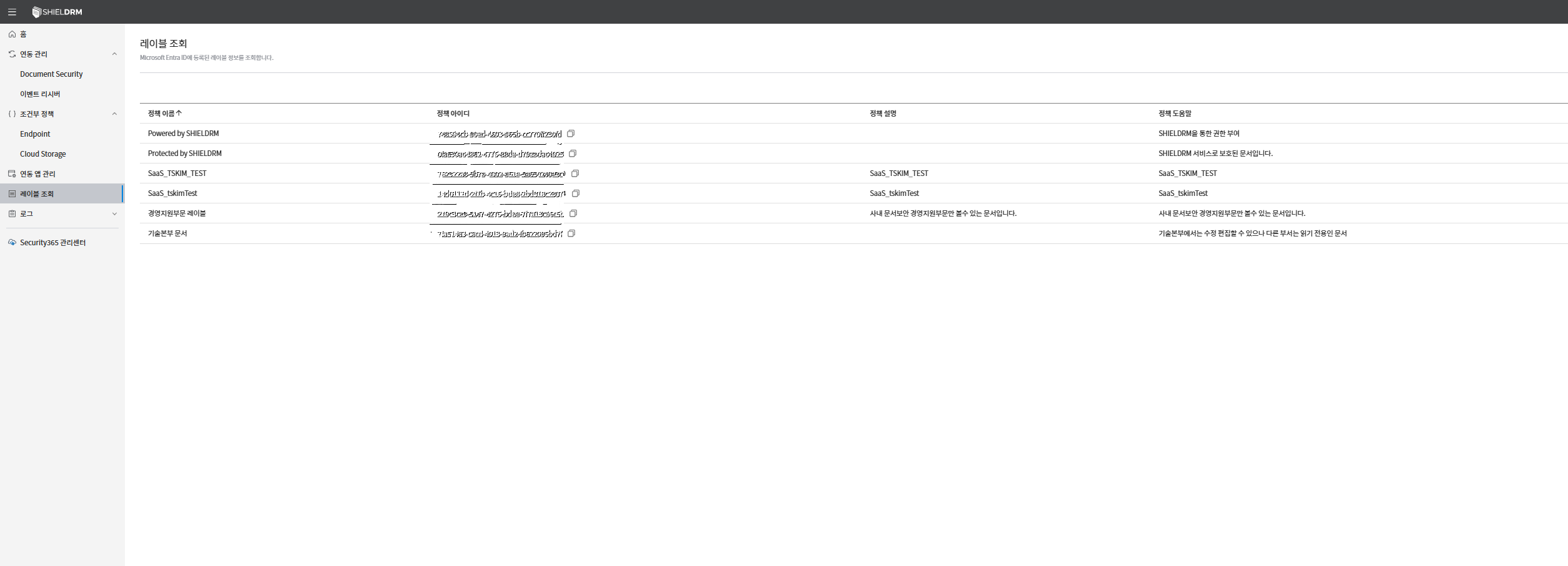
Label List Table
The label list is provided in a table format that allows you to easily view the labels of the document security policies set in the SHIELD DRM service.
Each label includes the policy name, policy help, and policy description.
- **Policy Name:**Indicates the name of the label policy.
- **Policy ID:**An identifier uniquely assigned to each label policy.
- **Policy Description:**This is a description of the purpose of the label policy or the applied document security policy.
- **Policy Help:**Briefly explain how to use or precautions for the policy to which this label applies.
How to Check Label Information
- on the admin page
레이블 조회Go to menu. - A table of label lists appears, displaying each item with the policy name, policy ID, policy description, and policy type.
- to the right of the policy ID
복사 아이콘You can click to copy the corresponding ID to the clipboard.
Cautions
- The label policy can only be viewed with administrator privileges.
- The ID of the label policy should be carefully protected to prevent external leakage for security reasons.
- Types of Label Policies
DRMorAIPIn this case, the policy is linked to the conditional policy of the SHIELD DRM service.
Usage Examples
- You can copy the policy ID and use it when setting up conditional policies.
- You can grant document access permissions only to specific departments or specific user groups through label policies.