Integration Management - Document Security (DS&SDF)
※ Last updated: 2025-05-21
Document SecurityThe menu is for DRM document protection in the SHIELD DRM service.Linking Configuration for Encryption Keys and Permission PoliciesItems that can be done.
This menu is designed to register and manage the authentication elements required in the process of converting and viewing secure documents in advance.
Key Management
- The key registration feature is used in environments where real-time communication with the SHIELD DRM server is not possible or is limited.
- Administrators or operators can register the encryption key file issued by the security document server to configure DRM encryption to be applied locally or in emergency situations.
- The registered encryption keys can be checked in list form, and can be modified or deleted if necessary.
Permission Policy Management
- If permission control is needed when converting DRM documents, it supports integrating policy files issued externally.
- Through this, SHIELD DRM controls functions such as document viewing, editing, and printing according to the user's permission policy.
- The policy file is created through the SHIELD DRM console, and after registration, metadata such as policy name and creation date will be displayed.
This menu is a key integration setting feature to reliably maintain the connection between SHIELD DRM and the external DRM server, and the policy and key file issuance must be completed in advance.
SCI Server Registration
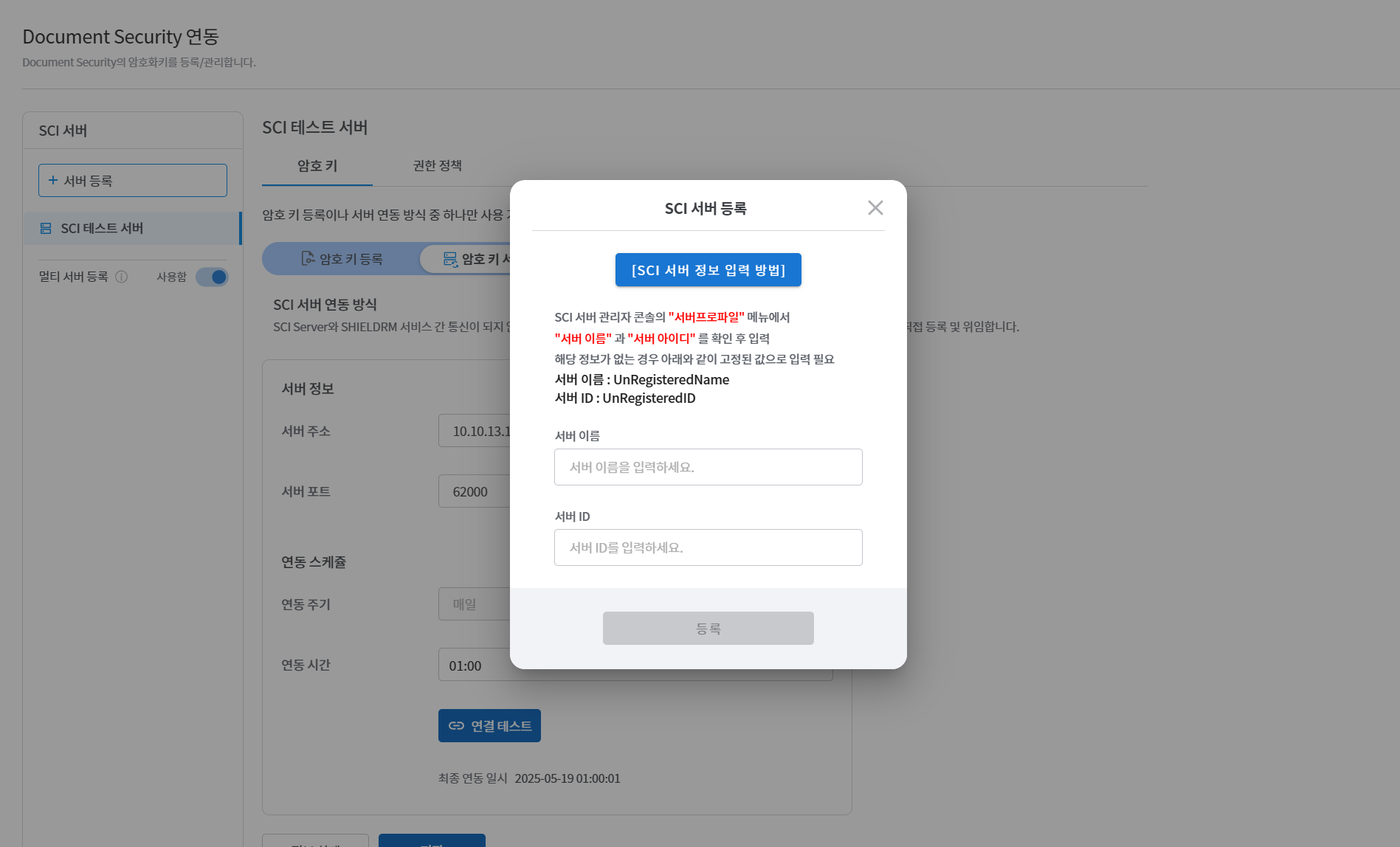
- Click the server registration button
서버 등록You can register a new SCI server by clicking the button.
- Enter server information
- Server Name: Enter the name of the SCI server.
- Server ID: Enter the unique identifier for the server. (Required)
- Server address: Enter the IP address or domain address.
- Server Port: Enter the port number to communicate with the server.
- Integration Schedule Settings
- Integration frequency: You can choose from daily, weekly, or monthly.
- Linking Time: Set the time when the linking will start.
- Integration Test and Save
연결 테스트Click the button to check the connection status with the server.저장Click the button to complete server registration.
Multi Server Registration
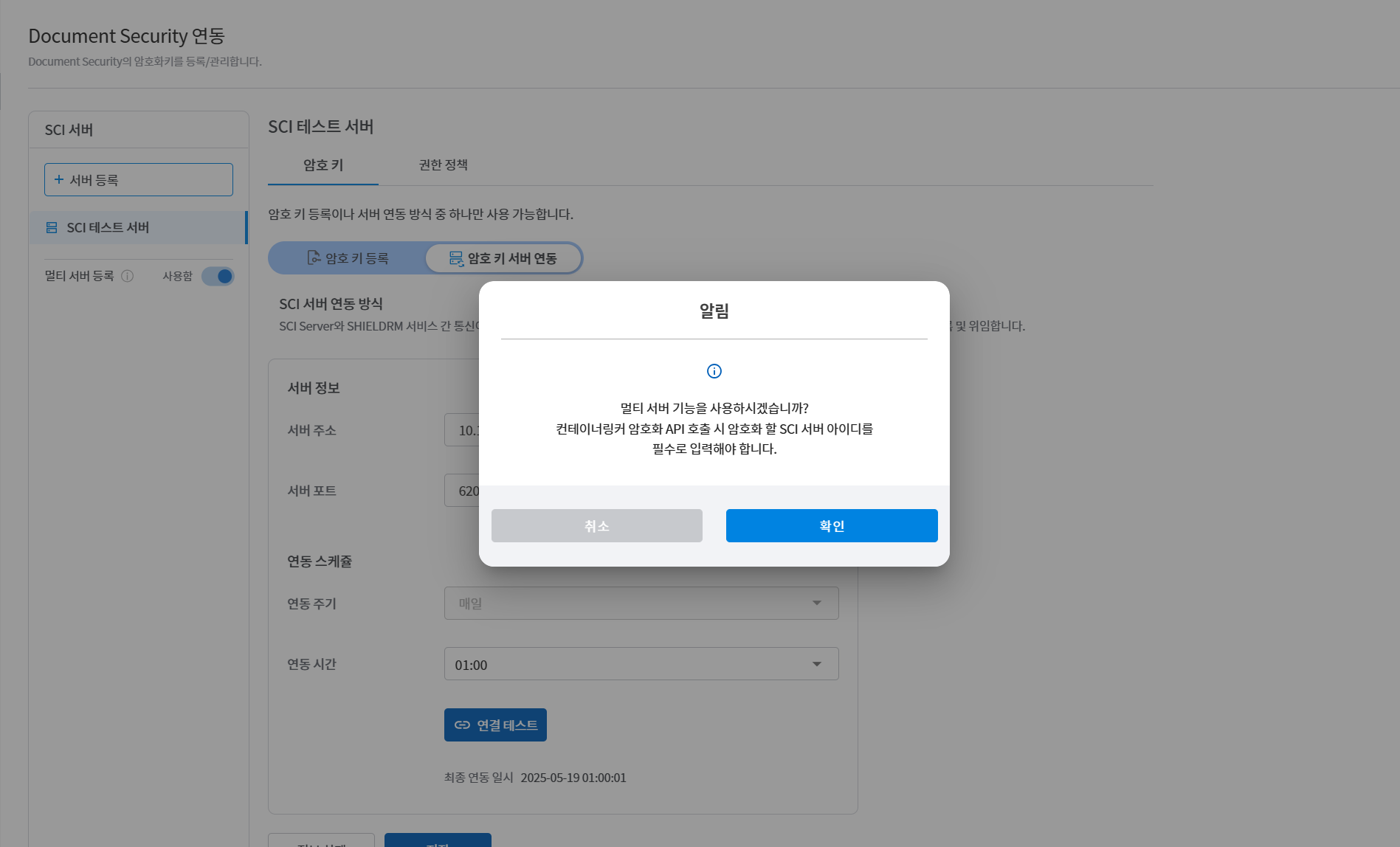
멀티 서버 등록By enabling the toggle, you can register multiple SCI servers simultaneously.- After checking the server name and server ID in the SCI server management console, enter them.
Key Management Tab
Password Key Registration
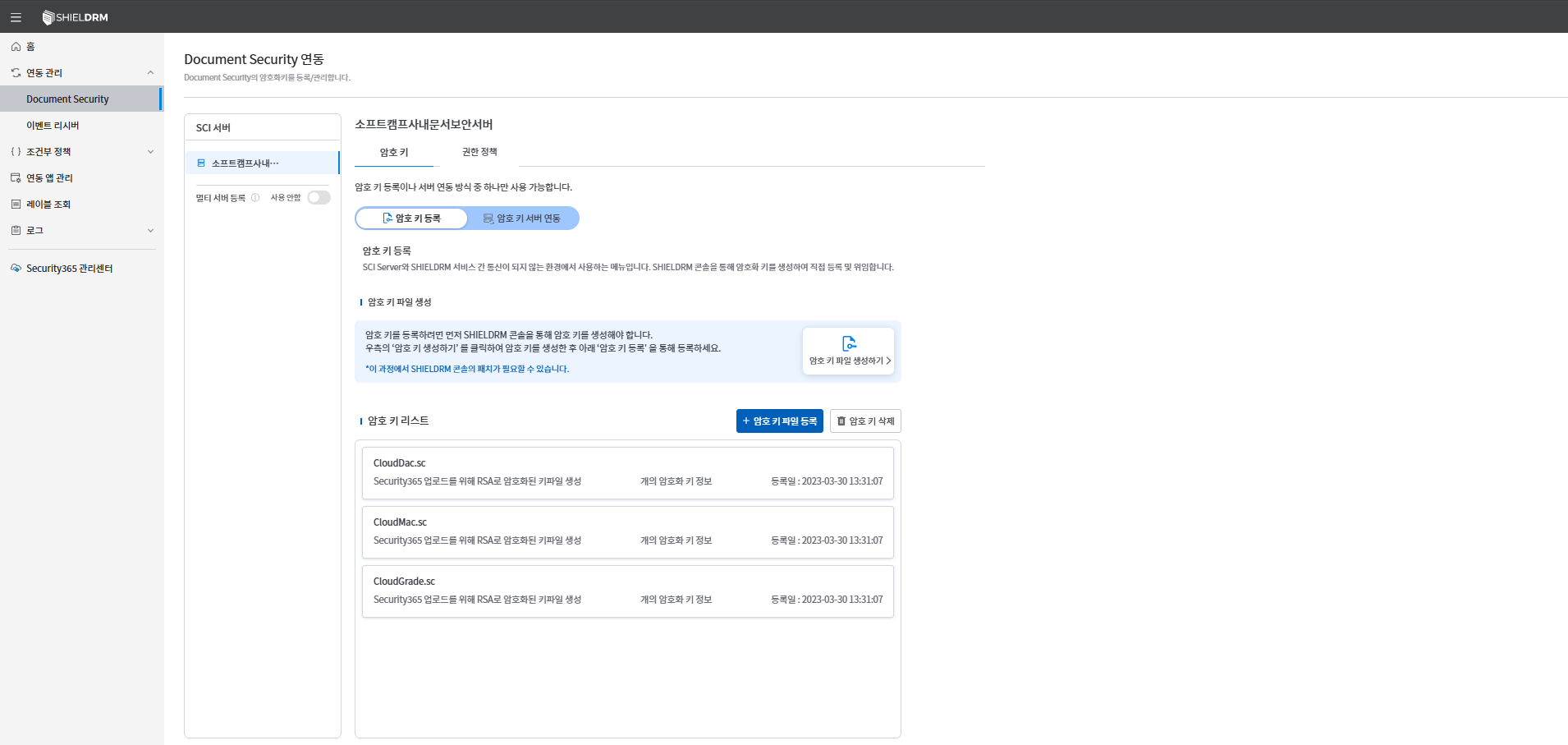
암호 키 등록Button Click- Select a key file
암호 키 파일 생성하기You can create a new key file through __PH_0__. - When you add the generated key file to the list, the corresponding encryption key will be linked with the server.
- The registered encryption keys can be checked in the list,
삭제You can delete through the button.
Encryption Key Server Integration
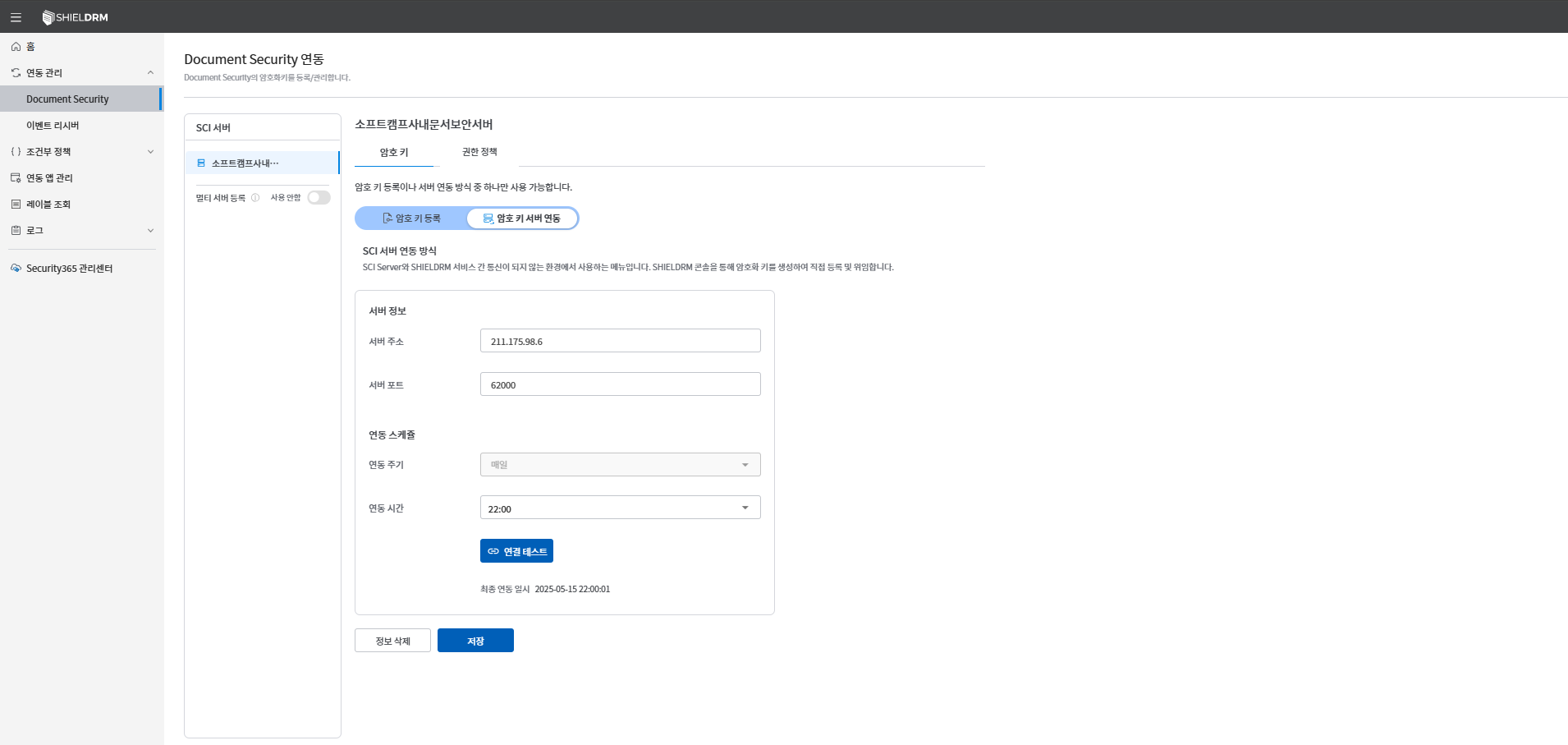
암호 키 서버 연동You can link the registered server and the password key by clicking the button.- The encryption key linked to the server isCloudDac.sc, CloudMac.sc, CloudGrade.scIt will be saved in a file format.
Permission Policy Management Tab
Registering Permission Policy
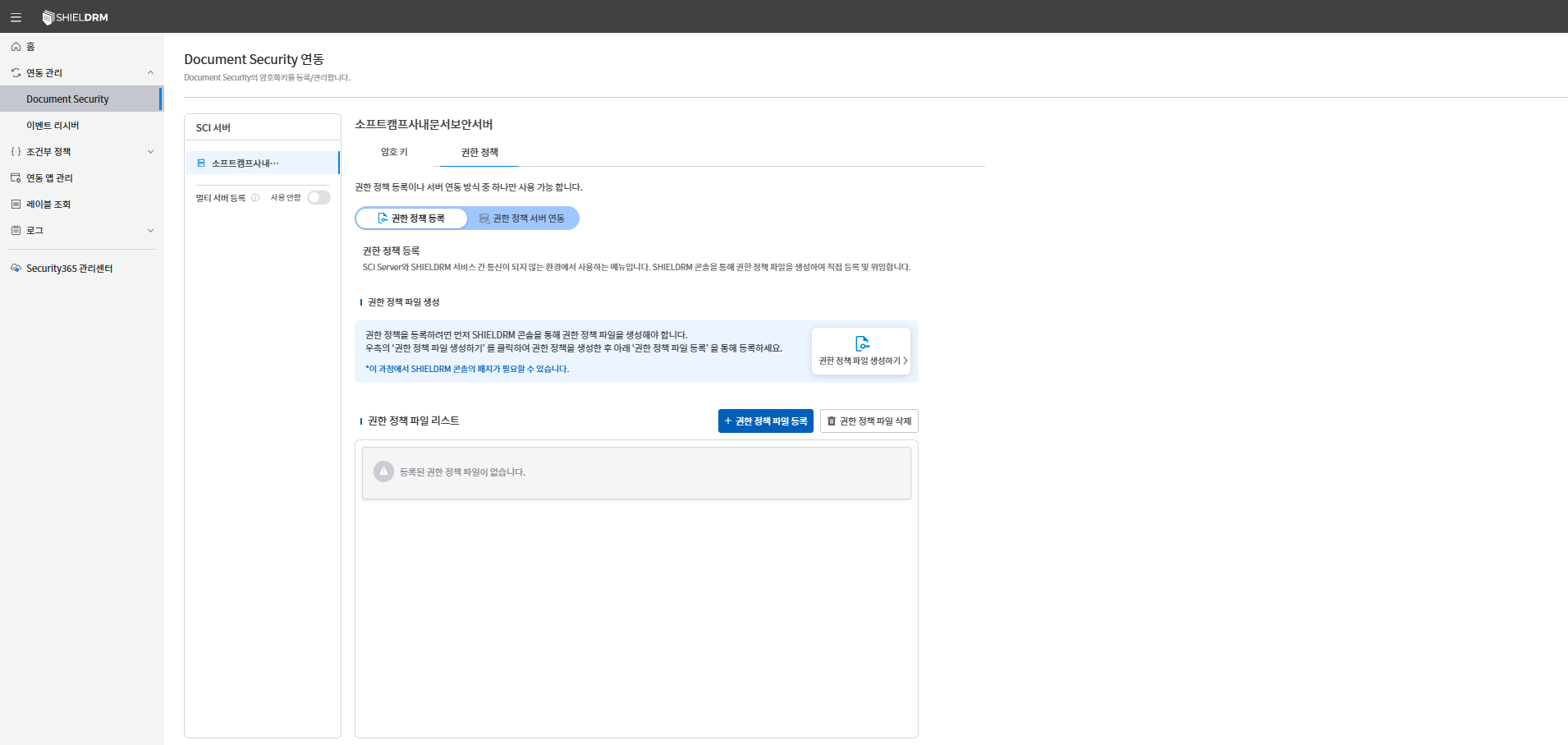
권한 정책 등록Button Click- Select a permission policy file or
권한 정책 파일 생성하기You can create a new policy file through __PH_0__. - The generated policy file will be added to the list.
권한 정책 파일 삭제You can delete unnecessary policy files through the button.
Permission Policy Server Integration
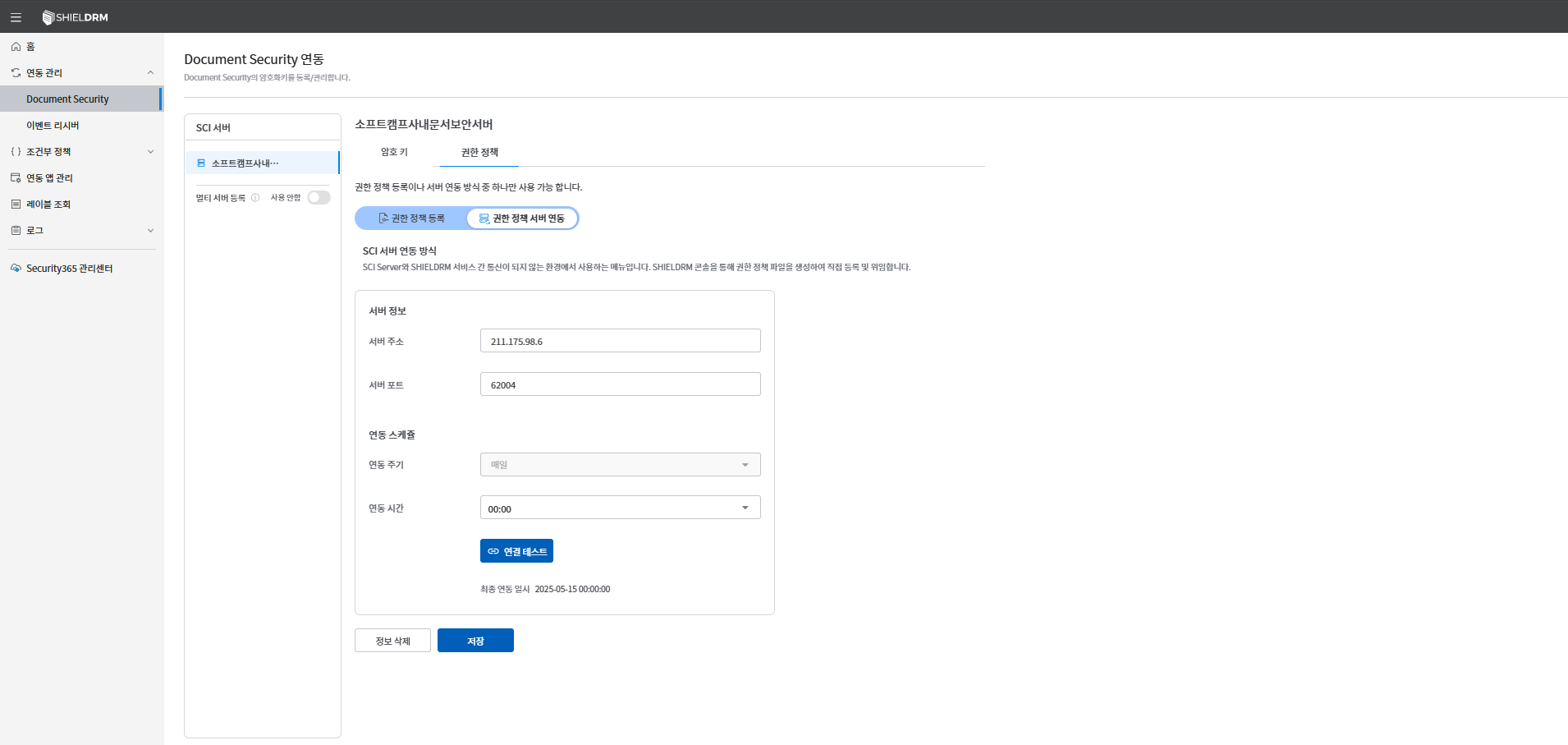
권한 정책 서버 연동You can link the registered server and permission policy by clicking the button.- The permission policies linked to the server can be checked in the list.
Caution
- If the multi-server feature is enabled, you must enter the ID of each server accurately.
- The encryption key and permission policy files must be created through the SHIELD DRM console, and files generated externally are not compatible.
- It is important to check and save the communication status with the server through a connection test.