Log Guide
This document is a guide on how to view and configure DS for Mobile logs based on the log screen of the Security 365 Management Center.
1. Log Overview
All major actions occurring in DS for Mobile are**Log Menu of Security 365 Management Center (Portal)**You can check it at.
Log Entries
- User App Usage History
- Administrator Policy Setting History
- Allow / Block History by Conditional Policy
- System and Security Event Tracking
log isUser LogWowAdmin Logis separated by , and can all be viewed on the same log screen.
2. Log Access Path
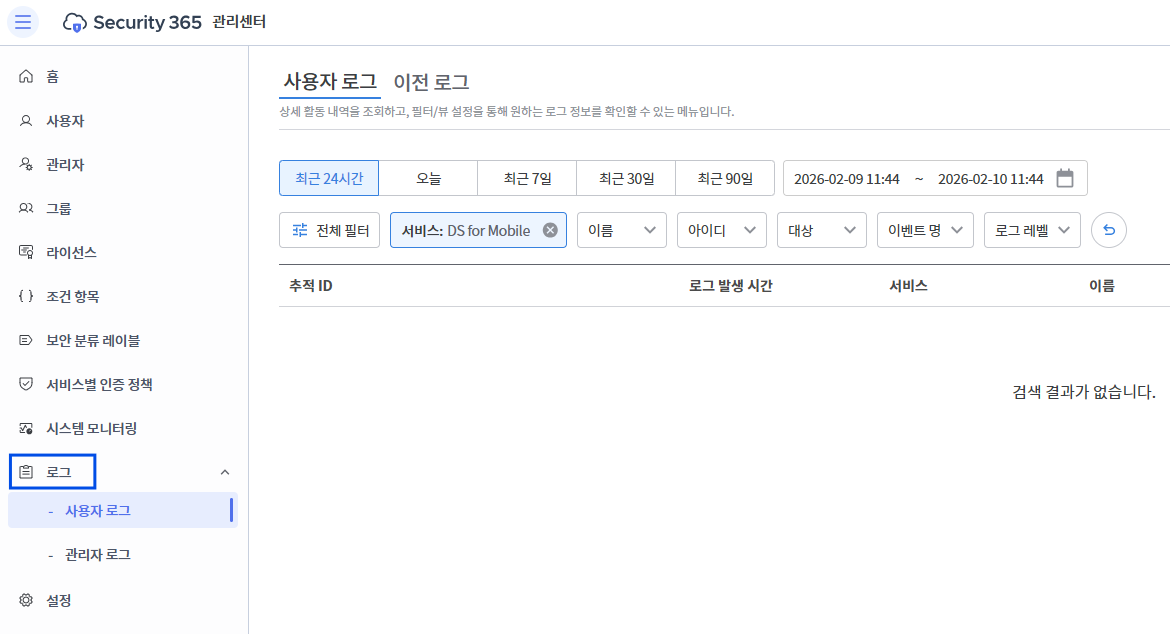
- Path:Security 365 Management Center > Logs
- User Log
- Admin Log
When you select a log type from the left menu, the corresponding log list screen will be displayed.
 |
|---|
3. Log View Screen Configuration
3.1 Period Selection
You can view logs based on the desired period.
Quick Selection
- Last 24 hours
- today
- Last 7 days
- Last 30 days
- Last 90 days
Direct Assignment
- Select start date/time ~ end date/time directly
- Utilization for log tracing at a specific point in time
3.2 Log Filter Options
At the top of the log list, you can use various filter options to refine the target of your query.
Basic Filter Items
| item | Description |
|---|---|
| All Filters | Unified filter for setting all filters at once |
| Service | Select the service to view logs |
| Name | Enter user or administrator name |
| id | Enter user or administrator account ID |
| Target | Log Generation Target Object |
| Event Name | Types of Events That Occurred |
| Log Level | Log Severity Level Filter |
3.3 Service Filter
- Filter that allows viewing logs of a specific service only
- Selectable services example:
- Security 365
- SHIELD DRM
- SHIELD Drive
- SHIELD Mail
- DS for Mobile
- Document Security etc.
| All Filters | Service Filter |
|---|---|
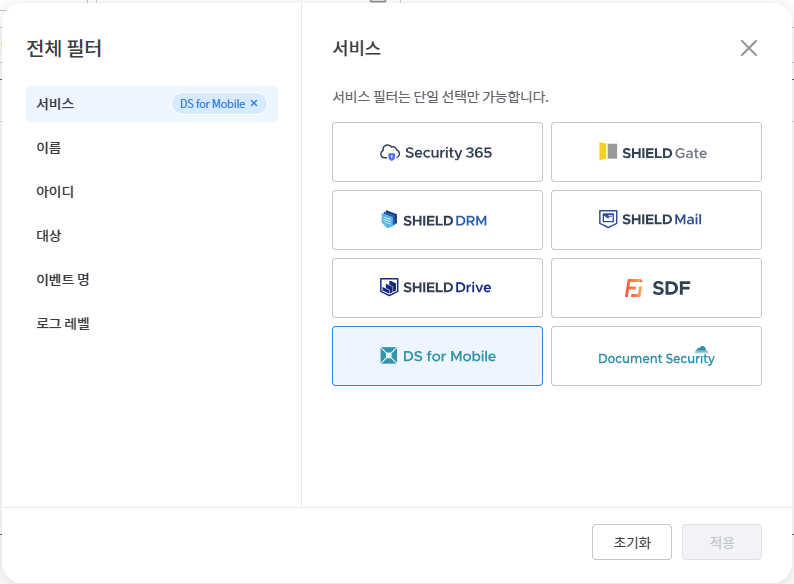 | 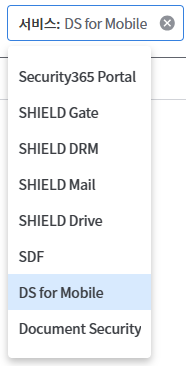 |
To check the DS for Mobile logs
**Select "DS for Mobile" in the service filter.**must do.
3.4 Name / ID / Target / Event Name
- Name / ID / Target / Event NameThe filter retrieves data by directly entering a string.
- Logs are filtered based on the input values.
- **The event name filter is activated only when a service is selected.**It works.
3.5 Log Level Filter
You can classify and query logs according to the log level.
| Log Level | Description |
|---|---|
| ERROR | System error, processing failure |
| WARN | Blocking and Restriction by Policy |
| INFO | Major Events Processed Successfully |
| DEBUG | Debugging Purpose Log |
| TRACE | Detailed Tracking Log |
In a production environment, it mainlyINFO / WARN / ERRORUse logs.
3.6 All Filters
- A modal window will be displayed when selecting all filters.
- The following items can be configured on one screen:
- Service
- Name
- id
- Target
- Event Name
- Log Level
- It is useful for querying logs at once by combining multiple conditions.
4. Log List and Detail View
4.1 Log List
The log list displays the following information.
- Log Occurrence Time
- Service
- Name
- id
- Target
- Event Name
- Log Level
4.2 Log Details
When you click on a log item, on the right sideSlide-type detailed information panelThis will be displayed.
Detailed Information Composition
User Information
- Name
- id
- Department
- IP address
Log Information
- Occurrence Time
- Event Name
- Event Code
- Log Level
- Target
Log content
- Detailed log message
This allows you to trace the causes and effects of specific events.
5. Description of Additional Features
5.1 Log Download
- Download log file based on the currently queried conditions
- Can be used for audit and history management purposes.
5.2 Search
- Automatically re-query logs when filter conditions change
- Used for tracking specific users and events
5.3 Refresh
- Recheck the latest logs
- Used for real-time monitoring
5.4 Specify Number of Pages in List
- Select the number of logs to display on a page
- For example: 15 items / 30 items / 50 items, etc.
- Improving readability by adjusting the number of pages when there is a large amount of log data
6. Organizing DS for Mobile Log Items
6.1 User Log
| Event Name | Event Code | Description | Log Level |
|---|---|---|---|
| Login | USER_LOGIN | User successfully logs into the app | INFO |
| File Open (View) | DOC_READ | Viewing the document normally | INFO |
| File Open Block | DOC_READ | Access blocked due to conditional policies, etc. | WARN |
| File Sharing | DOC_MIP_CONVERT | Download the document and share it with external apps. | INFO |
6.2 Admin Log
| Event Name | Event Code | Description | Log Level |
|---|---|---|---|
| Conditional Policy Registration | CONDITIONAL_POLICY_CREATE | New Registration of Conditional Policies | INFO |
| Conditional Policy Modification | CONDITIONAL_POLICY_UPDATE | Change of Conditional Policy Settings | INFO |
| Delete Conditional Policy | CONDITIONAL_POLICY_DELETE | Delete Conditional Policy | INFO |
| Conditional Policy Copy | CONDITIONAL_POLICY_COPY | Conditional Policy Copy | INFO |
| Download Conditional Policy | CONDITIONAL_POLICY_DOWNLOAD | Download Policy Settings (JSON) | INFO |
| Change in Policy Priorities | CONDITIONAL_POLICY_PRIORITY_CHANGE | Change in Policy Application Order | INFO |
7. Summary of Log Level Criteria
- INFO
Normal User/Admin Actions - WARN
Blocking by Conditional Policy or Security Policy - ERROR
System error, authentication failure, processing failure
Blocking by conditional policies is
**This is an intended security action, so it is logged as a WARN.**It works.