Integrated Login
security365 unified login
- The unified login UI appears upon first login.
- If you are not a unified login user, closing the unified login UI during the first login will display the Document Security login UI.
The SHIELD ID login screen can be applied as shown below using the DS365.Core.json configuration.
DS_MIP_INITItem Settings
The "mode" specification can be set to "webView" or "msedgeApp". The options to be used for the login types "webView" and "msedgeApp" are set by the items of the corresponding key values.
//DS365.Core.json 설정 예제
{
  "login": {
    "port": "28080",
    "waitMinTime": "0",
    "mode": "msedgeApp",
    "webView": {
      "idPwEveryTime": "none",
      "topMost": "none"
    },
    "msedgeApp": {
      "fullScreen": "none",
      "idPwEveryTime": "none",
      "topMost": "none"
    }
  }
}
| User Screen | Content | Note |
|---|---|---|
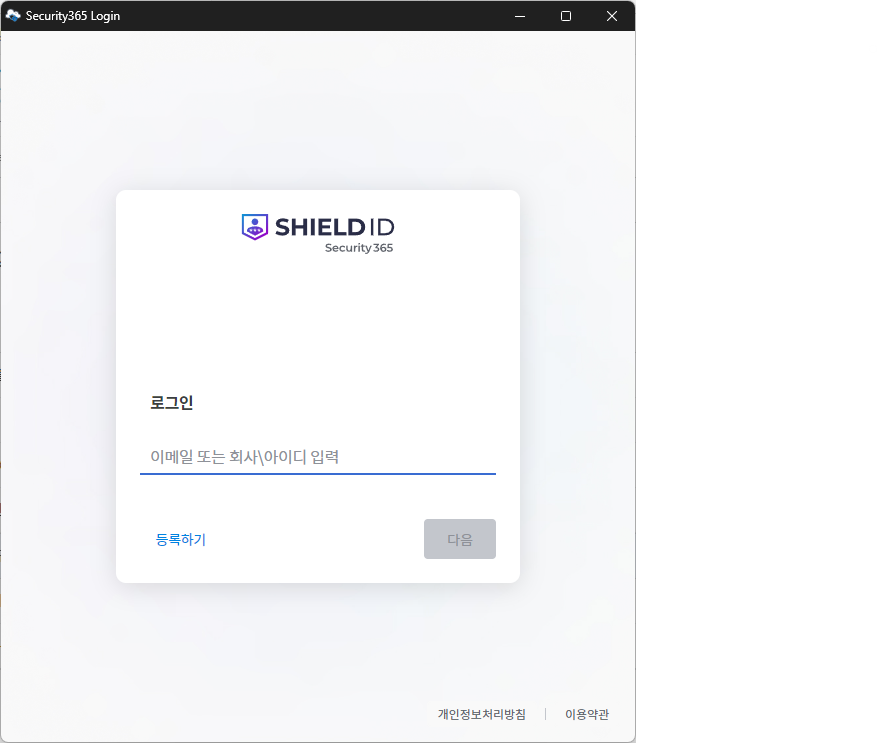 | Window Mode | login.mode : "msedgeApp" |
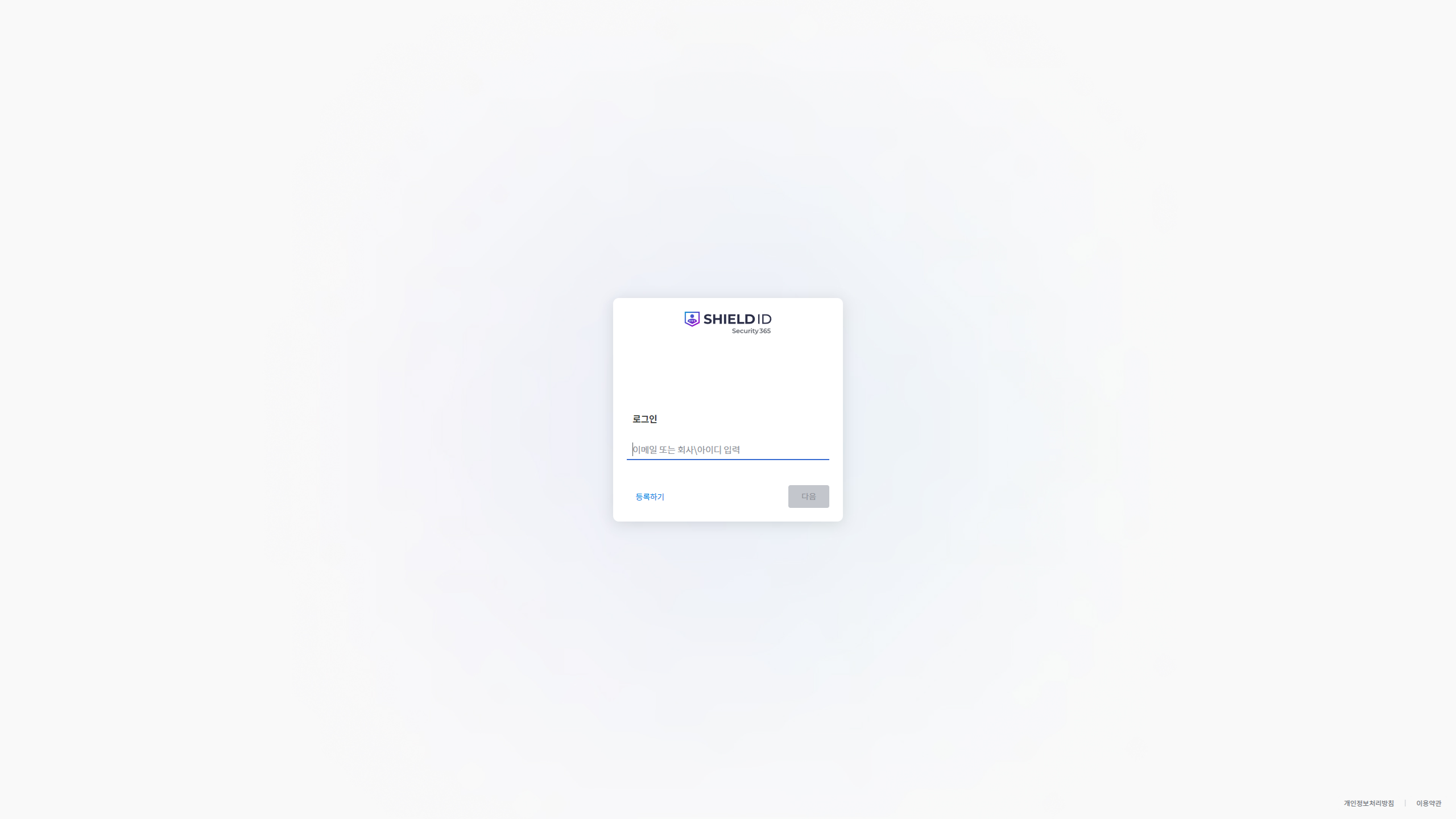 | Full Screen Mode Appears on the Main Monitor in Full Screen | login.mode : "msedgeApp", "login.fullScreen" : "use" |
security365 account integration
- When logging in with SHIELD ID, if there is no document security account (SCI server) information registered for that account, the account linking process will proceed as shown below. Each guidance screen is3-minute timeoutIf this is applied and the notification window is not closed for 3 minutes, it will automatically close and proceed to the next step.
| User Screen | Content | Note |
|---|---|---|
| Single Sign-On (SHIELD ID) | microsoft id/pw authentication |
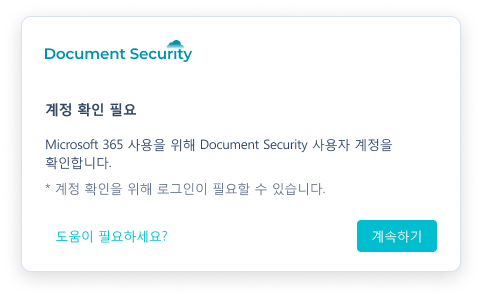 | If there is no sci account linked to the completed SHIELD ID after proceeding with the unified login, display a notification window. | If there is no connected information, try the items under the ID that successfully authenticated with SHIELD ID. 1. Check user on sci server with full account information 2. User Check on sci Server After Removing Domain Information |
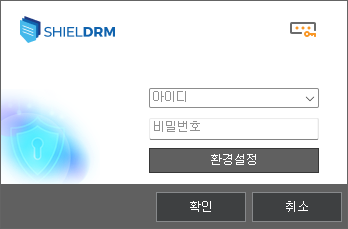 | Follow the document security login procedure. | Document security login in progress If there is no automatic login/SSO, the document security login screen will be displayed, and after completing the document security login, you will move to the screen below. |
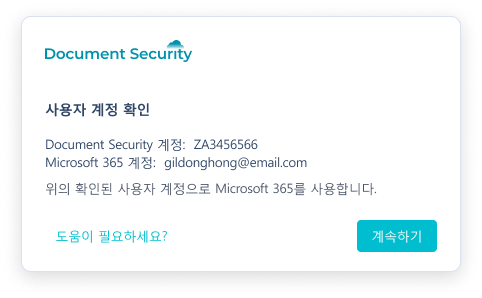 | SHIELD ID and document security authentication successful account information output and connection guide screen | After logging in, if the SHIELD ID of the document security account and the already issued token are different, there is a possibility that the existing token will be deleted and the account linked to the SHIELD ID will be registered as the currently logged-in document security account. e.g. When multiple users log in to the same equipment, such as a conference room. |
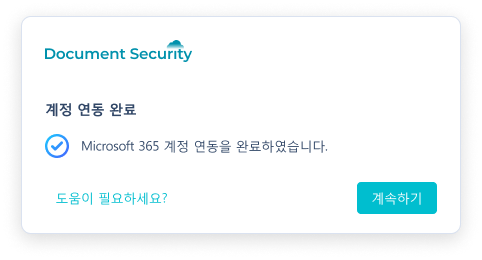 | Completion Notification Screen for Registering sci Users in SHIELD ID |
Customizing the SHIELD ID Unified Login Page
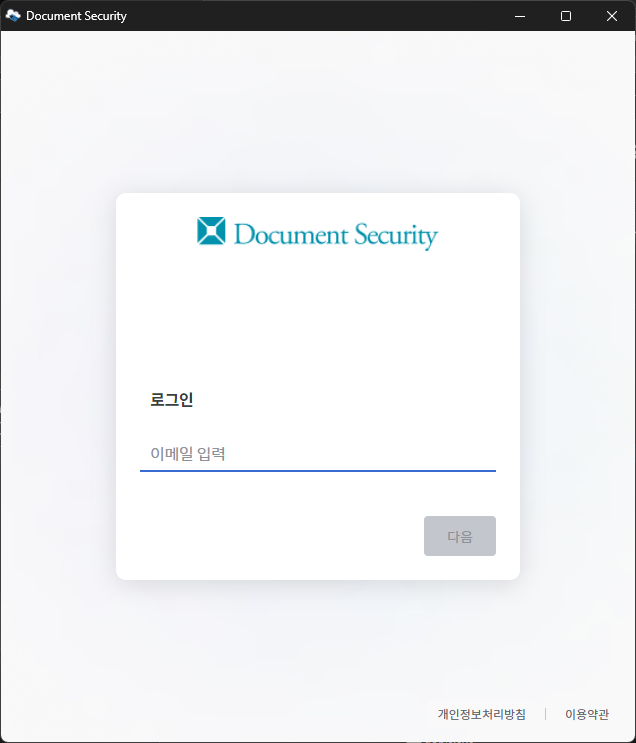
- To set up the screen for the site, it is necessary to configure the relevant policies in the idp service.
- Reference| ⚠️ This material is restricted access.
- It is necessary to set the value of the extra policy among the DS_MIP_INIT policies.
- Policy Example
{
  "s365_url": "https://devlogin.softcamp.co.kr/",
  "s365_app_id": "4e3b53b2-a18c-4d78-8de1-b9fcada4077c",
  "s365_app_name": "shieldrm-svc",
  "s365_app_secret": "JyktLCInJ------------------------JycsJyQ",
  "s365_log_url": "https://log.security365.com/log/event",
  "shieldrm_url": "https://ssevtr.softcamp.co.kr/",
  "extra": "3CJ55MSE-xLO7Sxt4-qUBKzbcs-XP2cgGEq",
  "tid" : "4d615af9-1d04-4bcc-8e6f-c6b6fe3110dd",
  "runMode": "s365"
}