Conditional Policy Management Page
This is a menu for managing the login authentication policies that can be applied to each service.
View/Search Authentication Policy
-
You can check the registered authentication policies.
- You can specify a service to check the registered authentication policies for each service.
-
You can check the priority of the policy, policy name, policy description, access policy settings, and the services that the policy is applied to.
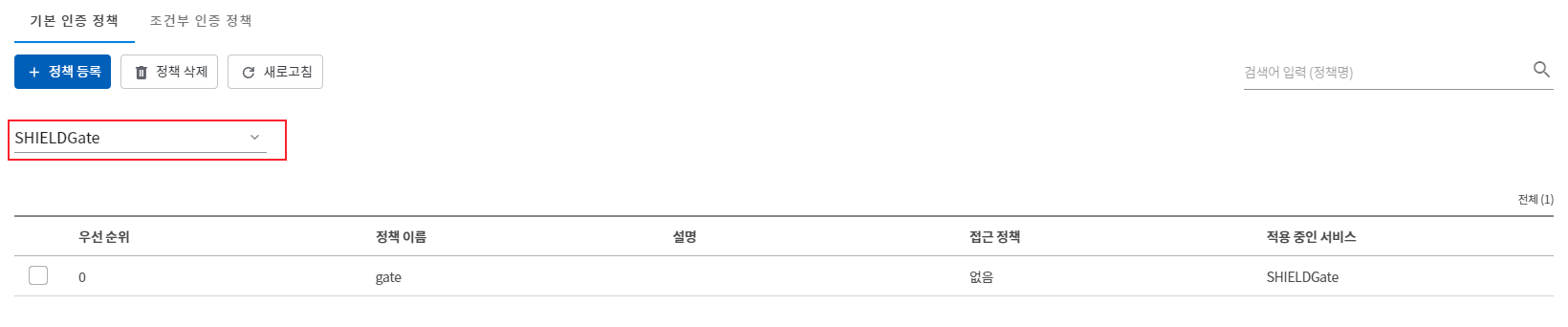
- After specifying the service you want to query, you can change the priority of the policy through drag and drop. (Changing priority is not possible during a full query.)
- You can enter the policy name in the search box at the top right to search.
Registration of Authentication Policy
-
top
정책 등록You can add a policy by clicking the button. -
Basic Authentication Policy
- You can allow or block access for specific users for each service.
- Enter policy name (required), description (optional), service (required), members (required), access policy (required).
- Enter the services and members to which the authentication policy will be applied.
- Users can add users and groups registered in the user and group menu to members.
- Select an access policy to choose whether to allow or block access.
- If designated as "Access Blocked," access will be blocked.
- If designated as "Allow Access," access will be granted and additional authentication methods can be selected.
- OTP authentication: In addition to ID and password authentication, you must perform OTP authentication to access.
- Email verification: In addition to username and password authentication, you must complete email verification to access.
- Not in use: Access can be granted only with ID and password authentication.
- Enter the services and members to which the authentication policy will be applied.
- After completing the settings
추가Click the button.
-
Conditional Access Policy
- You can allow or block access for specific users for each service and apply conditions.
- Enter policy name (required), description (optional), service (required), conditions (required), members (required), access policy (required).
- Enter the services and members to which the authentication policy will be applied.
- Users can add users and groups registered in the user and group menu to members.
- After selecting the service to which the policy will be applied, choose the conditions.
- The condition is __PH_0__.
조건 항목The list of conditions registered for the corresponding service will be displayed in the menu. (For example) If you select the SHIELDrive service,조건 항목A list of conditions created by specifying SHIELDrive in the menu will be displayed. - Multiple conditions can be specified, and you can choose between AND and OR methods.
- AND: The policy will be applied only if all conditions are met simultaneously.
- OR: The policy applies if any one of the multiple conditions is met.
- The condition is __PH_0__.
- Select an access policy to choose whether to allow or block access.
- If designated as "Access Blocked," access will be blocked.
- If designated as "Allow Access," access will be granted and additional authentication methods can be selected.
- OTP authentication: In addition to ID and password authentication, you must perform OTP authentication to access.
- Email verification: In addition to username and password authentication, you must complete email verification to access.
- Not in use: Access can be granted only with ID and password authentication.
- Enter the services and members to which the authentication policy will be applied.
- After completing the settings
추가Click the button.
Authentication Policy Details/Edit
- You can click on the policy you want to check for detailed information.
- You can check the name, description, the services where the policy is applied, the set conditions, members, and the configured access policies.
- You can click the edit icon at the top of the detail page to modify the condition information.
Delete authentication policy
- Select the policy you want to delete and click the policy delete button at the top to delete it.