License Management Page
This is a menu where you can check the plan and license information that the organization is subscribed to.
License Inquiry
- You can check the plan and license information that the organization is subscribed to.
- You can check the number of licenses allocated to your subscribed plan and the subscription status.
- You can automatically assign licenses for the plan.
라이선스 자동 할당Activate to choose one of the two methods.- Licenses are automatically assigned not only to currently active users but also to users who will be activated later.
- Automatically assign licenses only to activated users thereafter.
- Active users are __PH_0__.
사용자You can check in the menu.
- Active users are __PH_0__.
License Assignment and Release
-
Select the plan to which you want to assign the license.
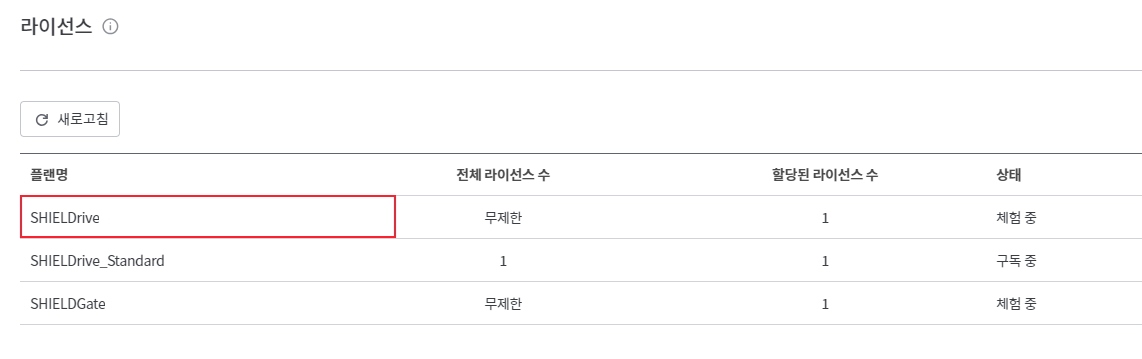
-
License Assignment
라이선스 할당Click the button.- Search for and add the user to whom the license will be assigned.
- License allocation can only be assigned on a per-user basis and is not assigned to groups.
모든 사용자 추가You can assign licenses to all active users by clicking the button.- If the number of users to be assigned exceeds the remaining licenses, the licenses will not be assigned, and an alert indicating that the licenses have been exceeded will be displayed.
-
License Release
- Select the user you want to revoke the license from in the list.
라이선스 해제Click the button to deactivate the license.- Cases where the license is automatically revoked:
- When a activated user is deactivated, the license assigned to that user will be automatically revoked.
- When a user is deleted, the licenses assigned to that user are automatically revoked.
- When a user is deleted through Azure AD synchronization, the assigned licenses are automatically released.