3) Key Management - SCI Server Integration
Use when the Security365 service can access the SCI server.
Description
- Available after company and administrator registration is completed on the Security365 portal.
- Automatically update key data in the key vault using the API of the SCI server in a daily batch.
- The Security365 service requires port 62000 to be open to communicate with the SCI server.
SHIELDRM Admin Web Console
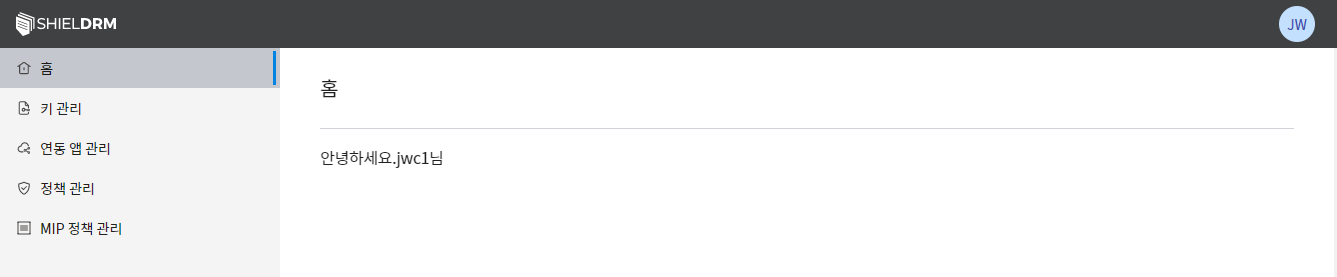
Company Administrator Account Login
- Accessing the SHIELDRM Admin Web Console in the Security365 Management Center
- Login with the administrator account of the registered company
SCI Server CS Console
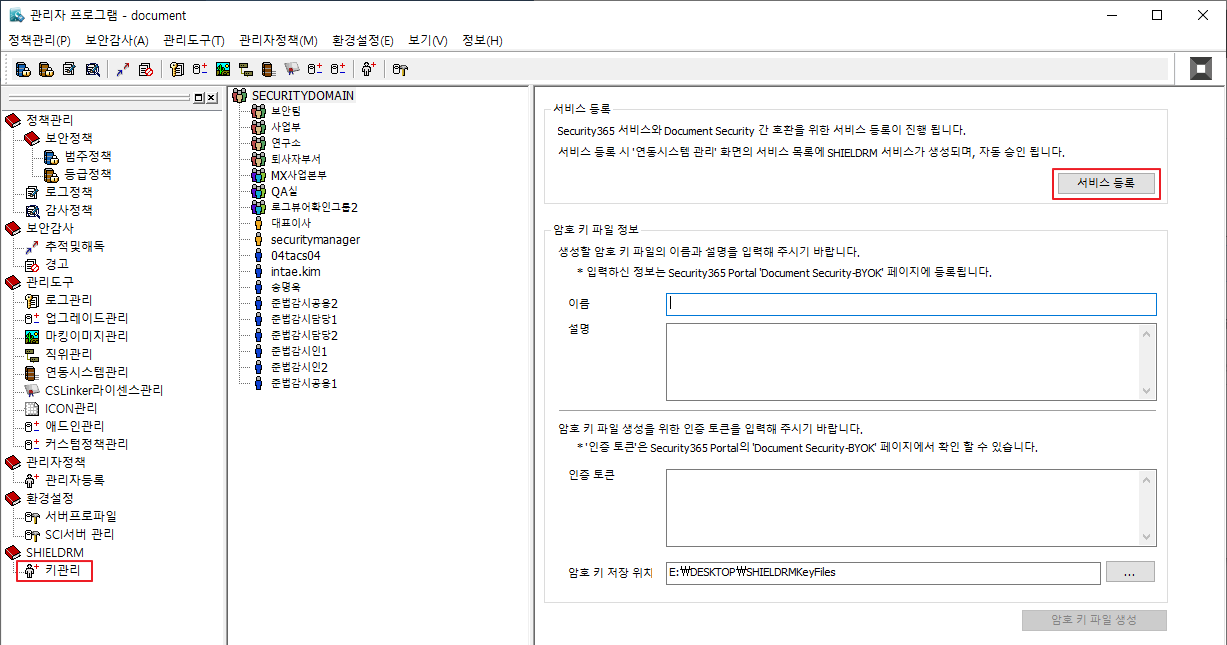
CS Console's Super Administrator Login
- Click the service registration button in the SHIELDRM key management menu.
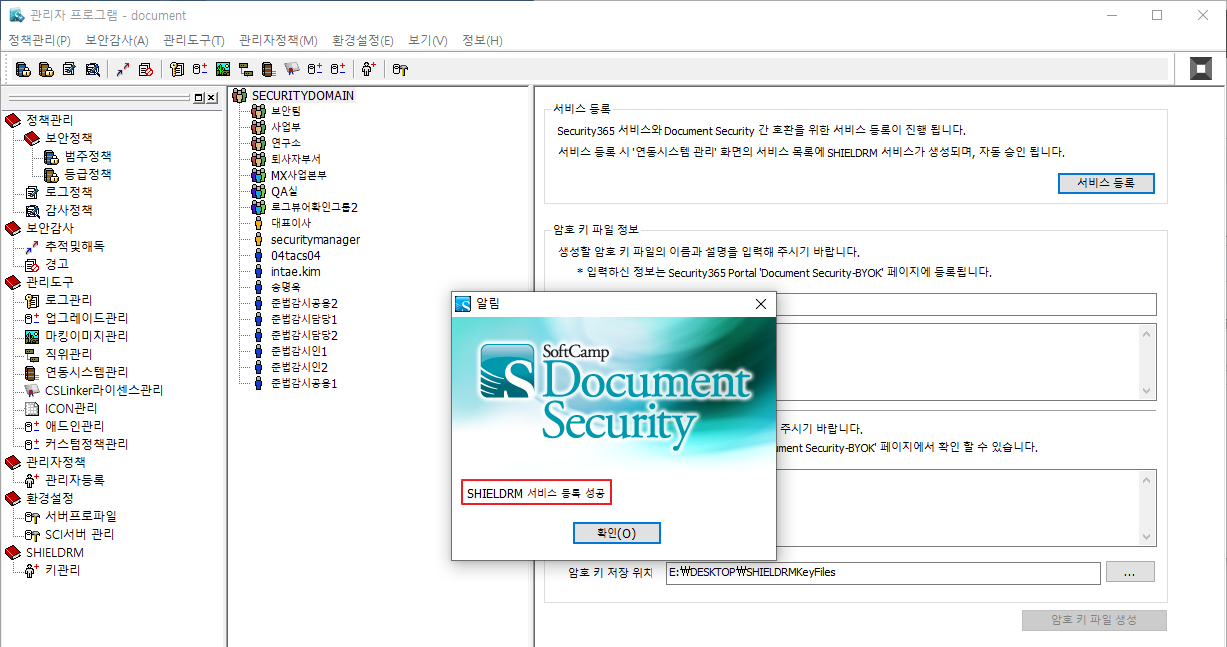
- Check the successful registration message for the SHIELDRM service
- Check registered services in the integration system management menu
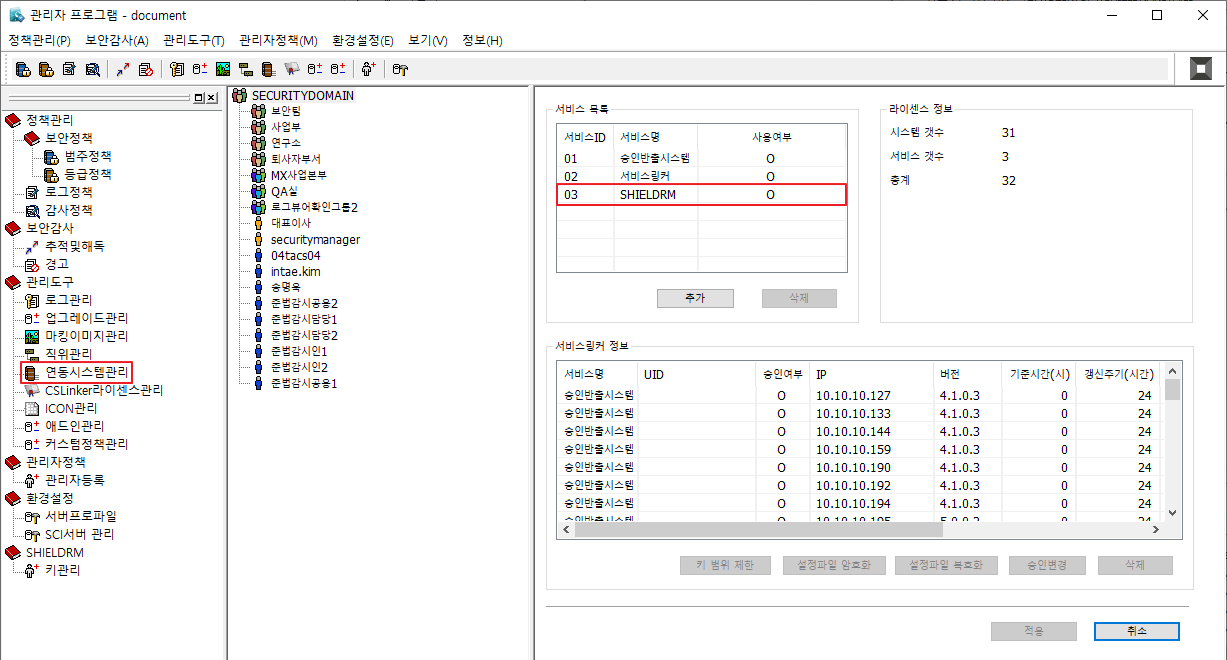
SHIELDRM Admin Web Console
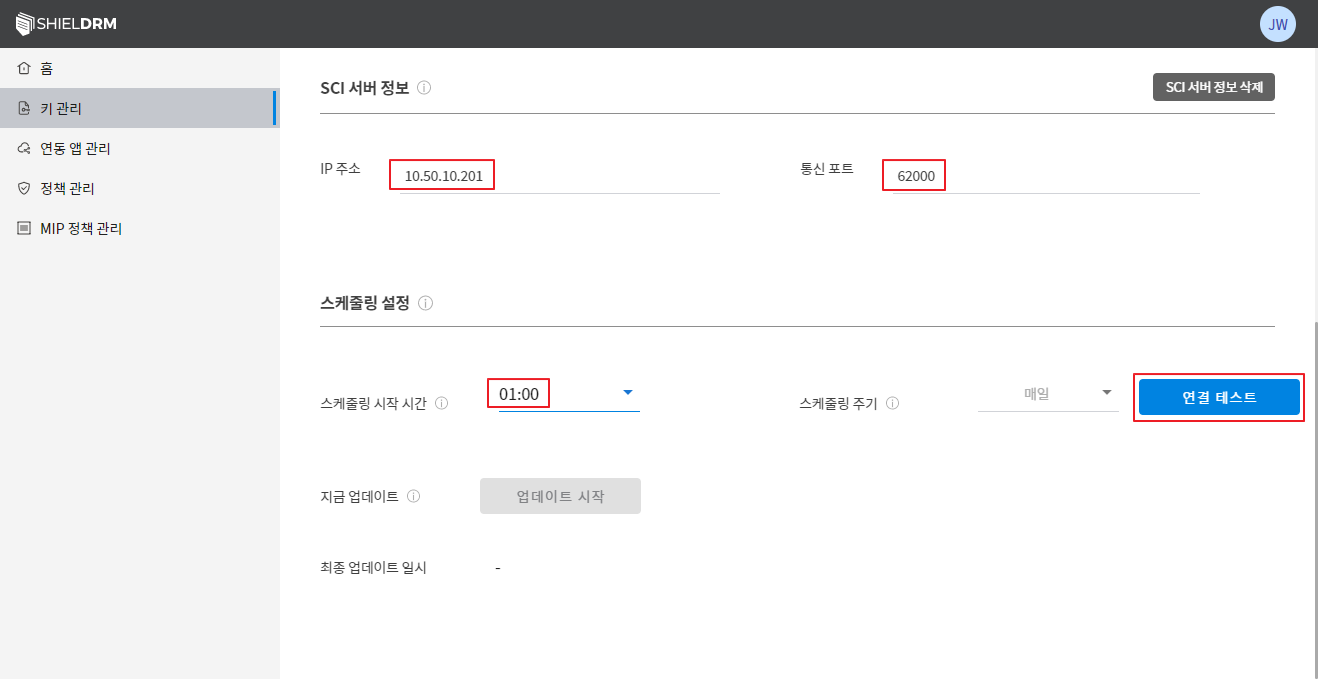
Key Management Menu
- Enter AKS information for the SCI server: IP, PORT
- Scheduling Start Time Selection: Daily Batch Scheduler Execution Time
- The scheduling period is not selected (fixed to "daily").
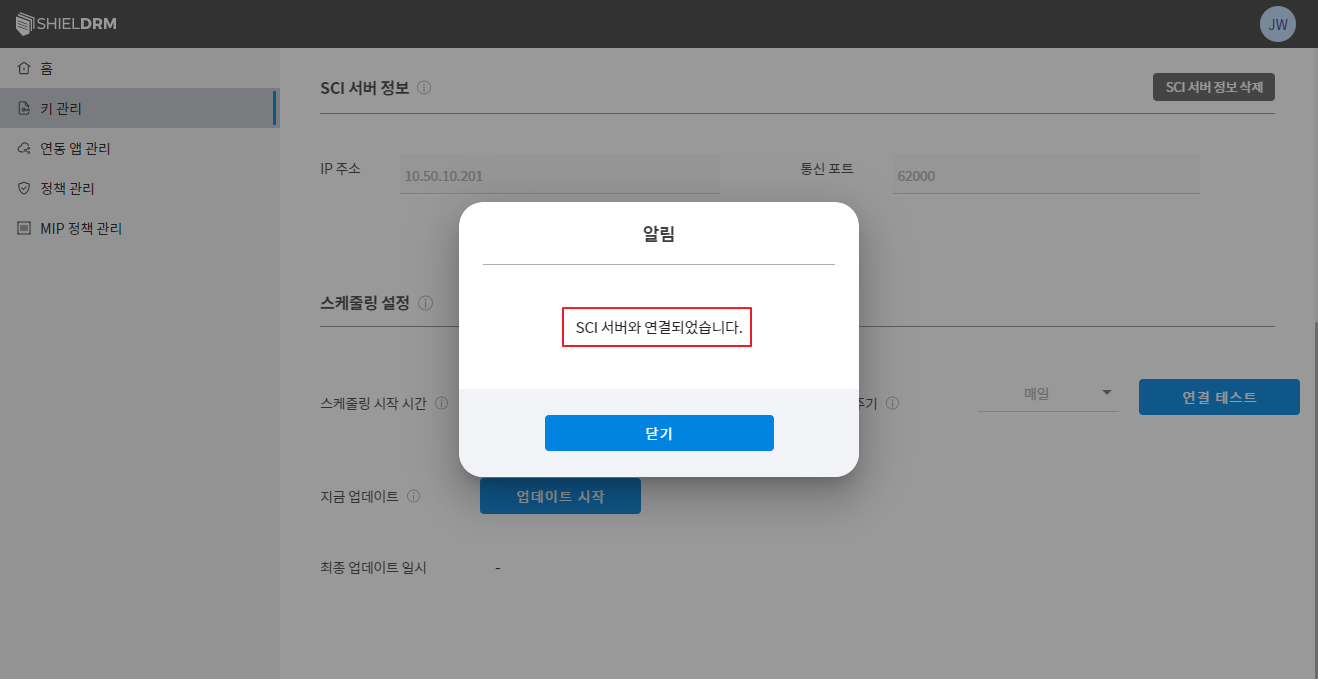
- Click the "Connection Test" button
- Check connection with SCI server
SCI Server CS Console
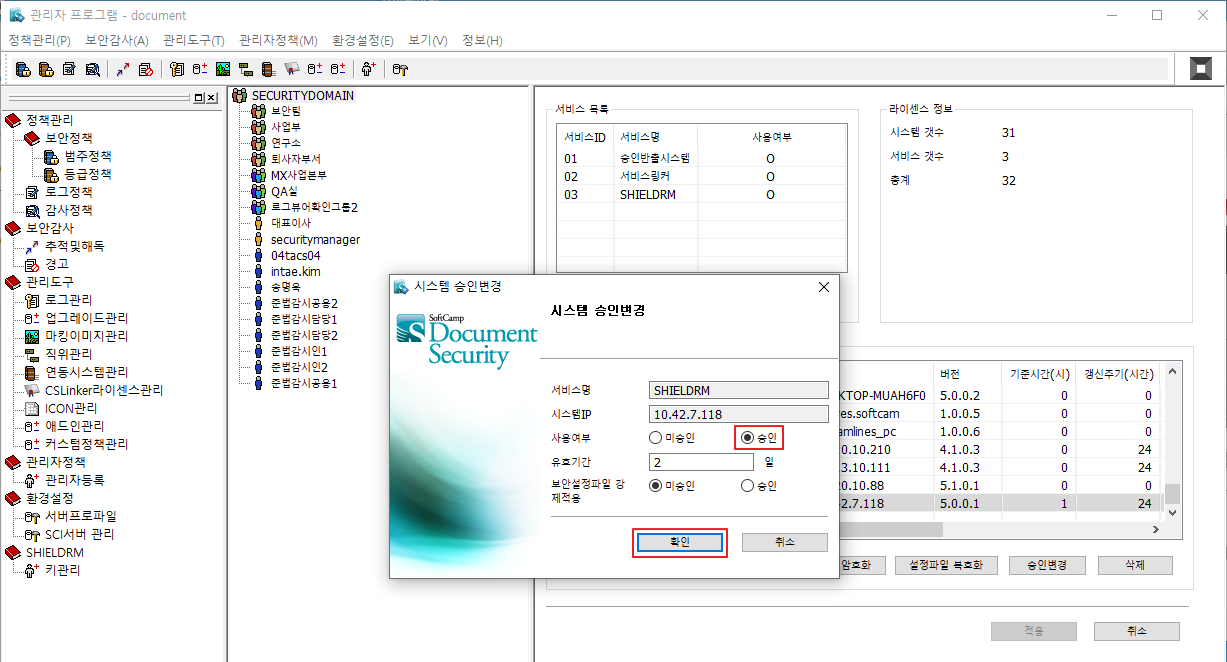
Integration System Management Menu
- After checking the added SHIELDRM connection information, "double click"
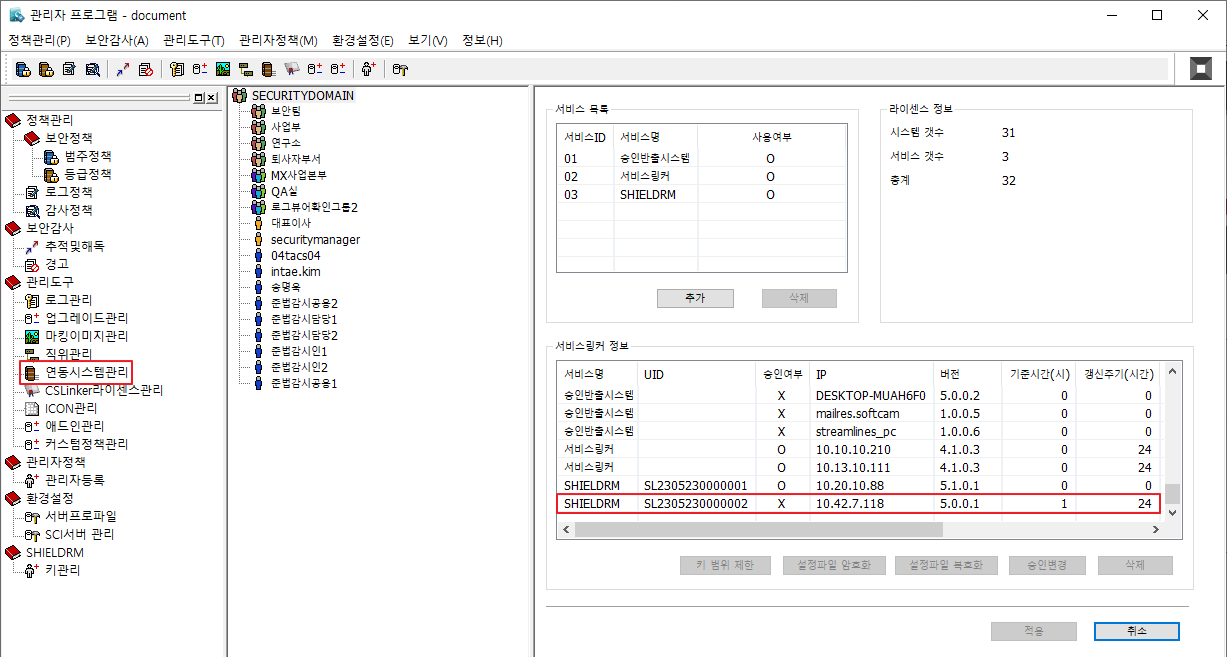
- Change the usage status to "Approved" and check.
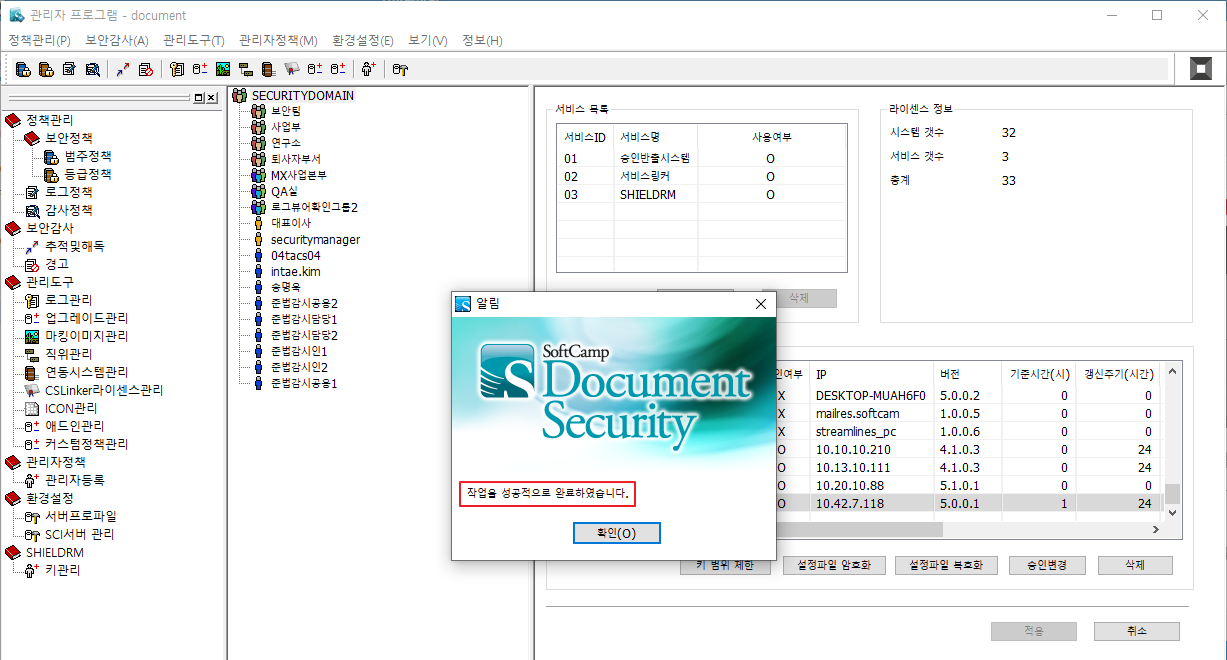
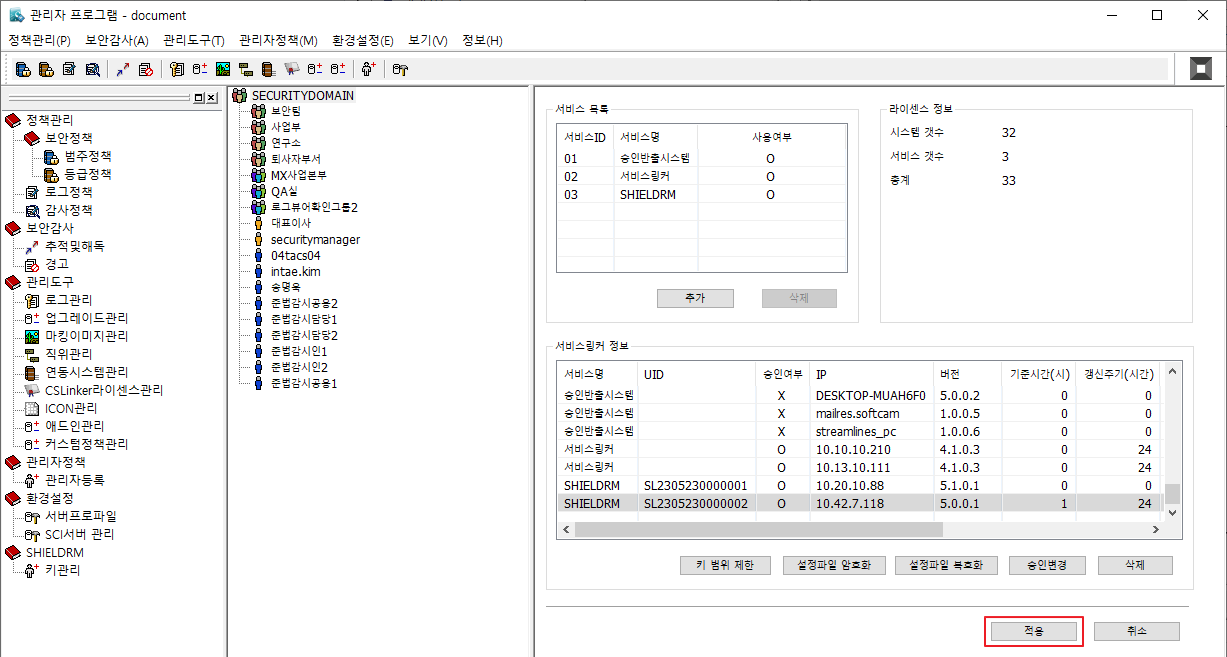
- Click the "Apply" button to save changes.
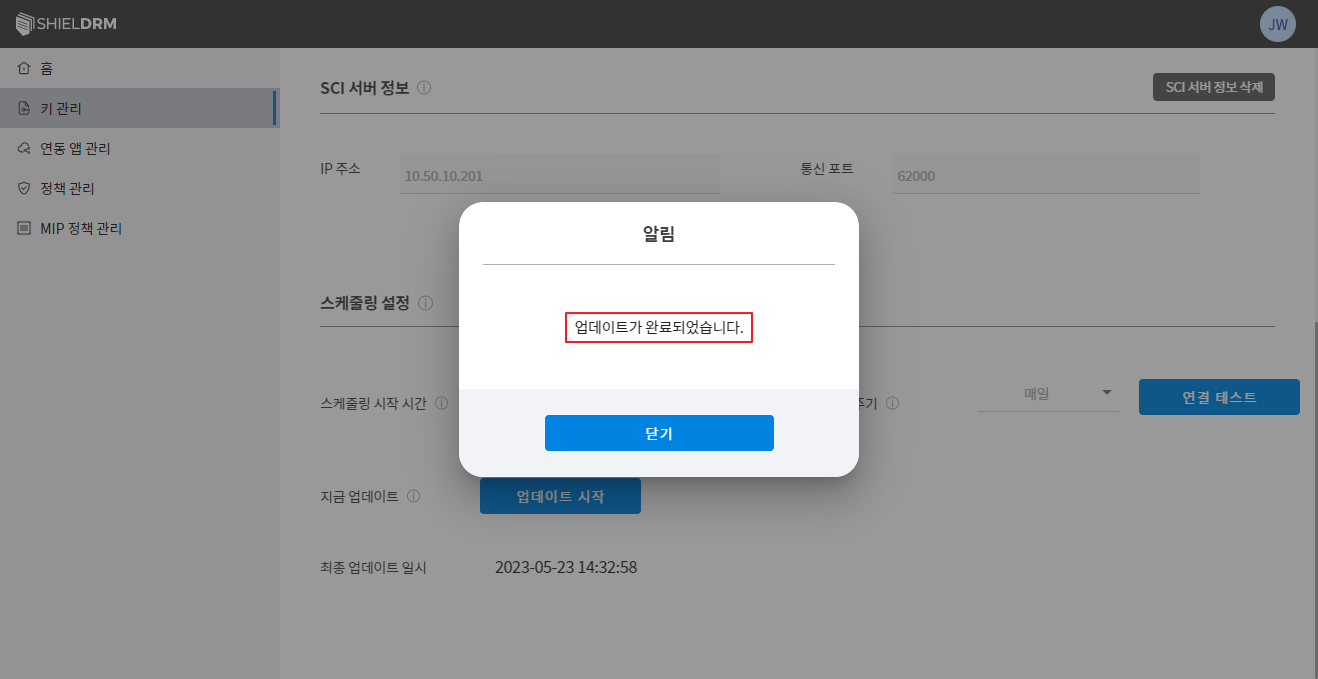
SHIELDRM Admin Web Console
Key Management Menu
- Click the "Start Update" button
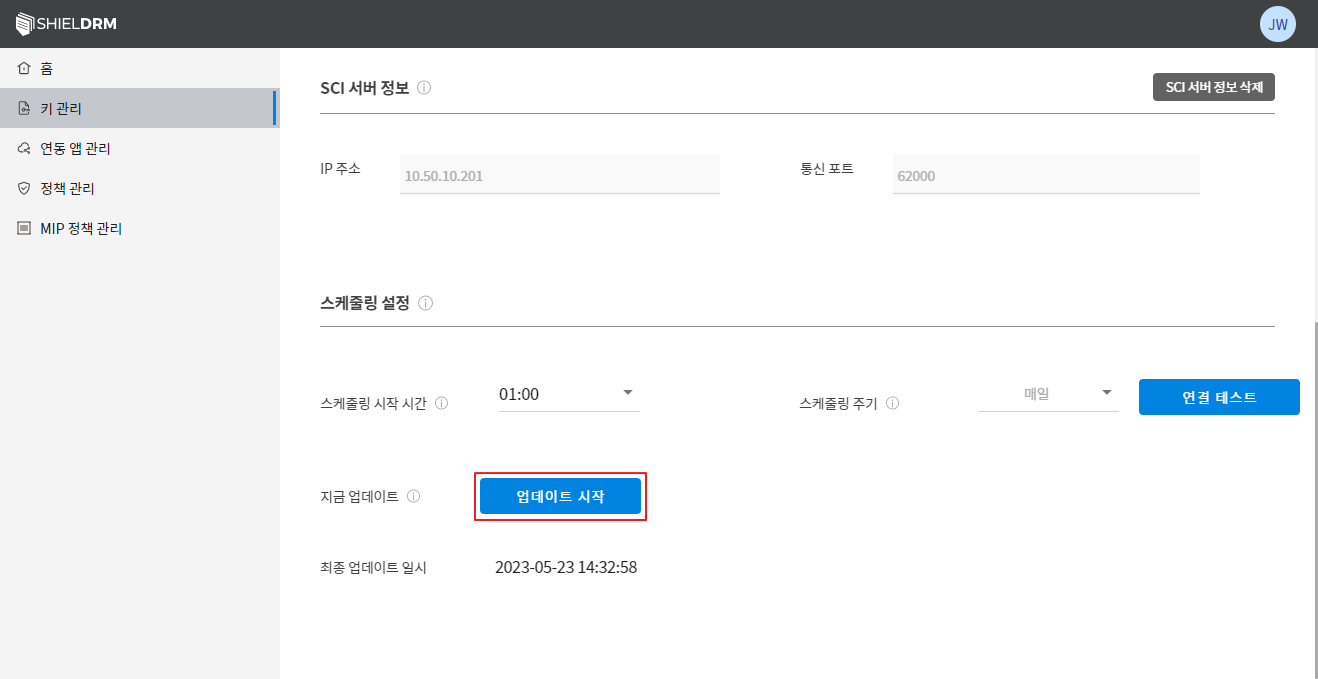
- Update Completion Confirmation